Introducing t0ggles MCP Server: Connect Your AI Assistant To Your Project Boards
Your AI coding assistant already writes code, explains errors, and even generates tests. But when you need to create a task, check what's assigned to you, or update a status, you still have to switch context and manually type it all into your project management tool.
That changes today.
Introducing the t0ggles MCP (Model Context Protocol) Server - a native integration that lets your favorite AI-powered development tools interact directly with your t0ggles boards, projects, tasks, and notes through natural language.
No more tab-switching. No more copy-pasting. Just tell your AI assistant what you need, and it handles the rest.
#What Is MCP And Why It Matters
MCP (Model Context Protocol) is an open standard that allows AI assistants to connect with external tools and services. Instead of building separate plugins for every AI tool, MCP provides a unified protocol that works across Cursor, Claude Code, VS Code (with GitHub Copilot), OpenAI Codex, Opencode, and more.
For developers, this means your AI assistant can now:
- View your boards and projects without leaving your IDE.
- Create tasks directly from code review discussions or bug reports.
- Search and update tasks while you're working on them.
- Manage notes for documentation and meeting notes.
All through simple, natural language prompts.
#Quick Setup: Three Steps To Get Started
Getting started with t0ggles MCP takes just a few minutes.
#1. Generate An MCP Token
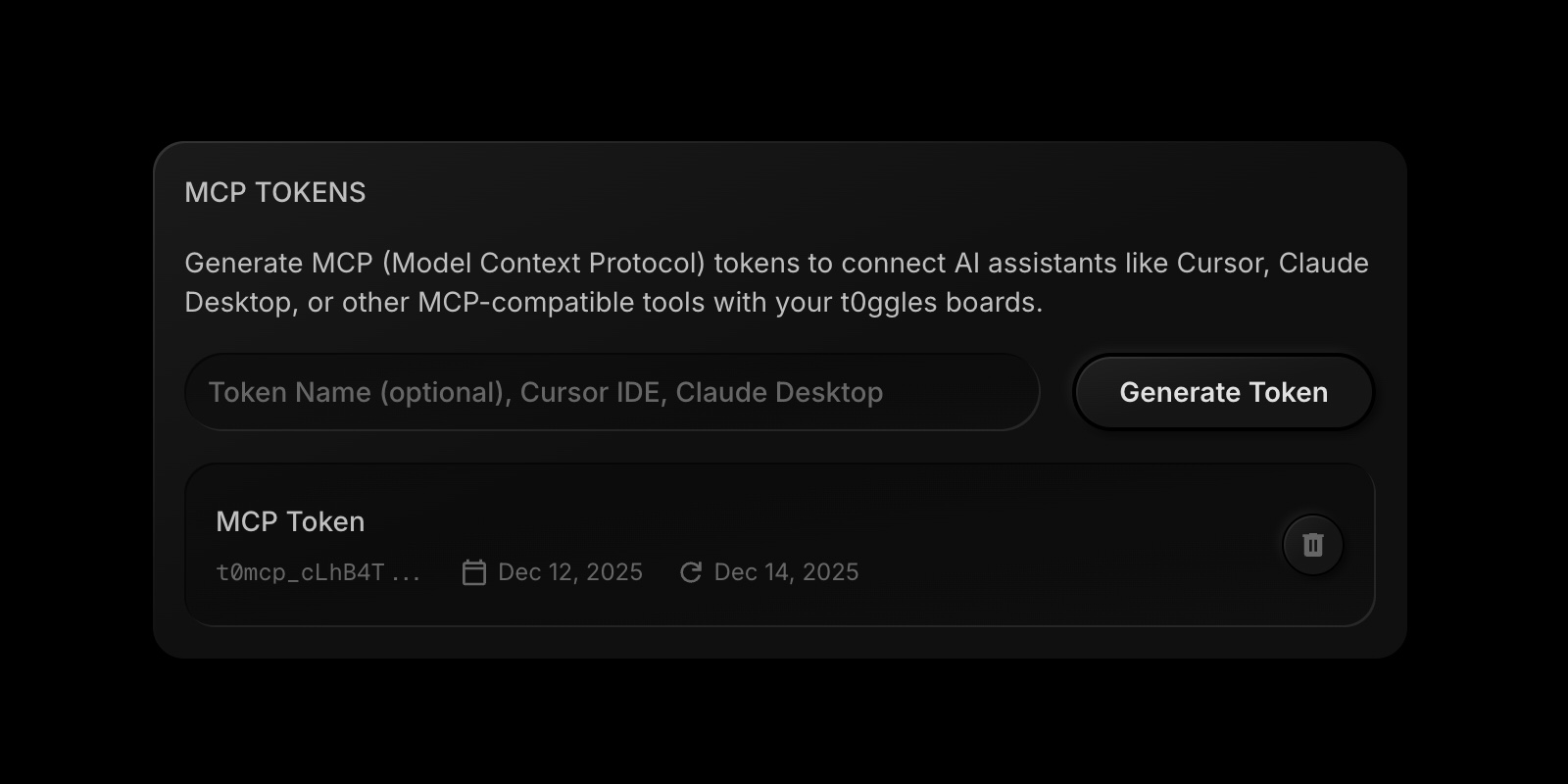
- Go to your Account Settings.
- Find the MCP Tokens section.
- Give your token a descriptive name (for example, "Cursor IDE - MacBook Pro").
- Click Generate Token and copy it immediately - you won't see it again.
Each token is tied to your account and gives access to all boards you own or are a member of. You can create up to 10 tokens and revoke any of them at any time.
#2. Configure Your AI Tool
Add the t0ggles MCP server to your AI tool's configuration. Here's the setup for the most popular tools - Integration Guides.
#3. Start Using Natural Language
Once configured, you can interact with t0ggles using natural language:
- "Show me all my t0ggles boards"
- "Create a high-priority task 'Review API changes' in the Backend project"
- "What tasks are assigned to me in the Marketing board?"
Your AI assistant handles the rest.
#17 Tools At Your Disposal
The t0ggles MCP server provides 17 powerful tools organized by functionality:
#Board & Project Operations
- List boards - See all boards you have access to with their IDs, URLs, and titles.
- Get board details - Retrieve tags, properties, and settings for a specific board.
- List projects - Get all active projects in a board, including the special "OTHER" project.
- Get project details - View a project's AI context, tags, and links.
- List statuses - Get all Kanban columns with colors, types, and order.
- List users - See everyone with access to a board.
#Task Operations
- List tasks - Filter tasks by project, status, or parent task.
- Get task - Retrieve full details including description, comments, and properties.
- Search tasks - Find tasks by title with optional project filtering.
- Get task by URL - Look up a task by its full URL (supports custom domains).
- Create task - Build new tasks with subtasks, custom properties, and automation support.
- Update task - Modify title, status, priority, assignment, dates, and properties.
#Note Operations
- List notes - Browse notes with optional parent folder filtering.
- Get note - Retrieve full note content in Markdown.
- Search notes - Find notes by title.
- Create note - Add new notes or folders with optional icons.
- Update note - Edit title, content, icon, or move to a different folder.
#Real-World Examples
Here's how developers are using t0ggles MCP in their daily workflow:
-
During Code Review - Instead of switching to your browser to create a follow-up task:
"Create a task 'Refactor authentication middleware' in the BACKEND project with high priority and assign it to me. Add tags 'Tech Debt' and 'Security'."
-
Sprint Planning In Your IDE - Get context without leaving your code:
"What tasks are in progress in the API project? How many are assigned to sarah@company.com?"
-
Bug Tracking - When you spot a bug in the codebase:
"Create a high-priority bug task: 'Fix race condition in user session handling' in the BUGS project. Description: Race condition occurs when multiple requests hit the session endpoint simultaneously. See line 145 in auth.ts."
-
Daily Standups - Quick status checks before your morning meeting:
"What tasks did I complete yesterday? What's still in progress?"
-
Documentation - Keep notes alongside your code:
"Create a note titled 'API Rate Limiting Design' in the Technical Specs folder with the following content..."
#Security Built In
We designed the MCP integration with security as a priority:
- Single-view tokens - Tokens are only shown once at creation. Store them securely.
- Instant revocation - Delete any token from your Account Settings to immediately block access.
- Account-bound permissions - Tokens respect your board permissions. You can only access boards you're already a member of.
- Usage tracking - Every token tracks its last used timestamp so you can monitor activity.
- Token limits - Maximum of 10 tokens per account to prevent abuse.
Best practices:
- Use one token per device or tool.
- Give tokens descriptive names like "Cursor IDE - Work Laptop".
- Rotate tokens periodically and revoke unused ones.
- Never commit tokens to version control.
#How MCP Fits Into The t0ggles Ecosystem
The MCP server complements t0ggles' existing features:
- Board Automations handle rule-based triggers; MCP handles on-demand AI interactions.
- Zapier integration connects external tools like email and CRM; MCP connects AI assistants directly.
- GitHub integration links code commits and PRs to tasks; MCP lets you create and update tasks from your IDE.
- AI Task Creation helps when you're typing in t0ggles; MCP brings that power into your development environment.
Together, these tools mean less context-switching and more focused work.
#Get Started Today
The t0ggles MCP server is available now for all users:
- Generate your MCP token at t0ggles.com/account.
- Configure your AI tool using the examples above.
- Start managing tasks with natural language right from your IDE.
For detailed documentation, including all available tools and advanced configuration options, visit the MCP Server documentation.
Your AI assistant can now do more than just write code - it can help you organize your work, too.
#Who Is This For?
See how the MCP Server fits your workflow:
- Task management for AI agents - Let AI agents manage their own tasks on your board, with humans in the loop
- How to give your AI agents a task board - Step-by-step MCP walkthrough: agent users, the task loop, and the handoff to a human reviewer
- t0ggles for AI Orchestration - Coordinate multi-agent AI pipelines
- t0ggles for Prompt Engineering - Manage prompts and AI experiments
- t0ggles for DevOps - Automate infrastructure tasks from your IDE
- t0ggles for Developers - Sprint planning with GitHub integration
Don't Miss What's Next
Get updates, design tips, and sneak peeks at upcoming features delivered straight to your inbox.