Introducing Board Automations In t0ggles
Projects never stop. New bugs appear, due dates shift, recurring client work keeps coming back every month. Until now, someone on your team had to remember to move tasks, set due dates, and spin up the same checklists again and again.
With Board Automations in t0ggles, your board can finally do that busywork for you.
Automations let you define simple rules per board, like:
- "When a task is tagged
Bug, assign it to our dev lead and set priority to High." - "When status changes to
Review, auto-assign a reviewer and set due date to 3 days after." - "On the 1st of every month, create a
Monthly Client Reporttask in the Acme project."
Set it up once, and t0ggles keeps your workflow flowing.
#What Are Board Automations
Board Automations live inside Board Settings → Automation. Each automation is a self-contained "rule card" that defines:
- A Trigger - when the rule should run.
- A Scope - whether it applies to the whole board or a specific project.
- Optional Conditions - which tasks should be affected.
- One or more Actions - what should happen to those tasks.
You can create multiple automations per board. They are easy to scan and toggle on/off, just like compact mini-workflows attached to your board.
If you've ever thought "I do this same thing on every task with this tag," that's exactly what automations are designed to handle.
#Two Types Of Automations
t0ggles supports two simple but powerful automation types: Task-based and Schedule-based.
#Task-Based Automations: React To Changes On Tasks
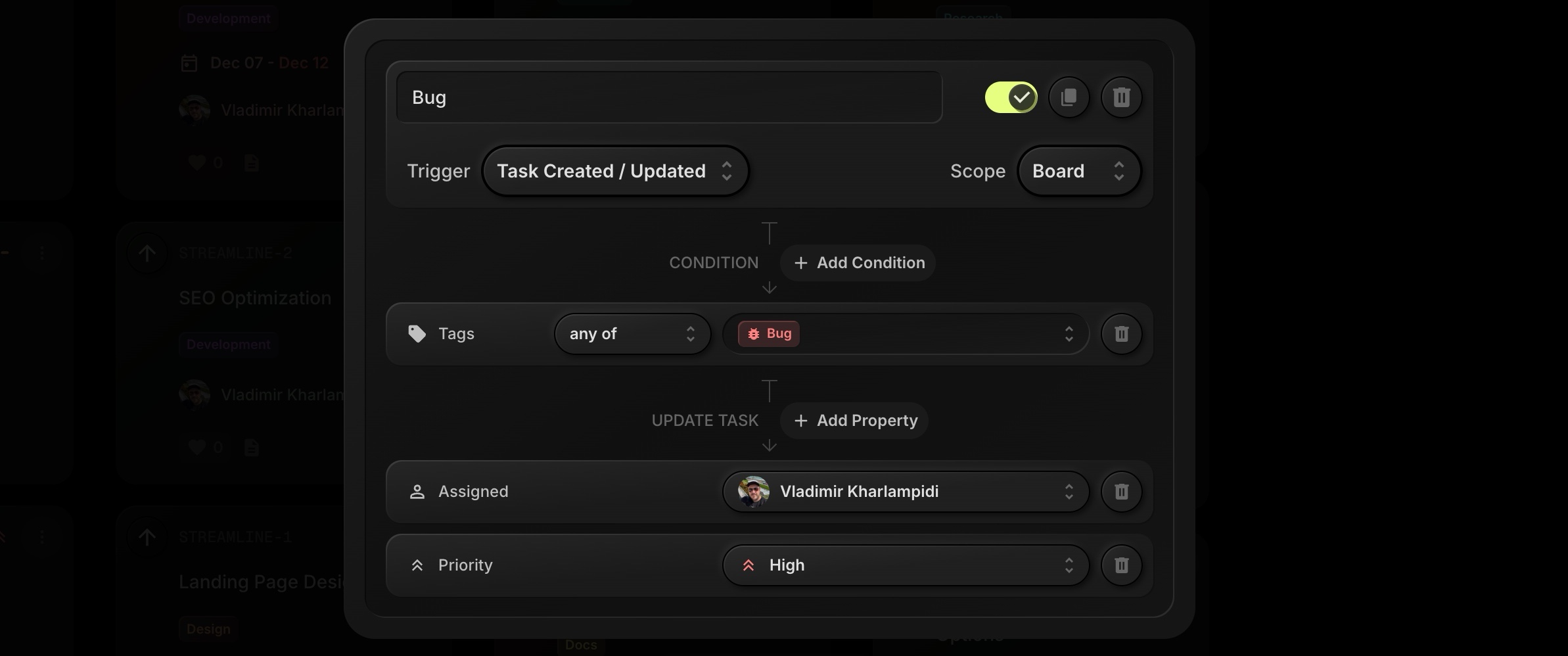
Task-based rules use the Task Created / Updated trigger. They run whenever a task is created or when some of its properties change.
You can combine conditions like:
- Status - for example, when a task moves into
Review. - Tags - for example, when the
Bugtag is added. - Assigned - for example, when a task is assigned to a specific user.
- Priority or board Properties - using your custom fields.
Then you decide which properties should be updated when the rule matches:
- Assign or reassign the task.
- Change priority.
- Move it to a different status/column.
- Add or adjust tags.
- Set Start Date and Due Date, including relative offsets like "3 days after".
Because it's all per-board, every board can have its own automation style: a product development board, a client agency board, an internal operations board - each can behave differently without affecting the others.
#Schedule Automations: Create Recurring Work
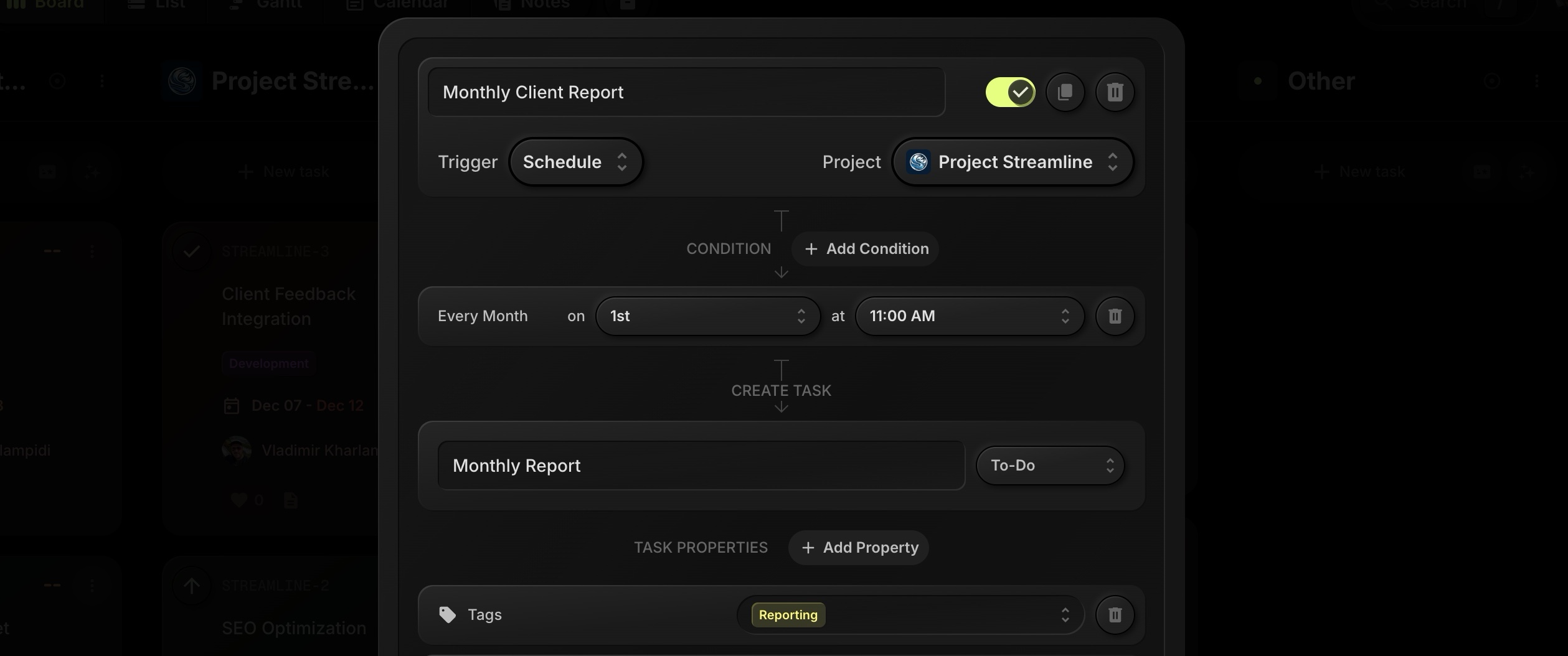
Schedule-based rules use the Schedule trigger. Instead of reacting to a task, they run on a fixed schedule and typically create new tasks.
You can configure:
- Frequency (for example: every month).
- Day (for example: on the 1st).
- Time (for example: at 11:00 AM).
- Target Project where the task should be created.
Then you define what the recurring task should look like:
- Title and initial Status.
- Tags (e.g.
Reporting). - Start date and due date, using relative offsets (for example, start immediately and due 3 days later).
- Other properties like assignee and priority.
This is perfect for things like:
- Monthly client reports.
- Weekly standups.
- Regular maintenance and QA checks.
#Real Examples Of Automations You Can Build Today
To give you a feel for what's possible in v1, here are a few concrete setups (these directly match the UI you already have).
#Auto-Assign Bugs To The Right Person
You can create an automation called "Bug":
- Trigger: Task Created / Updated
- Scope: Board (or a specific project for your app)
- Condition: Tags - any of -
Bug - Update Task:
- Assigned → your dev lead
- Priority → High
Result: every time a task is created or updated and gets the Bug tag, it's automatically routed to the right person with the right priority. No manual triage required.
#Assign A Reviewer When Tasks Reach Review
Another common pattern is "review queues". Create an automation such as "Assign Reviewer":
- Trigger: Task Created / Updated
- Scope: Board
- Condition: Status - any of -
Review - Update Task:
- Assigned → your reviewer
- Due Date → 3 days after
Whenever a task hits your Review column, t0ggles assigns it to the reviewer and sets a realistic due date. Review queues stay visible and accountable without someone playing traffic cop.
#Generate Monthly Client Reports Automatically
For client work, there's always recurring reporting. You can turn that into a schedule automation like "Monthly Client Report":
-
Trigger: Schedule
-
Project:
Project Streamline(for example, your client project) -
Condition: Every Month on
1stat11:00 AM -
Create Task:
- Title:
Monthly Report - Status:
To-Do
- Title:
-
Task Properties:
- Tags:
Reporting - Start Date: 0 days after
- Due Date: 3 days after
- Tags:
Now, every month on the 1st, t0ggles will create a fresh "Monthly Report" task for that project with all the right metadata.
#How To Set Up Your First Automation
If you're already using t0ggles for multiple projects on a single board, you'll probably get value from automations in under a minute.
Here's a quick starter recipe:
-
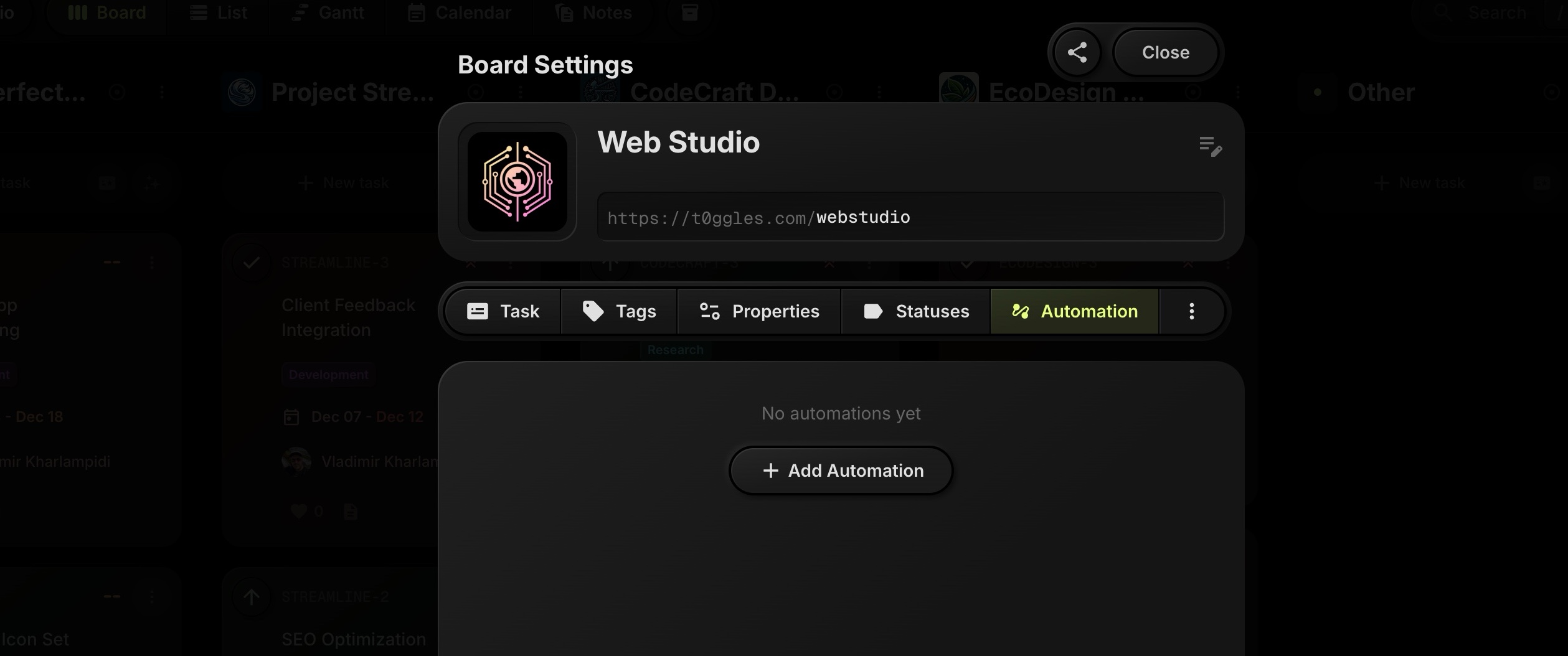
Open Board Settings on your main board.
-
Go to the Automation tab.
-
Click + Add Automation.
-
Give it a clear name like "Bug Routing".
-
Set Trigger to
Task Created / Updated. -
Add a Condition:
- Field: Tags
- Operator: any of
- Value:
Bug
-
Under Update Task, add:
- Assigned → your dev lead
- Priority → High
-
Turn the automation toggle on.
From now on, tagging a task as Bug will immediately route it to the right person.
You can build more powerful combinations by adding additional conditions (for example, only for specific projects or only when priority is already set to Medium/High).
If you want to see all details and screenshots, you can check the Board Automations docs.
#Why This Fits Perfectly With t0ggles
t0ggles already gives you:
- Multi-project boards so you don't have to juggle 10 tabs.
- WIP limits to prevent overload on individual statuses.
- AI task creation to bootstrap new projects quickly.
- Board templates and project templates for reusable setups.
- Public boards and submissions to involve clients and communities.
Board Automations tie these pieces together. Instead of manually reacting to every new task or status change, you define a handful of clear rules and let the board handle the routine work.
It stays true to the t0ggles philosophy:
- Fast and modern UI.
- No over-engineered, Zapier-style complexity.
- Just enough power to keep your workflow moving with minimal friction.
#What's Next For Automations
This is just v1 of Board Automations. We're already exploring ideas like:
- More date-aware triggers (for example, "X days before due date" or "when overdue").
- Inactivity-based rules (for example, "if a task stays in
In Progressfor 10 days, tag it asStuckand assign to a PM"). - Deeper integration with AI tasks for generating subtasks or checklists automatically.
If you have automations you'd love to build but can't yet, we'd really like to hear about them. Your feedback will directly shape what comes next.
#Start Automating Your Boards Today
Board Automations are available now on all t0ggles boards.
Open any board, head to Board Settings → Automation, and create your first rule to:
- Route bugs to the right people.
- Keep review queues moving.
- Generate recurring work for clients.
Let t0ggles handle the repetitive stuff so your team can focus on the real work. For the bigger picture, including what to automate first and what to leave to people, read our guide to project management automation.
#Who Is This For?
See how board automations fit your workflow:
- t0ggles for DevOps - Automate infrastructure and deployment tasks
- t0ggles for No-Code - Build automated workflows without writing code
- t0ggles for AI Orchestration - Automate AI pipeline coordination
- t0ggles for Data Science - Automate recurring data workflows
Don't Miss What's Next
Get updates, design tips, and sneak peeks at upcoming features delivered straight to your inbox.