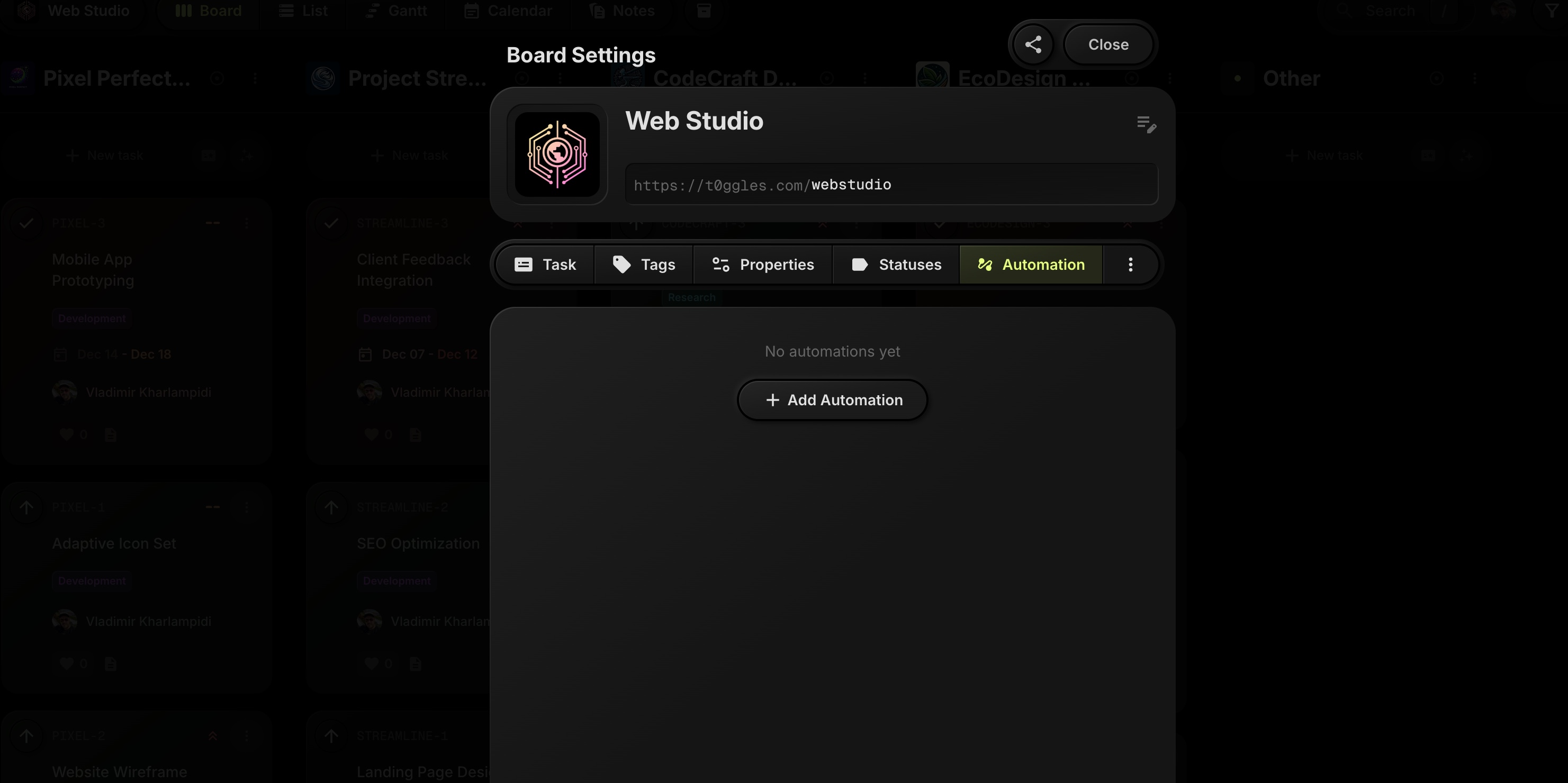
Today we are introducing Board Automations - lightweight rules that keep your boards moving without manual work.
Automations live in Board Settings → Automation and are configured per board. Each rule has a Trigger, optional Conditions, and Actions that update or create tasks.
#Task Based Rules
Use the Task Created / Updated trigger to react when tasks change.
You can add conditions based on:
- Status
- Tags
- Assigned user
- Priority
- Board properties (custom fields)
Then define what should happen:
- Assign or reassign the task
- Change status
- Add tags
- Set start date and due date (including relative offsets)
- Update priority
Examples:
- When tag is
Bug→ assign a specific developer and set priority to High. - When status moves to
Review→ assign a reviewer and set due date to 3 days after.
#Schedule Rules
Use the Schedule trigger to create recurring work.
Configure:
- Frequency (for example, every month)
- Day and time
- Target project for new tasks
Then define the task to create and its properties (status, tags, dates, assignee, etc.).
Example:
- On the 1st of every month at 11:00 AM → create a
Monthly Client Reporttask in a client project, taggedReporting, due 3 days later.
#Getting Started
Open any board, go to Board Settings → Automation, and click Add Automation to create your first rule.
For a deeper walkthrough and examples, check the docs: Board Settings → Automation or read the full announcement on the blog: Introducing Board Automations In t0ggles.