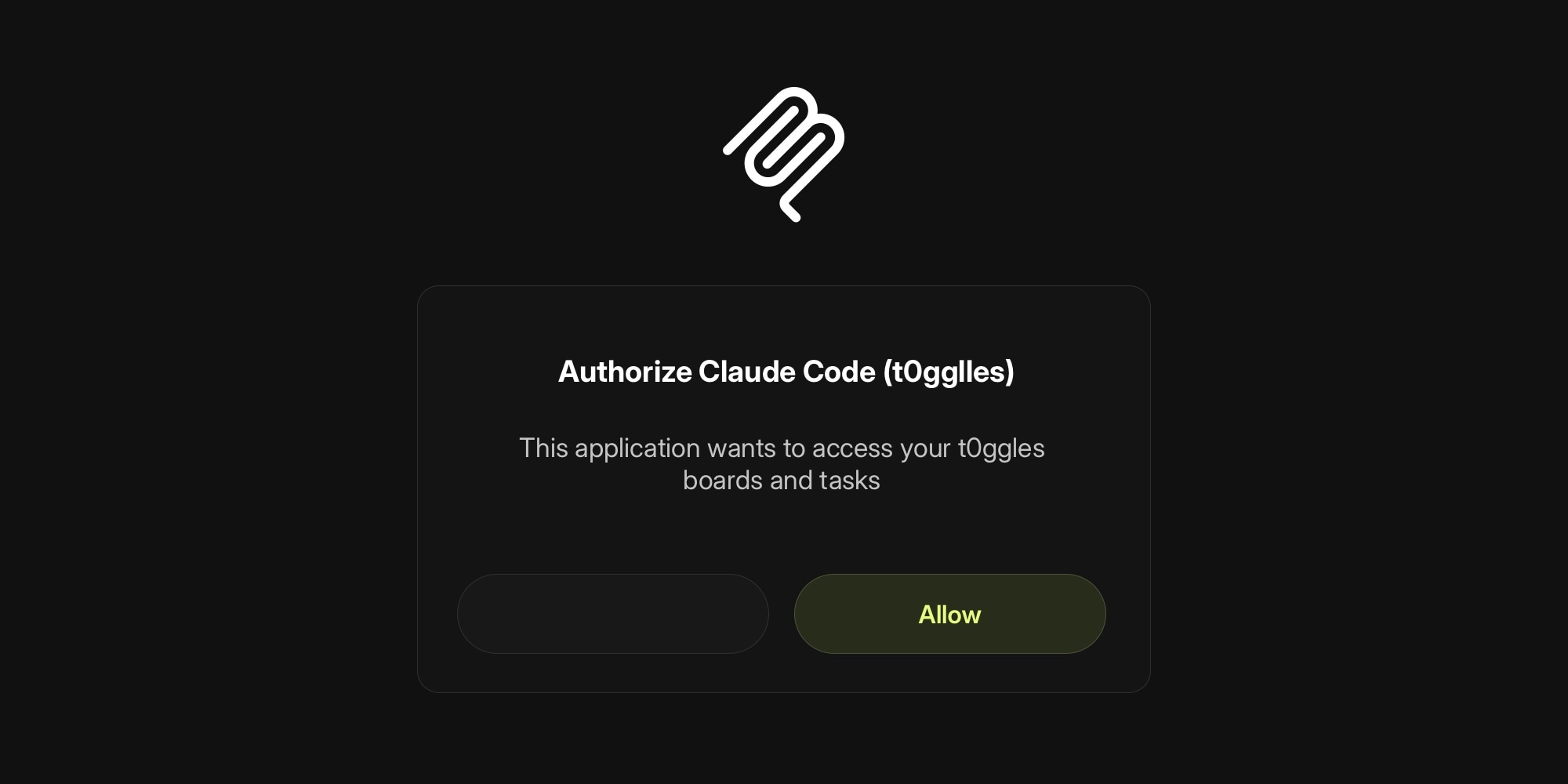
Connecting your AI tools to t0ggles just got a lot simpler. The MCP Server now uses OAuth 2.0 - set the URL, sign in through your browser, and you're done. No more generating tokens, copying them into config files, or worrying about token rotation.
#How It Works
Configure your AI tool with just the t0ggles MCP URL:
{"mcpServers": {"t0ggles": {"url": "https://t0ggles.com/mcp"}}}
When your tool connects for the first time, a browser window opens where you sign in with Google, GitHub, Apple, or email. After you approve access, the tool receives a token automatically and refreshes it in the background. That's it - no manual steps.
#What Changed
- No more token management - OAuth 2.0 with PKCE handles authentication automatically
- Browser-based sign-in - Use the same Google, GitHub, Apple, or email login you already use for t0ggles
- Consent page - You see exactly which MCP client is requesting access before granting it
- 24-hour access tokens - Tokens expire and refresh automatically, reducing security risk
- Token revocation - Access can be revoked at any time
#Setup For Popular Tools
Cursor IDE - Add to ~/.cursor/mcp.json:
{ "mcpServers": { "t0ggles": { "url": "https://t0ggles.com/mcp" } } }
Claude Code - Run in your terminal:
claude mcp add --transport http t0ggles https://t0ggles.com/mcp
VS Code - Add to .vscode/mcp.json:
{ "servers": { "t0ggles": { "type": "http", "url": "https://t0ggles.com/mcp" } } }
Any MCP-compatible tool that supports OAuth 2.0 will work - just set the URL and the tool discovers everything else automatically via standard OAuth discovery endpoints.
#Legacy Tokens
Existing static tokens (t0mcp_ prefix) continue to work. New token creation is disabled. You can still view and delete legacy tokens in Account Settings.
#Why This Matters
MCP bridges the gap between AI assistants and project management. With OAuth 2.0, onboarding is now frictionless - team members can connect their AI tools in seconds without needing admin help or dealing with secrets. This makes it practical to roll out AI-powered task management across an entire team, not just developers comfortable with config files.
For the full list of 39 available MCP tools and detailed setup instructions, check the MCP Server documentation.