Content Calendar Template - Free Board + Copyable Planner
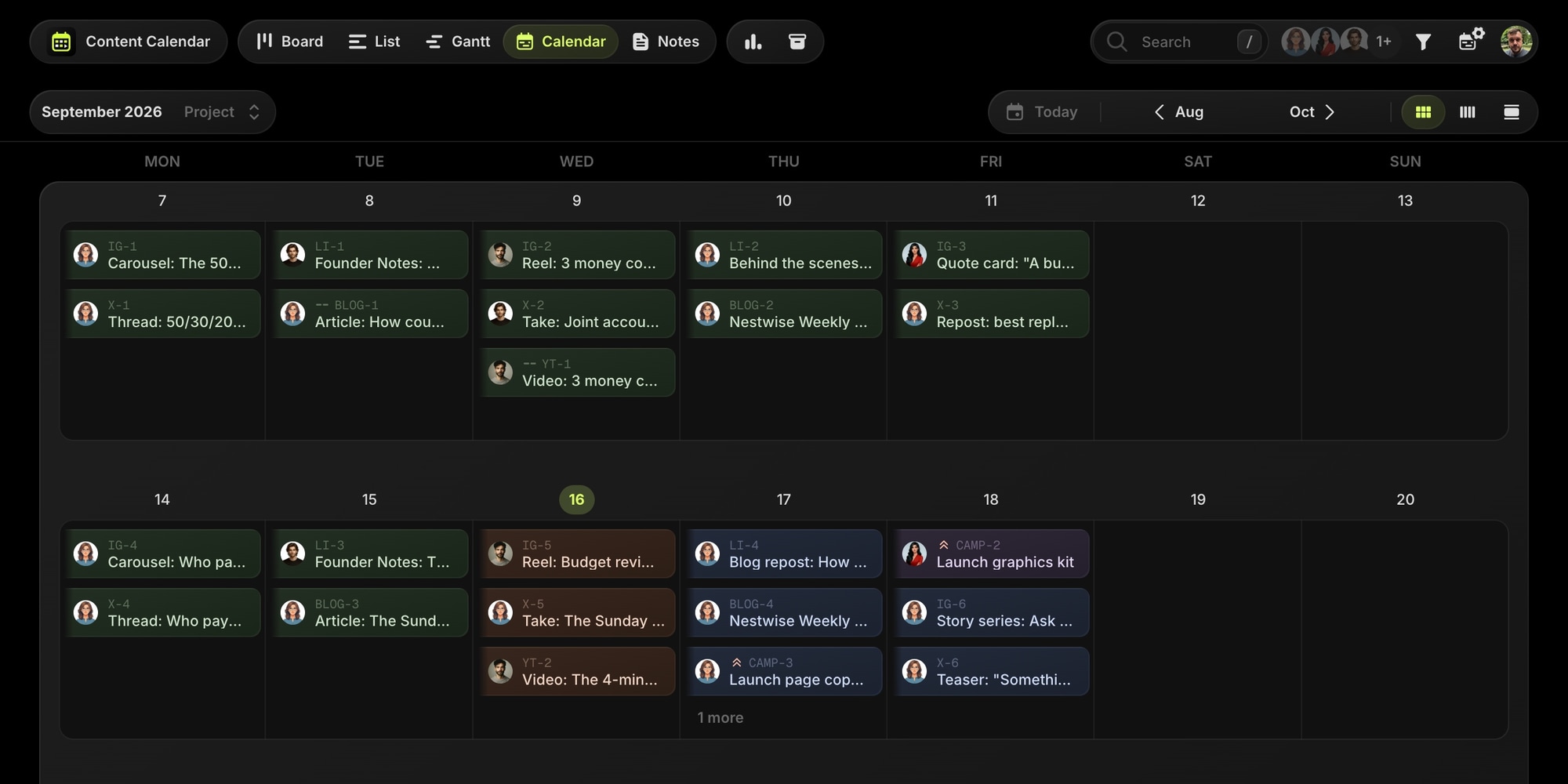
Everything you need to plan a month of content across channels: a weekly planner to copy into a doc or spreadsheet, a post brief template, a YouTube production variant, and a ready-made Content Calendar board with three weeks of dated posts across Instagram, LinkedIn, X, blog and newsletter, and YouTube, plus a launch campaign tracked as a milestone.
Explore the demo board or create your own from the template on the free plan.
#Content Calendar Template (Copy And Paste)
One week, one row per channel, one cell per post. Each cell carries the type, the working title, and the stage. Duplicate the block for the next week.
Content Calendar - Week of [Date]Mon: [Carousel] [title] - [idea / drafting / design / scheduled / published]Wed: [Reel] [title] - [stage]Fri: [Static or Stories] [title] - [stage]Tue: [Founder post] [title] - [stage]Thu: [Team or product post] [title] - [stage]XMon: [Thread] [title] - [stage]Wed: [Take] [title] - [stage]Fri: [Repost of the week's best] - [stage]Blog and NewsletterTue: [Article] [title] - [stage]Thu: [Newsletter #] [title] - [stage]YouTubeWed: [Video] [title] - [stage]Campaign this week: [launch, promo, or none]Pillar mix: [education / product / founder / behind the scenes / community]Still needs design: [list]
Three rules make this template work:
- Every post has a date before it has a draft. Ideas without a date live in a backlog, not on the calendar.
- Nothing is scheduled while it is still in design. The design column is the risk list for next week.
- One long piece a week is the source. The article or video becomes the carousel, the thread, and a newsletter section. Write the long piece first and the rest of the week is cutting, not writing.
#Post Brief Template
Every post on the calendar gets the same brief, so the designer, the editor, and the person scheduling it all read the same thing.
[Channel] - [Content type] - [Publish date]Goal: [what this post is for - saves, reach, clicks, signups]Hook: [the first line or first frame, word for word]Copy[the draft, or a link to the copy doc]Assets- [image, video, or graphic needed, with size]- [who makes it, by when]CTA: [one action]Notes- [anything the designer or editor needs to know]Results (fill in a week after publishing)- [the one number that matters for this format]- [what to repurpose or repeat]
The one number per format: saves for carousels, completion rate for reels and video, bookmarks for threads, comments for LinkedIn, reads over three minutes for articles, clicks for newsletters.
#YouTube Content Calendar Template
Video has more stages than a social post, so the YouTube version of the calendar tracks production backwards from the publish date. One block per video.
Video: [title]Publish: [date, time]Stages- Idea and angle: [done / date]- Script: [publish minus 7 days]- Film: [publish minus 5 days]- Edit: [publish minus 3 days]- Thumbnail and title options (3): [publish minus 2 days]- Description, chapters, tags: [publish minus 1 day]- Scheduled: [publish minus 1 day]Cuts from this video- Short / Reel 1: [hook] - [date]- Short / Reel 2: [hook] - [date]- Thread or carousel: [angle] - [date]Results after 7 days- Views: [ ] Average view duration: [ ] CTR: [ ]- Best performing cut: [ ]
#The Content Calendar Board Template
The text templates plan a week. The board keeps every week, moves each post through production, and shows the whole month on a calendar across every channel at once.
The template is modeled on a small marketing team running the editorial calendar for a budgeting app: a content lead, a designer, a founder who writes the LinkedIn posts, and a video editor. It ships with three weeks of dated posts across five channels, last week published with results filled in, this week in production, and a product launch next week tracked as a milestone with every launch post linked to it.
#Pre-Built Projects
| Project | Purpose |
|---|---|
| Monday carousel, Wednesday reel, Friday quote card or stories. One task per post | |
| Tuesday Founder Notes, the weekly recurring series, and a Thursday team or product post | |
| X | Monday thread, Wednesday take, Friday repost of the week's best |
| Blog & Newsletter | The weekly article that feeds every other channel, and the Thursday newsletter issue |
| YouTube | One video a week, with the reels cut from it linked through dependencies |
| Campaigns | The launch milestone, the graphics kit, the launch page copy, outreach, and the idea backlog |
Projects are channels, so the board view shows each channel as a column, the calendar view shows every channel on one month, and a single filter shows one channel alone.
#Status Columns
- Idea - has a date and a working title, nothing written yet
- Drafting - copy in progress
- Design - waiting on graphics, video edit, or thumbnail
- Scheduled - loaded into the scheduler or the CMS, publish date set
- Published - live, with results added a week later
#Custom Properties
- Content Type (Select) - Carousel, Reel / Short, Static Post, Story, Text Post, Image Post, Thread, Article, Newsletter, Video, Asset
- Pillar (Select) - Education, Product, Founder POV, Behind the Scenes, Community, so the monthly mix is one filter away
- Copy & Assets (Text) - where the draft and the graphics live
#Tags
- Evergreen (green) - worth republishing in three months
- Promo (orange) - a discount or offer
- Launch (red) - part of the launch campaign
- Trend (yellow) - time-sensitive, publish this week or drop it
- Repurpose (purple) - cut from a longer piece
#Notes
Five notes come with the board: the content pillars with target percentages, the brand voice guide with per-channel rules, hashtag sets, the Friday planning routine, and the post brief template. They live next to the tasks, so the voice guide is one click away when a freelancer writes their first caption.
#Milestone And Dependencies
The launch campaign is a milestone. Every launch-tagged post across every channel belongs to it, so the milestone progress bar is the launch checklist. Task dependencies capture the production order: the graphics kit before any launch post can be scheduled, the launch page before the waitlist email, the YouTube video before the reel cut from it. The Gantt view shows which asset is holding up the most posts.
#How To Use This Template
#1. Create Your Board
Sign up on the free plan and create a new board from the Content Calendar template. Rename the channel projects to match yours, delete the ones you do not publish on, and add one for TikTok or a podcast if you do. Keep the sample content for a week to see how the pieces fit, then replace it with your own.
#2. Put Every Post On The Calendar
Create a task in the channel's project for each post, with the due date set to the publish date. Set the Content Type and the Pillar when you create it. The calendar view becomes the content calendar, all channels on one month, with the project color telling them apart. Drag a post to another day when the plan changes.
#3. Move Posts Through Production
Idea, Drafting, Design, Scheduled, Published. The board view grouped by status shows what is stuck in Design, and the Friday routine in the notes uses that column as next week's risk list. Save the post brief as a task template so a new post is one click with the brief already in the description.
#4. Plan Campaigns As Milestones
Create a milestone for each launch or campaign and link every post that belongs to it. The milestone shows how much of the campaign is published. Add dependencies from the assets to the posts that need them, so a late graphics kit shows up as a blocked post before the publish date arrives.
#5. Record Results Where The Post Lives
A week after publishing, add the one number that matters to the Results section of the post. On the last Friday of the month, filter Published by Pillar and plan the next month from the numbers.
#Best Practices For Content Calendars
#One Project Per Channel, Not One Board Per Channel
Channels on separate boards means five calendars to check and no view of the whole week. One board with a project per channel gives you the single calendar, and focus mode shows any one channel alone when that is what you need.
#Lock The Week On Friday
The sample board plans next week in a 45-minute Friday session: review this week's numbers, check the Design column, fill every slot in the cadence, assign and link. Nothing gets added to next week after that without dropping something else.
#Plan From The Long Piece Outward
The weekly article or video is the source. The Monday carousel, the Monday thread, the newsletter section, and the reel are all cut from it. Dependencies on the board make the order explicit, so the cuts wait for the source instead of being written twice.
#Keep The Pillar Mix Visible
Every post has a Pillar. Filter the month by it and the mix is obvious: if product posts are over a quarter of the calendar outside a launch week, the next month gets more education. The sample board's pillar note sets the targets.
#Let Teammates And Clients Read The Calendar
Share the board with a client or a freelancer as a guest, or make the calendar public. The calendar view is the status report, and it is always current because it is the plan.
#Key t0ggles Features For Content Calendars
- Calendar view - every channel on one month, drag to reschedule
- Custom properties - Content Type and Pillar as filters, not tags you forget to add
- Milestones - a campaign's progress bar from the posts linked to it
- Task dependencies - assets before posts, source before cuts
- Task templates - the post brief, one click per post
- Notes - brand voice, pillars, and hashtag sets next to the posts
- Reminders - a nudge to add results a week after publishing
- AI task creation - paste a month's idea list and get dated tasks
#Frequently Asked Questions
#Try The Template
Copy the weekly planner and the post brief and use them this week. When you want every channel on one calendar, production stages, and the campaign checklist in one place, open the board.
The whole template fits inside the free plan: 5 projects, 100 tasks, and 3 team members are enough for a content calendar with a month of posts across every channel. No card, no trial clock.
View the demo board, create your board from the template, or get started free.
#Related Resources
#Use Cases
- t0ggles for YouTubers
- t0ggles for Content Creators
- t0ggles for Newsletter Creators
- t0ggles for Marketing Teams
- t0ggles for Agencies
#Similar Templates
- Nova Content Studio - Multi-platform content production with sponsor tracking
- Daily Standup - Yesterday, Today, Blockers on a calendar of standups
- Web Innovate Studio - Agency client management
#Documentation
#Further Reading
- New Board Template: Content Calendar
- From Notes To Content Command Center
- Two New Board Templates: Daily Standup and Lesson Planner
Don't Miss What's Next
Get updates, design tips, and sneak peeks at upcoming features delivered straight to your inbox.