- Dashboard
- Workspace
- Projects
- Board Settings
- Project Settings
- Tasks
- Create Task
- Edit Task
- Change Status
- Order Tasks
- Subtasks
- Task Dependencies
- Milestones
- Pin To Top
- Task Templates
- Duplicate Task
- Move To Board
- Create Note From Task
- Archive Task
- Unarchive Task
- Delete Task
- Task Updates History
- Reminders
- Time Tracking
- AI Tasks
- Export Task
- Share Task
- Import Multiple Tasks
- Export Multiple Tasks
- Notes
- Forms
- Comments
- Text Editor
- Account
- MCP Server
- t0ggles Crew
Milestones
Milestones are special tasks that help you track progress toward key project goals. They display a diamond icon and show a progress bar based on linked task completion.
#Understanding Milestones
- Visual indicator: Milestones appear with a diamond icon to distinguish them from regular tasks.
- Progress tracking: A progress bar shows the percentage of linked tasks that are completed.
- Simplified fields: Milestones focus on the goal - they don't have priority, assignee, start date, or tags.
- Flexible placement: Milestones can be moved between columns just like regular tasks.
#Create A Milestone
To create a milestone from an existing task:
- Open the task by clicking on its card to view task details.
- Click the task menu button (three dots) at the top-right.
- Select "Convert to Milestone".
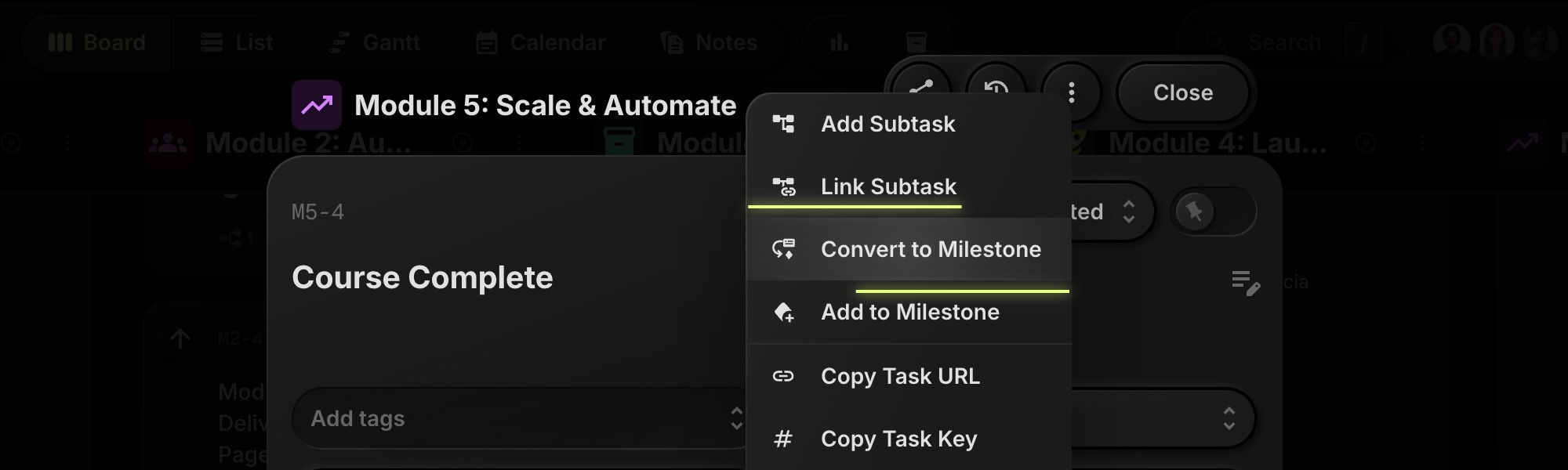
- The task is now a milestone with a diamond icon and progress bar.

Note: Tasks with subtasks cannot be converted to milestones. Unlink or remove subtasks first.
#Convert A Milestone Back To A Task
To convert a milestone back to a regular task:
- Open the milestone to view its details.
- Click the task menu button (three dots).
- Select "Convert to Task".
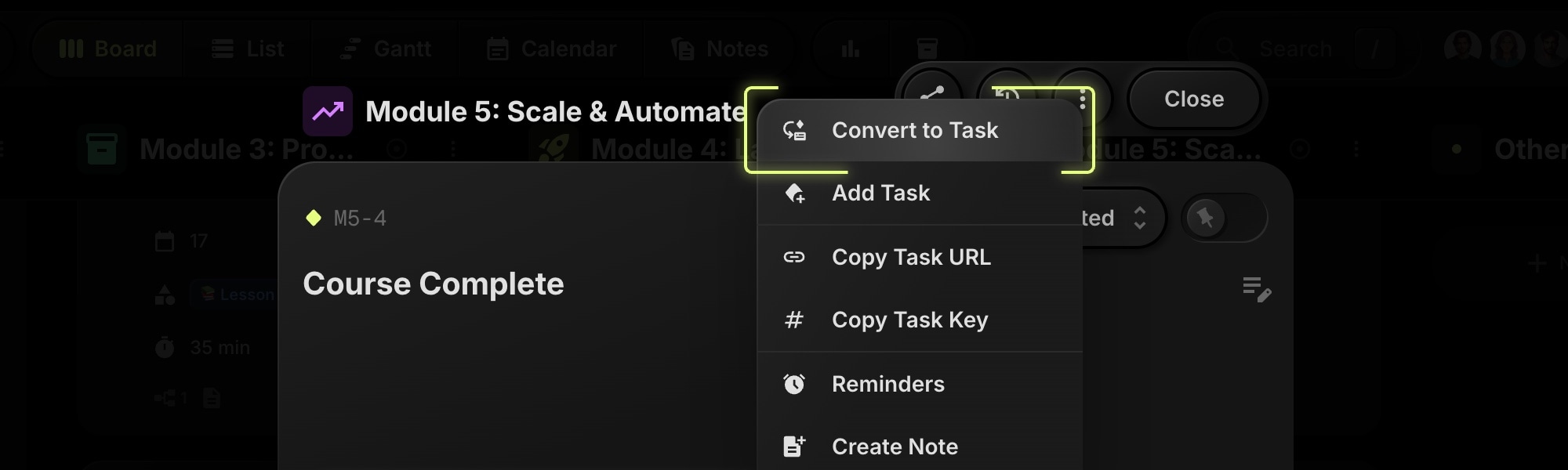
- Confirm the conversion. Linked tasks will be unlinked from the milestone.
#Add Tasks To A Milestone
There are two ways to add tasks to a milestone:
#From A Task
- Open the task you want to add.
- Click the task menu button (three dots).
- Select "Add to Milestone".
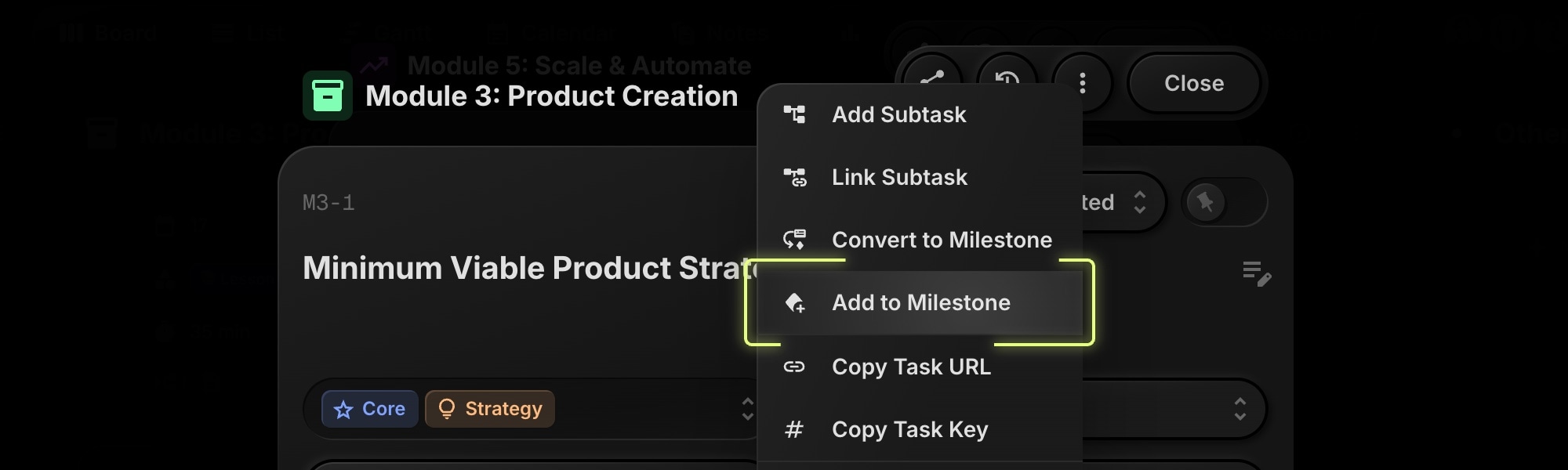
- Choose the milestone from the list.
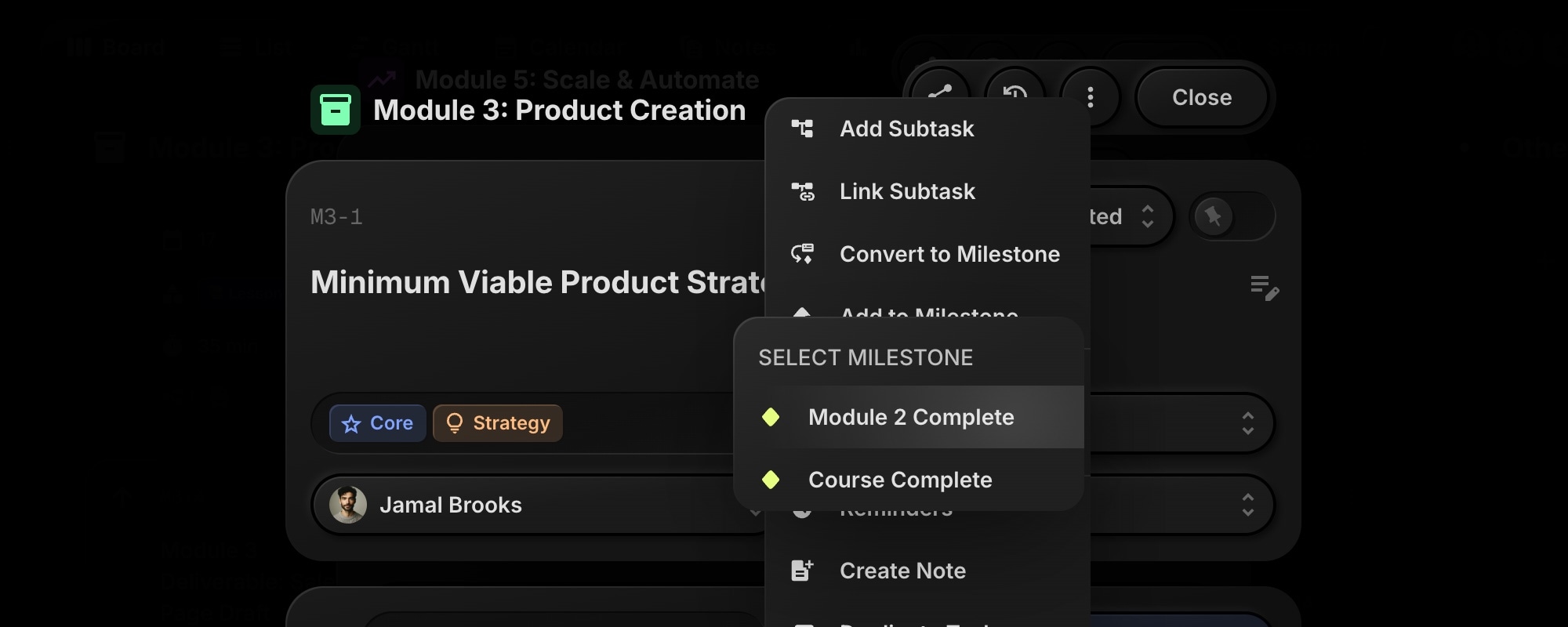
#From A Milestone
- Open the milestone to view its details.
- In the Milestone Tasks section, click the "Add Task" button.
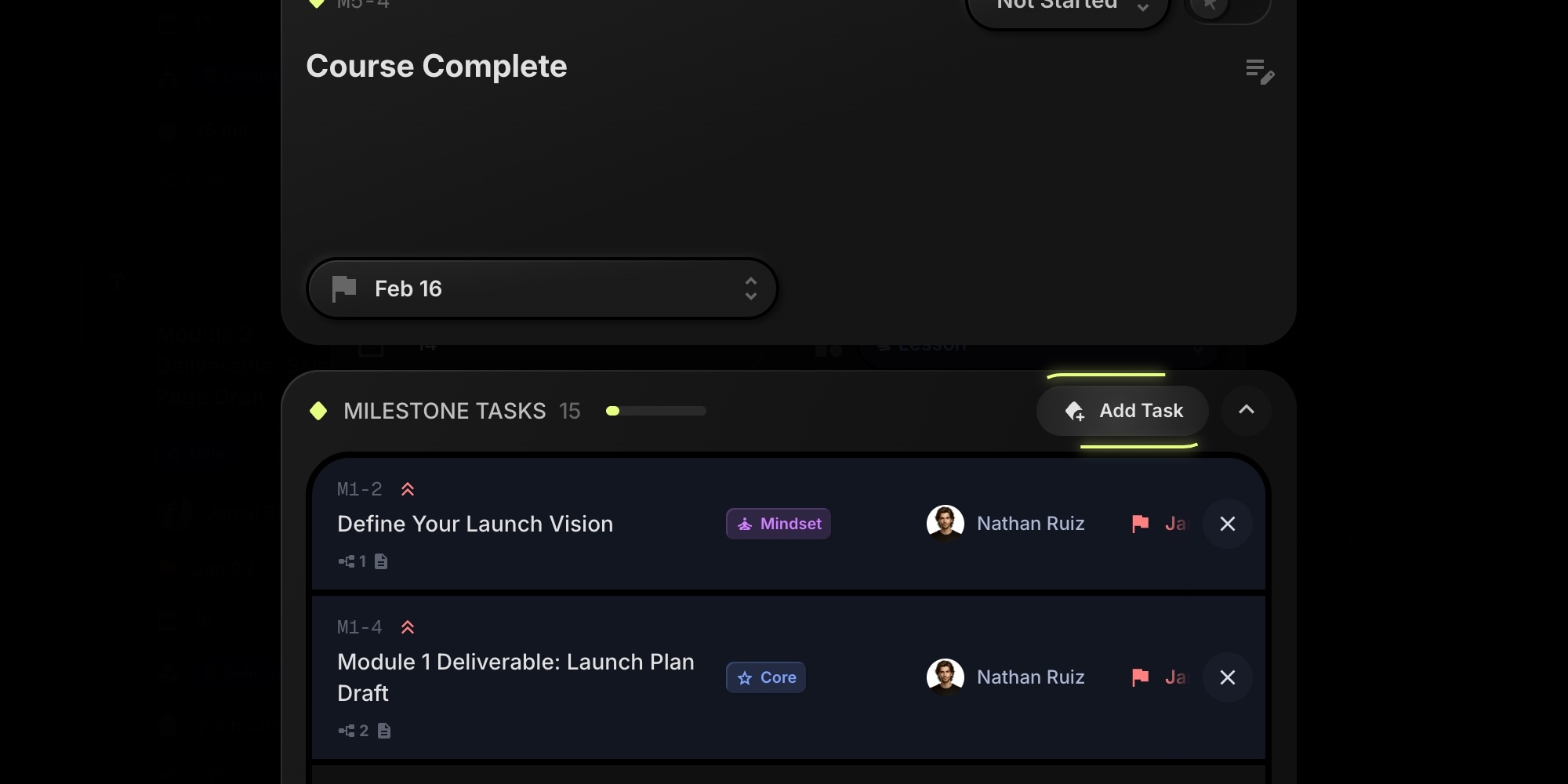
- Search for and select the task you want to link.
The milestone's progress bar will update to reflect the new linked task.
#View Milestone Progress
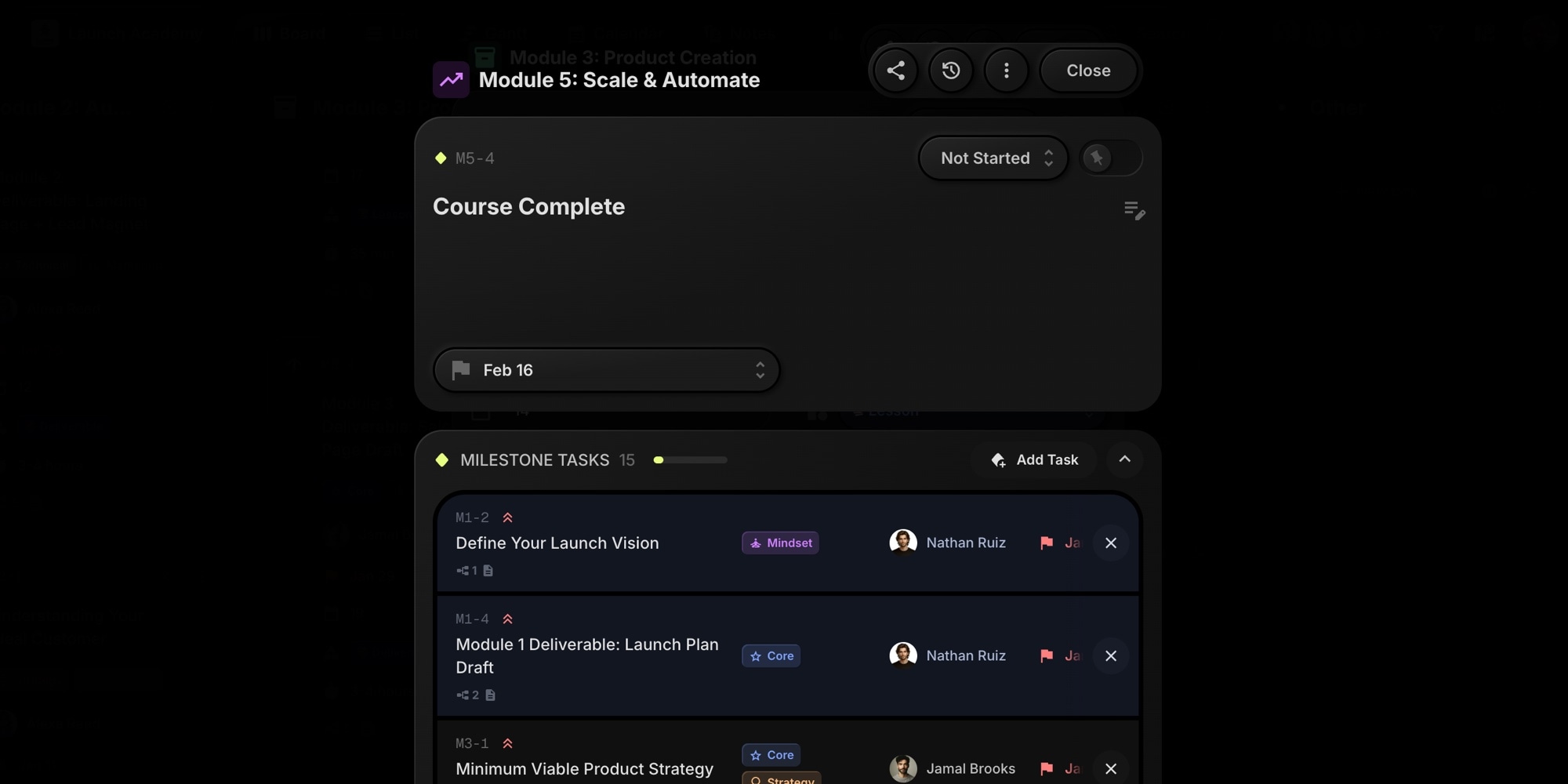
Milestone cards display:
- A progress bar showing completion percentage.
- A count of completed vs total linked tasks (e.g., "3/5").

Open a milestone to see the full list of linked tasks in the details panel.
#Remove Tasks From A Milestone
There are two ways to remove a task from a milestone:
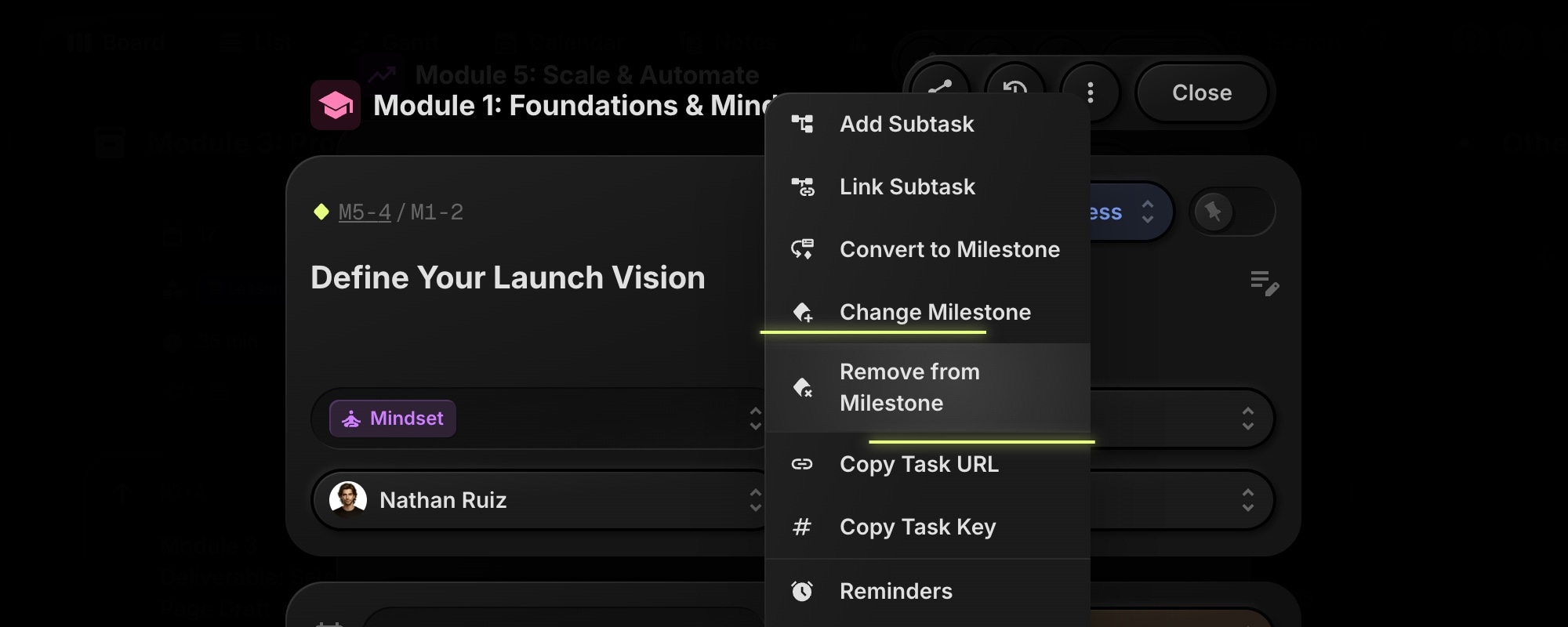
#From The Task
- Open the linked task.
- Click the task menu button (three dots).
- Select "Remove from Milestone".
#From The Milestone
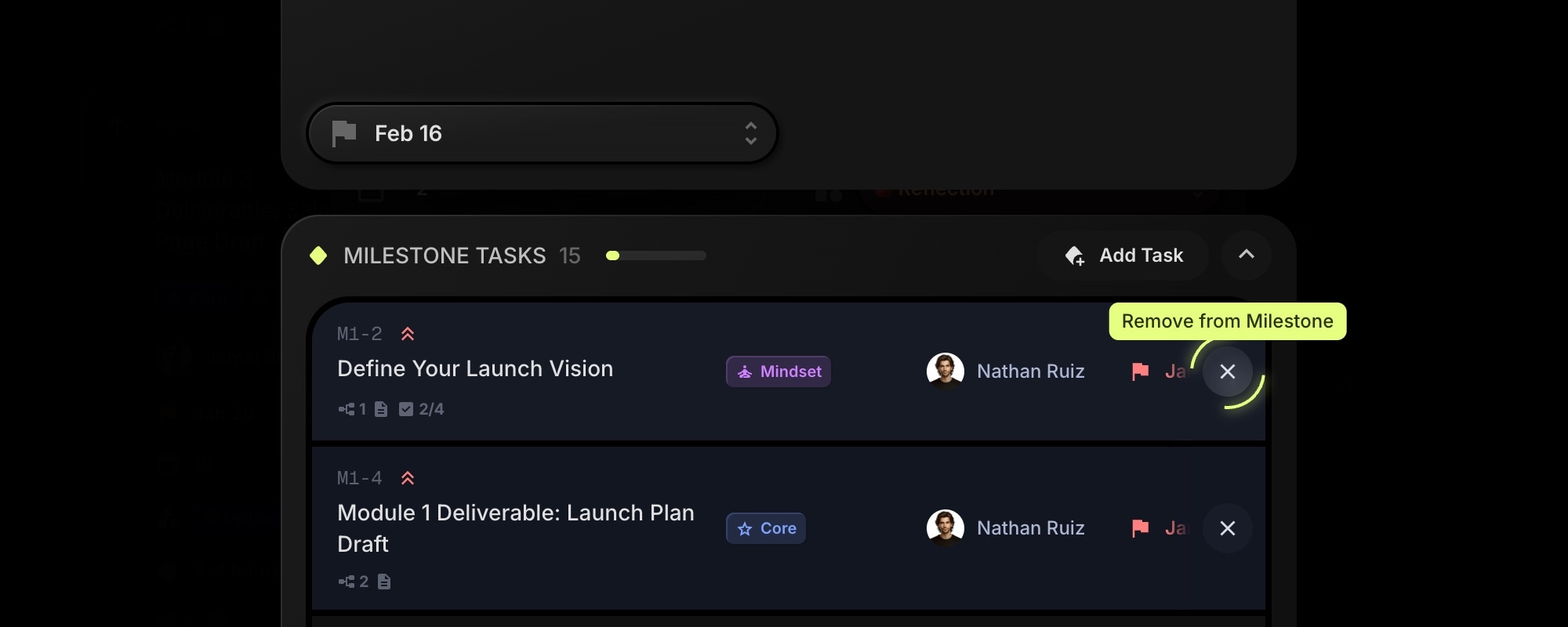
- Open the milestone to view its details.
- Find the task in the Milestone Tasks section.
- Click the remove button next to the task.
#Milestone Behavior
- Archived tasks excluded: Archived tasks don't count toward milestone progress.
- Deleting a milestone: Linked tasks remain unchanged - they simply lose their milestone link.
- Archiving a milestone: Links are preserved and restored when you unarchive.
- One milestone per task: Each task can only be added to one milestone at a time.
- Subtasks: Subtasks cannot have their own milestone - they inherit from the parent or have none.
#Use Cases
- Sprint goals: Create a milestone for each sprint and add the sprint's tasks.
- Release tracking: Track feature completion for a product release.
- Project phases: Monitor progress through discovery, development, and launch phases.
- Deliverables: Group related tasks under a milestone representing a client deliverable.