- Dashboard
- Workspace
- Projects
- Board Settings
- Project Settings
- Tasks
- Create Task
- Edit Task
- Change Status
- Order Tasks
- Subtasks
- Task Dependencies
- Milestones
- Pin To Top
- Task Templates
- Duplicate Task
- Move To Board
- Create Note From Task
- Archive Task
- Unarchive Task
- Delete Task
- Task Updates History
- Reminders
- Time Tracking
- AI Tasks
- Export Task
- Share Task
- Import Multiple Tasks
- Export Multiple Tasks
- Notes
- Forms
- Comments
- Text Editor
- Account
- MCP Server
- t0ggles Crew
Workspace
The Workspace tab is your personal command center. It shows everything that needs your attention across all your boards in one place.
To access it, go to https://t0ggles.com/dashboard and make sure the Workspace tab is selected.
#Focus
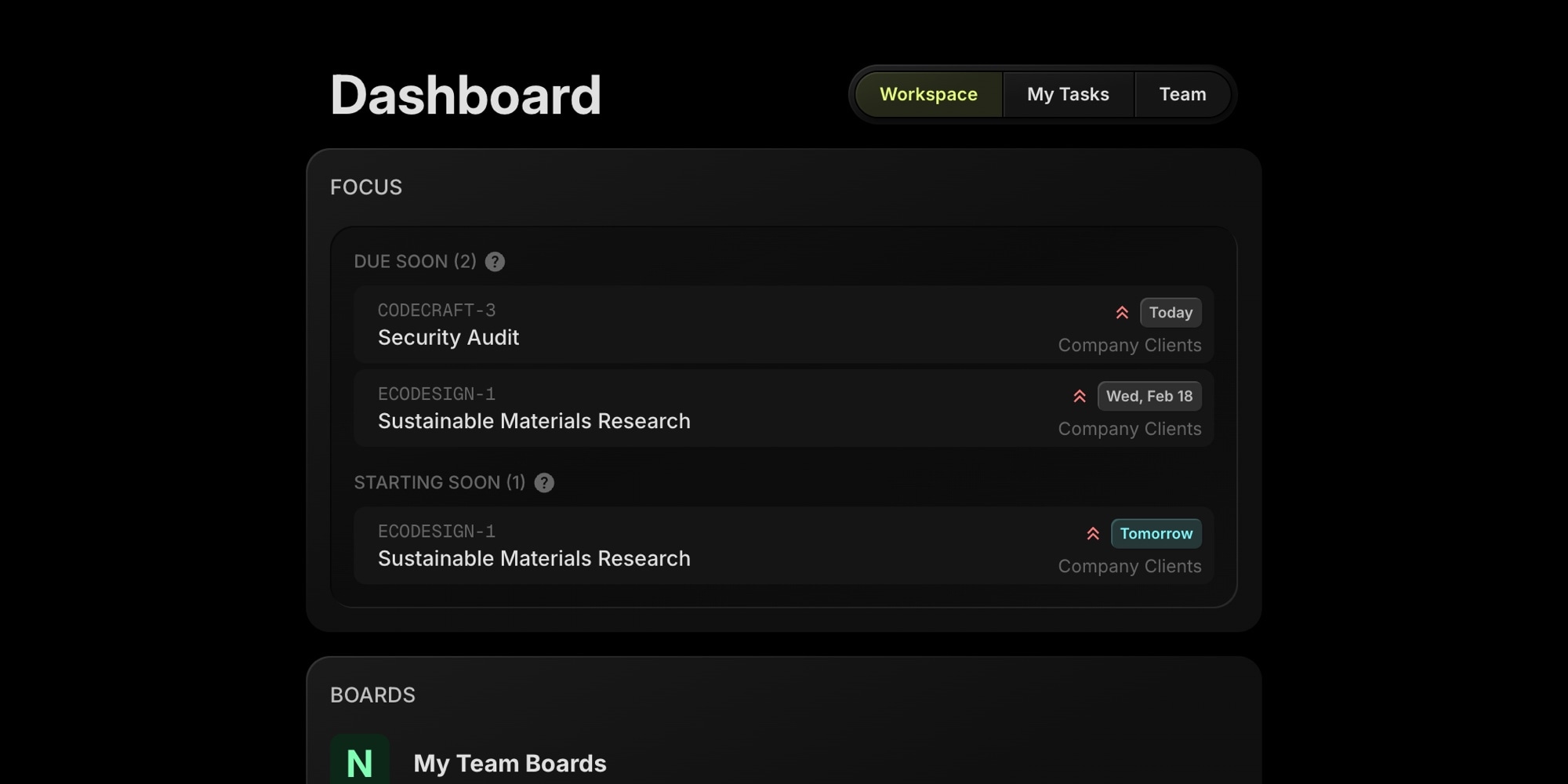
The Focus section highlights tasks that need your immediate attention. It only appears when there are items to show.
#Running Timers
If you have any active time tracking timers running, they appear at the top of the Focus section. You can stop a timer directly from here without navigating to the board.
#Overdue
Shows up to 5 tasks assigned to you that are past their due date, sorted by the closest due date first. Each item displays the task key, title, how many days overdue it is, and which board it belongs to. Click any task to navigate directly to it.
#Due Soon
Shows up to 5 tasks assigned to you that are due within the next 7 days, sorted by the closest due date first. Each item displays the task key, title, the day it is due, and which board it belongs to.
#Starting Soon
Shows up to 5 tasks assigned to you that have a start date within the next 7 days, sorted by the closest start date first. This helps you plan ahead and prepare for upcoming work before it begins.
#Solo Boards
On boards where you are the only member, Focus sections automatically include unassigned tasks too. This way freelancers and solopreneurs who don't assign tasks to themselves still see their overdue, due soon, and starting soon tasks here.
#Boards
The Boards section lists all boards you have access to, organized by team. Each board shows quick stats:
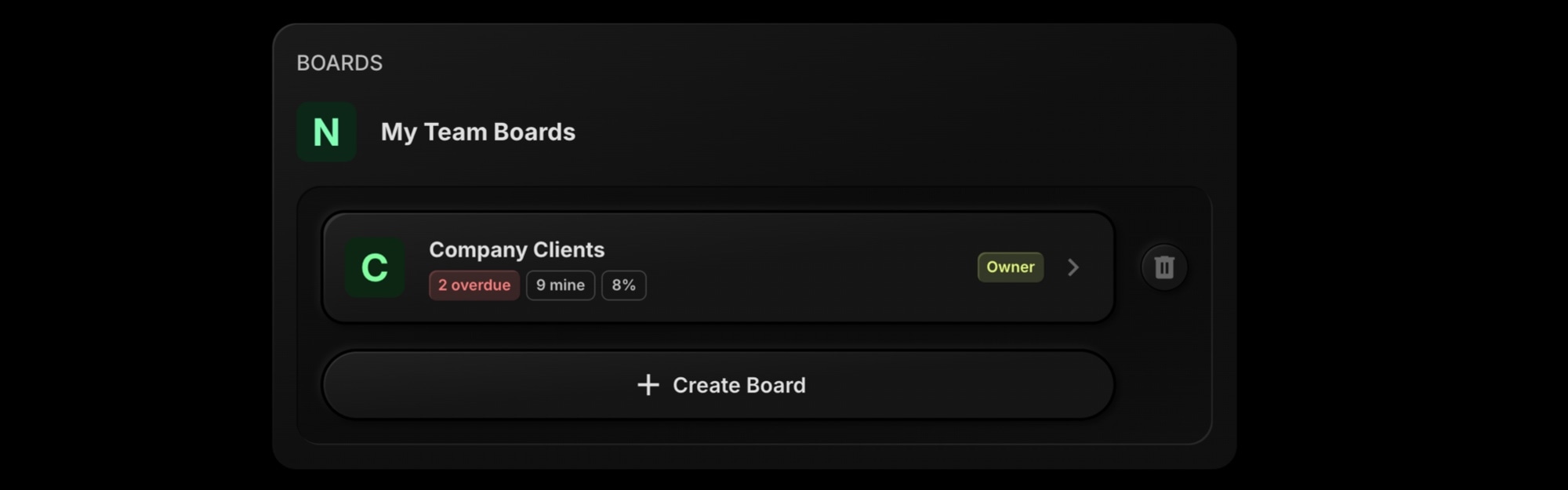
- Overdue count - number of overdue tasks assigned to you on that board
- Mine - total tasks assigned to you on that board
- Completion rate - percentage of completed tasks on the board
From here you can open any board, create a new board, or delete a board.
If you are a member of multiple teams, each team's boards are shown in a separate group.
#Recent Activity
The Recent Activity section shows a feed of your recent actions across all boards from the last 14 days. This includes:
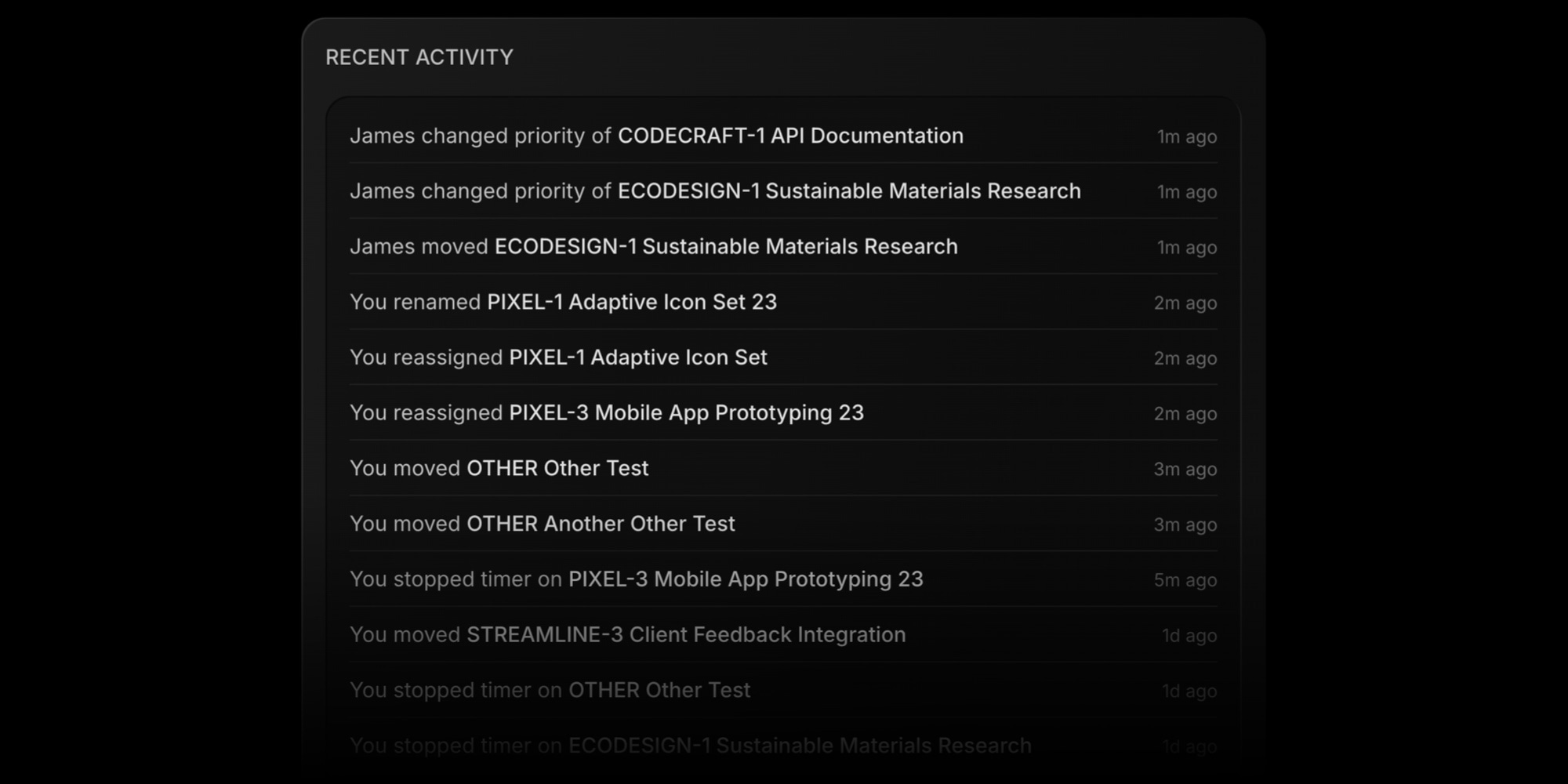
- Tasks you created, updated, moved, or completed
- Description and title changes
- Priority and due date changes
- Status changes
- Time tracking entries
- Changes to tasks assigned to you by other team members
Duplicate entries (like multiple consecutive description edits on the same task) are automatically collapsed to keep the feed clean. Click any item to navigate directly to the task or note.