- Dashboard
- Workspace
- Projects
- Board Settings
- Project Settings
- Tasks
- Create Task
- Edit Task
- Change Status
- Order Tasks
- Subtasks
- Task Dependencies
- Milestones
- Pin To Top
- Task Templates
- Duplicate Task
- Move To Board
- Create Note From Task
- Archive Task
- Unarchive Task
- Delete Task
- Task Updates History
- Reminders
- Time Tracking
- AI Tasks
- Export Task
- Share Task
- Import Multiple Tasks
- Export Multiple Tasks
- Notes
- Forms
- Comments
- Text Editor
- Account
- MCP Server
- t0ggles Crew
Move Task To Board
t0ggles lets you move a single Task from one board to another. The task lands in a project of your choice on the destination board, and its subtasks, comments, files, time entries, and history travel with it.
To move a whole project at once, see Move Project To Board.
#Prerequisites
- You must be a member of both the source board and the destination board. Admin rights are not required.
- If your access to the destination board is limited to specific projects, you can move tasks only into those projects.
- The destination board's plan limits apply. On the free plan the board must have room for the moved tasks and their files.
#How To Move A Task
- Open the task details.
- Click the three dots menu in the top-right.
- Choose Move To Board.
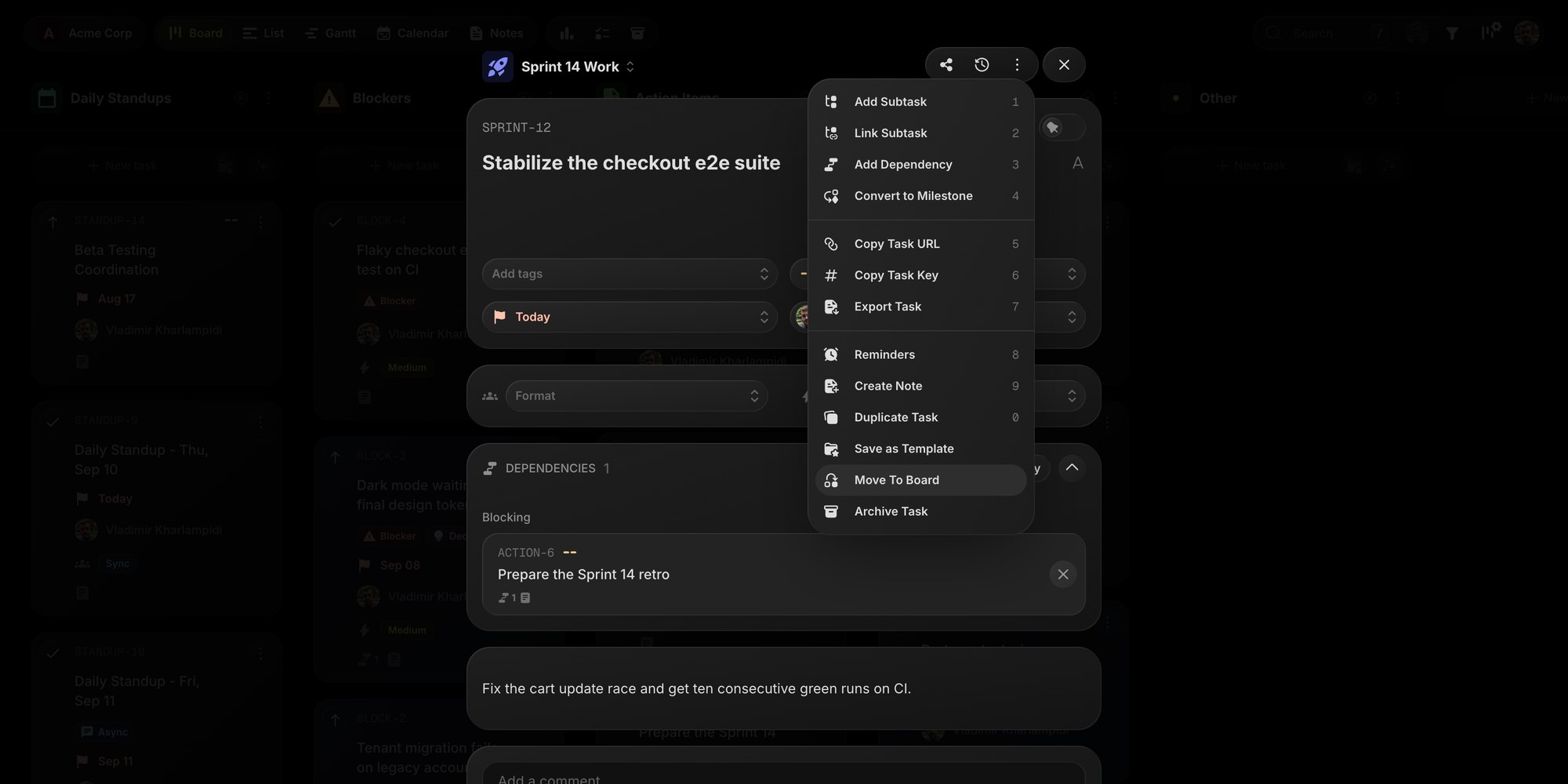
The Move To Board action is not available for archived tasks or AI-suggested tasks.
#The Move Modal
-
Select Destination Board Only boards where you are a member are listed.
-
Select Project Pick the project on the destination board. The task gets a new key in that project.
-
Map Statuses, Tags, And Properties These sections appear only when the task (or one of its subtasks) actually uses a status, tag, or property. Matching items are mapped automatically by name, so in most cases you only pick the board and project. Adjust any mapping if the names differ, or choose None to drop a value.
-
What Changes A short list of anything the move will clear: subtasks that move too, a cleared assignee, removed dependencies, a cleared milestone link, or a removed GitHub link.
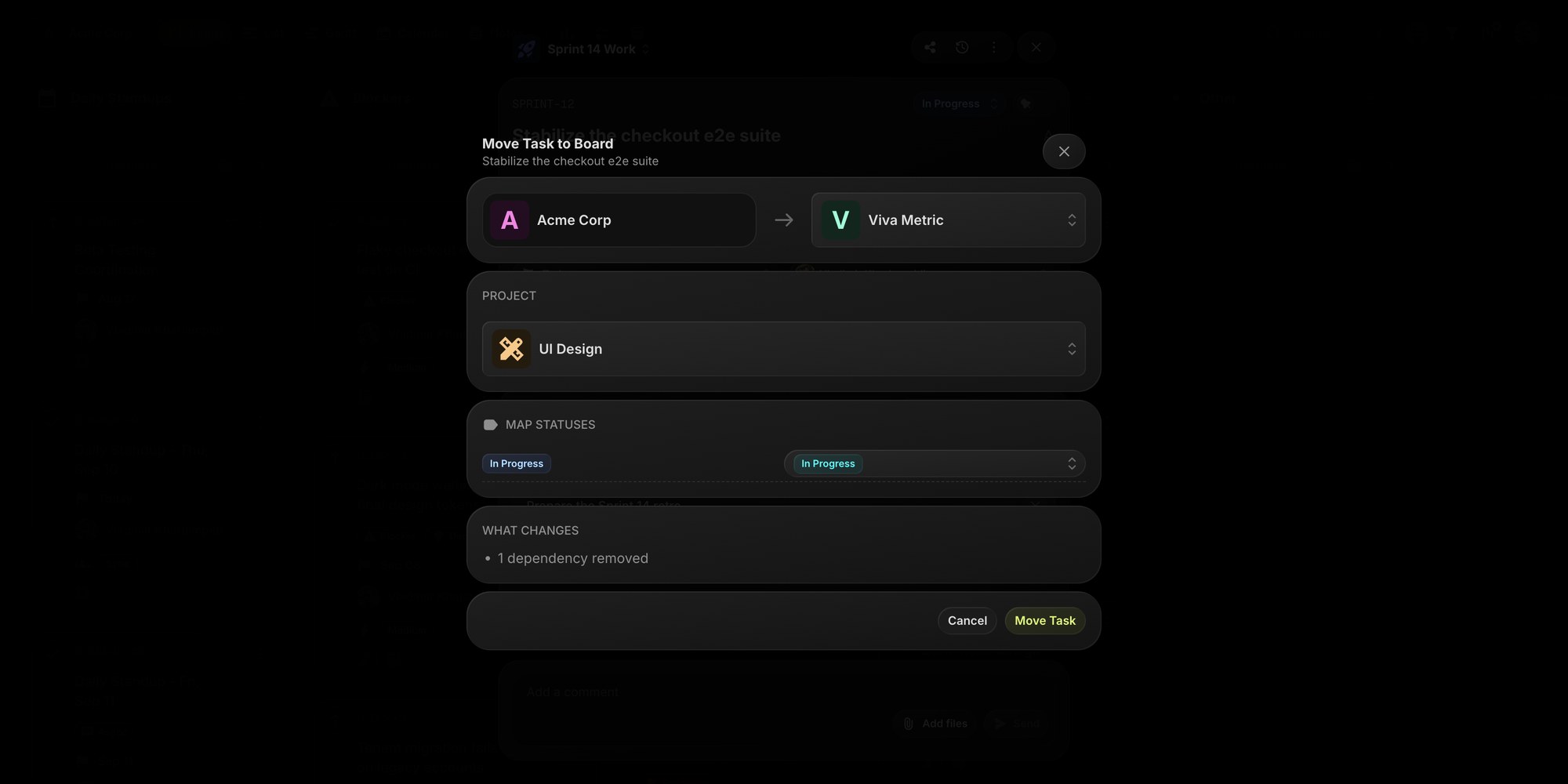
Click Move Task to finish. A notification with an Open task link points to the task on its new board.
#What Gets Moved
- The task itself: title, description, due dates, checklists, cover image, and pinned state.
- Subtasks in the same project. Archived subtasks stay behind and become standalone tasks.
- Comments and reactions.
- Attachments in the description, in comments, and the cover image. Files are copied to the destination board's storage and removed from the source board.
- Time entries, reminders, and the full change history.
- The public share link, if the task has one.
#What Changes
- Task key: the task gets the next key of the destination project. The old key is retired, so old links to the task stop working. Use the link from the "Task Moved" notification instead.
- Status, Tag, Property values are transformed according to your mapping. A status mapped to None falls back to the destination board's first status. Tags and properties mapped to None are dropped.
#What Is Removed
- Dependencies: a dependency is kept only if both tasks move together (a parent and its subtask). Every other dependency is removed on both ends.
- Milestone link: if the task belongs to a milestone that stays behind, the link is cleared. If the task is a milestone, tasks that stay behind are unlinked from it.
- Assignee: cleared if the assigned user is not a member of the destination board.
- Parent task: if you move a subtask, it is unlinked from its parent and moves alone.
- GitHub link: GitHub sync is configured per board and project, so the link to the issue or pull request is always removed, even when the destination project syncs the same repository.
- Calendar events: events synced to the source board's calendar are removed. The destination board's calendar sync, if configured, picks the task up on its next edit.
#Notes
- No notifications are sent to other members about the move.
- The move is a single operation with no undo. To reverse it, move the task back the same way.
- Team members who have the board open see the task disappear from the source board and appear on the destination board in real time.
#Troubleshooting
-
I don't see the destination board. You must be a member of that board, and it must not be archived.
-
The destination project is missing. Archived projects are not listed. Unarchive the project on the destination board first.
-
A status or property is missing in the mapping. Add it on the destination board, close the modal, and reopen Move To Board.
-
The move fails with a limit error. The destination board is on the free plan and has reached its task or storage limit.
#Quick Summary
Open the task, choose Move To Board from the three dots menu, pick the destination board and project, check the auto-mapped statuses, tags, and properties, and click Move Task. The task arrives on the new board with its subtasks, comments, files, and history.