- Dashboard
- Workspace
- Projects
- Board Settings
- Project Settings
- Tasks
- Create Task
- Edit Task
- Change Status
- Order Tasks
- Subtasks
- Task Dependencies
- Milestones
- Pin To Top
- Task Templates
- Duplicate Task
- Move To Board
- Create Note From Task
- Archive Task
- Unarchive Task
- Delete Task
- Task Updates History
- Reminders
- Time Tracking
- AI Tasks
- Export Task
- Share Task
- Import Multiple Tasks
- Export Multiple Tasks
- Notes
- Forms
- Comments
- Text Editor
- Account
- MCP Server
- t0ggles Crew
Board Appearance
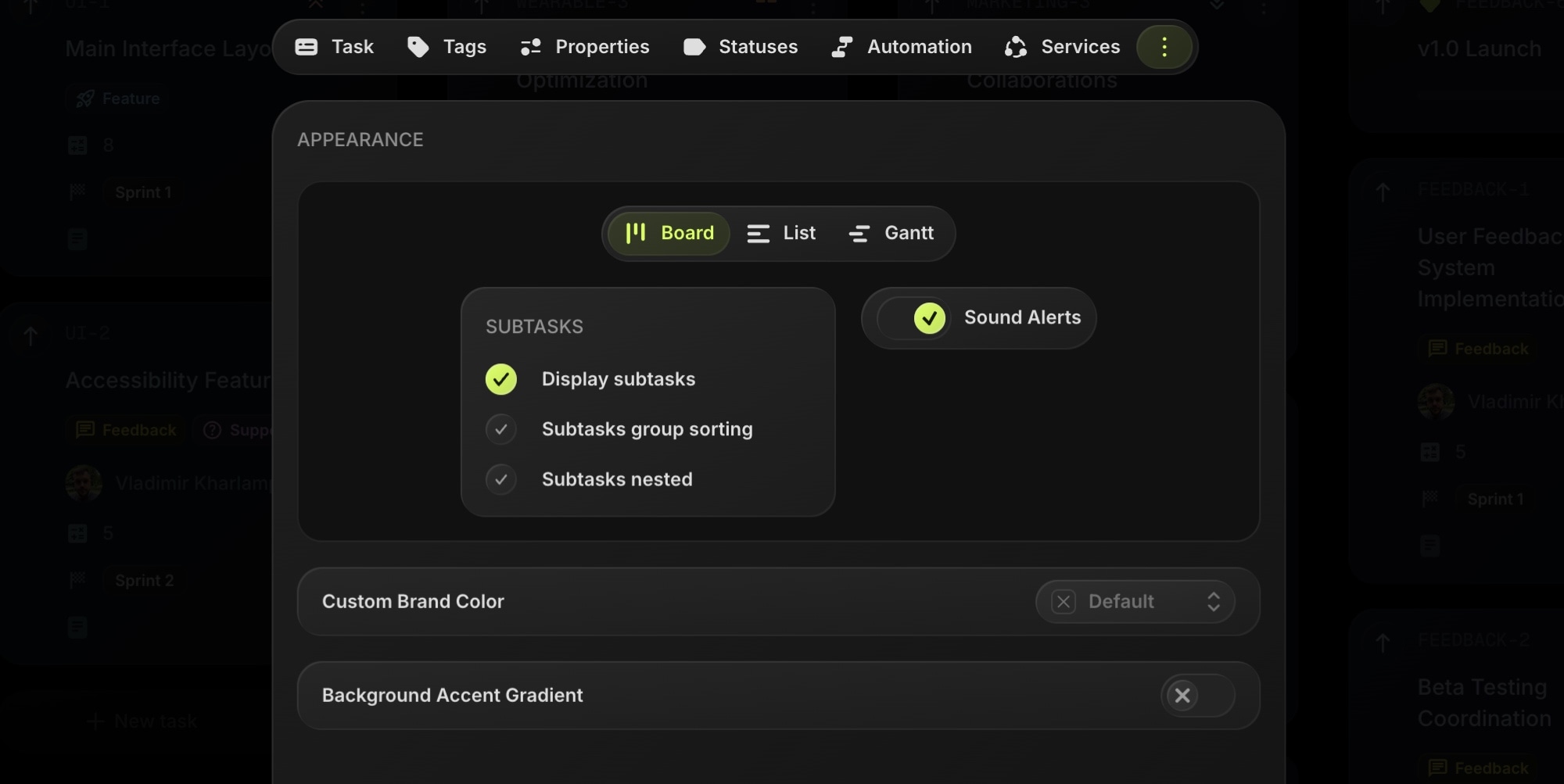
Board Appearance lets you replace the default t0ggles brand color with your own. Pick any color and the whole app recolors while the board is open - buttons, switches, checkboxes, focus rings, and accents all follow your brand. The color applies for everyone viewing the board, including guest users and visitors of public boards, making it a great fit for client work and white-label setups.
#Custom Brand Color
To set a custom brand color:
- Open the board and go to Board Settings.
- Click the three dots button next to the tabs and select Appearance.
- Click the color picker and choose your color - use the palette presets, the color area, or enter an exact hex value.
- The color applies instantly as a live preview, and the example elements at the top of the tab show how tabs, switches, and checkboxes will look.
- Close Board Settings to save. The new color syncs in real-time to everyone with the board open.
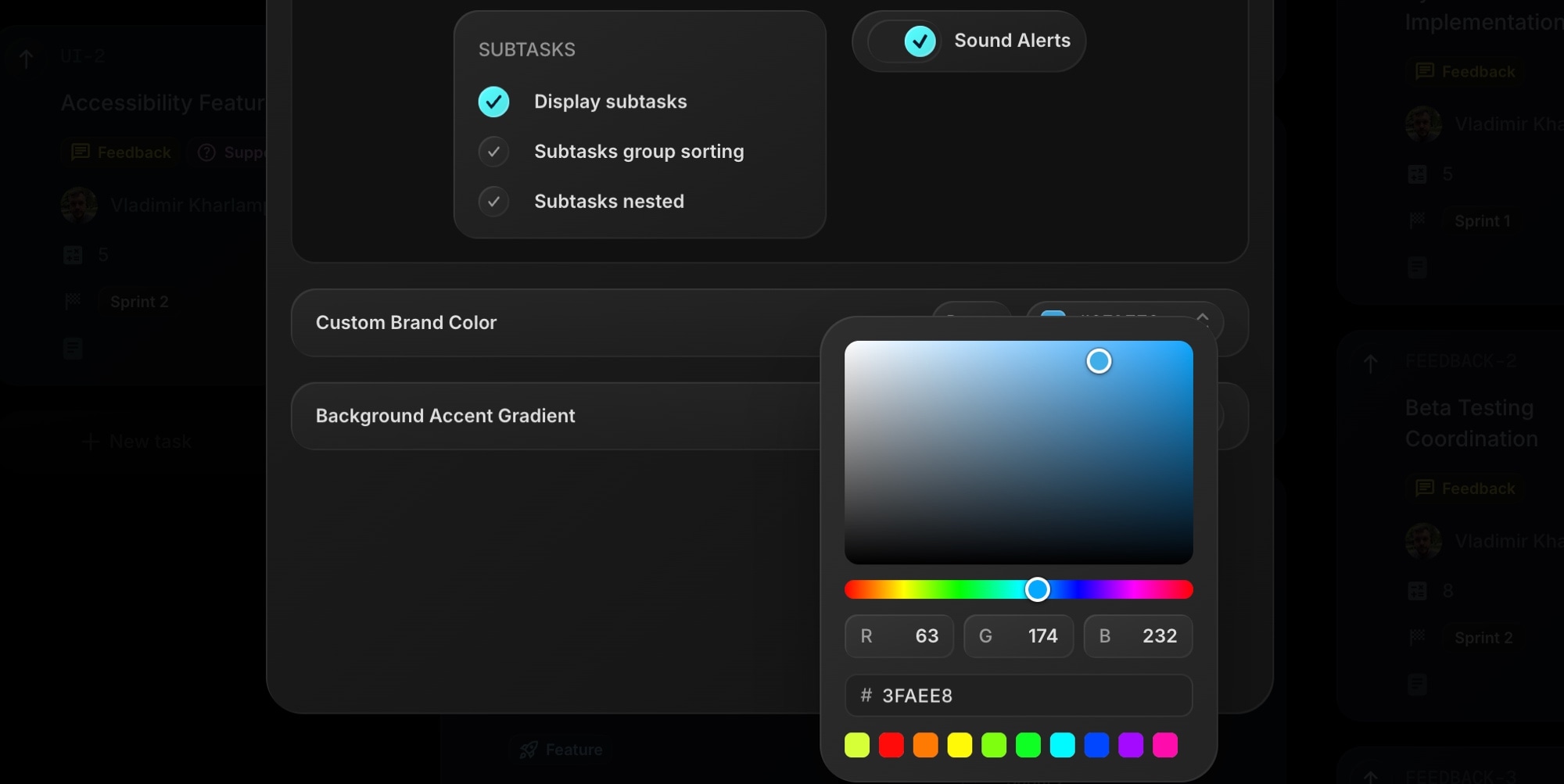
To return to the default t0ggles color, click the Reset button next to the color picker.
Note: Monochrome colors (white, black, and grays) fall back to the default brand color. t0ggles derives all interface tones from the hue of your color, and grayscale colors don't carry one.
#Background Accent Gradient
In addition to the brand color, you can enable a subtle background gradient - the top of the board gets a soft tint of your brand color that fades out as you scroll.
- Go to Board Settings → Appearance.
- Toggle on Background Accent Gradient.
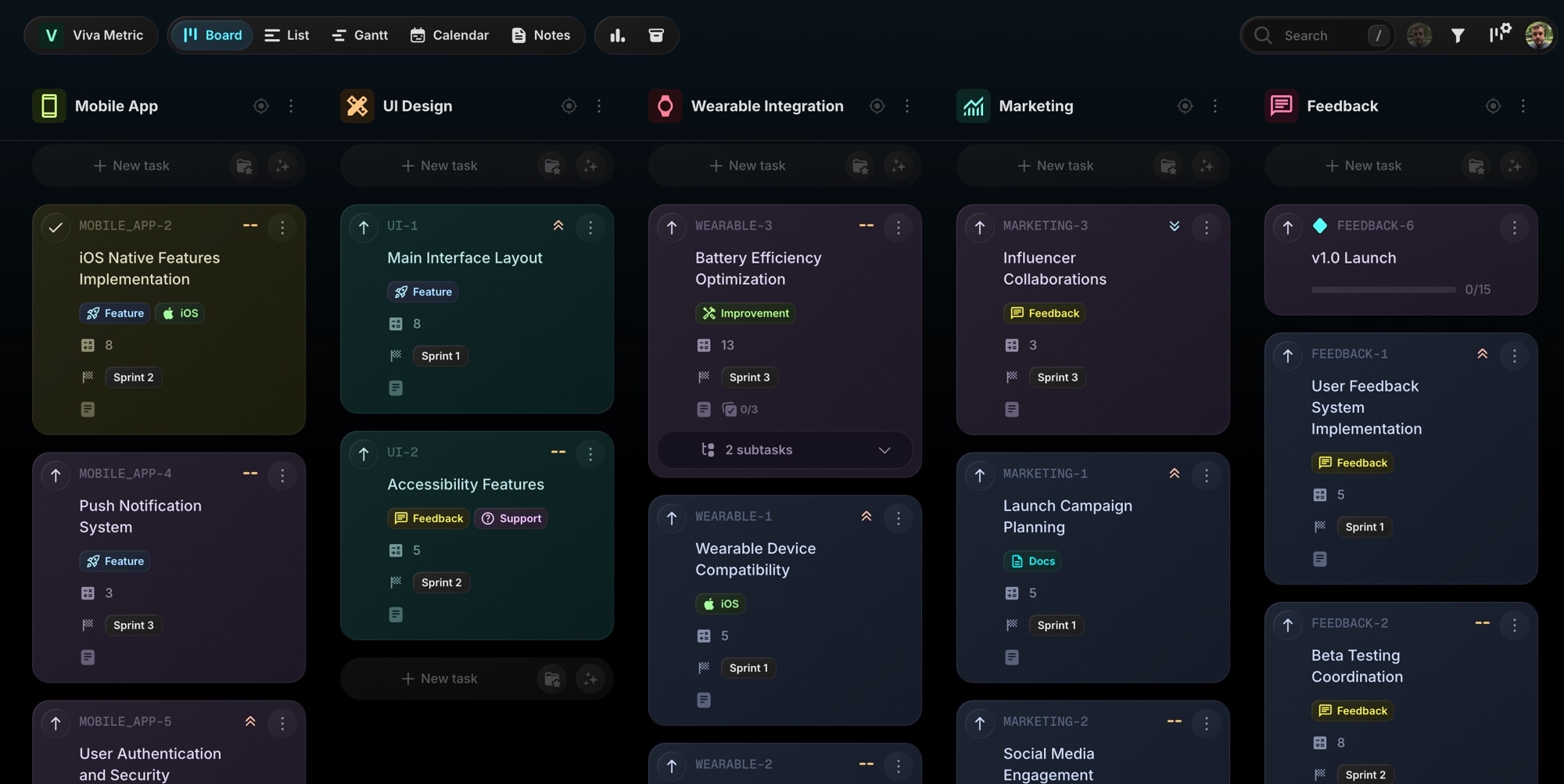
The gradient works with the default brand color too, so you can enable it without picking a custom color.
Note: The background gradient is displayed on desktop only. On mobile devices it is skipped for performance reasons, while the custom brand color still applies.
#Who Can Change It
Only board admins can change the board appearance. Other members and guests see the customized board but can't edit the settings.
#Where It Applies
The custom brand color follows the board everywhere it is viewed:
- The board itself in all views - Columns, List, Gantt, and Calendar
- Task details, notes, popups, and dialogs
- Public boards and boards shared with guest users
- Boards on custom domains
Leaving the board - for example, going to the Dashboard - restores the default t0ggles color.