- Dashboard
- Workspace
- Projects
- Board Settings
- Project Settings
- Tasks
- Create Task
- Edit Task
- Change Status
- Order Tasks
- Subtasks
- Task Dependencies
- Milestones
- Pin To Top
- Task Templates
- Duplicate Task
- Move To Board
- Create Note From Task
- Archive Task
- Unarchive Task
- Delete Task
- Task Updates History
- Reminders
- Time Tracking
- AI Tasks
- Export Task
- Share Task
- Import Multiple Tasks
- Export Multiple Tasks
- Notes
- Forms
- Comments
- Text Editor
- Account
- MCP Server
- t0ggles Crew
Swim Lanes: Group Tasks in Columns View
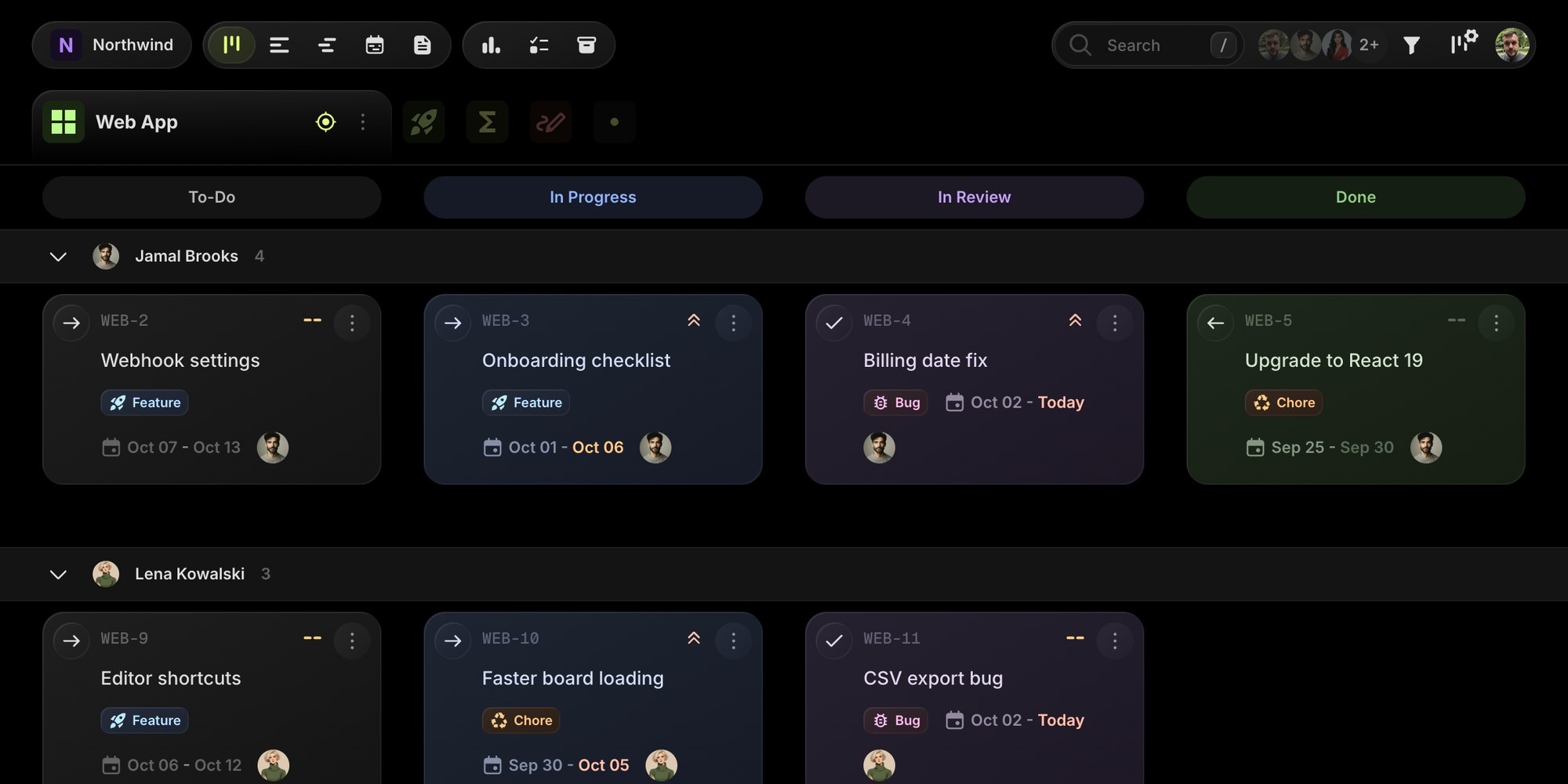
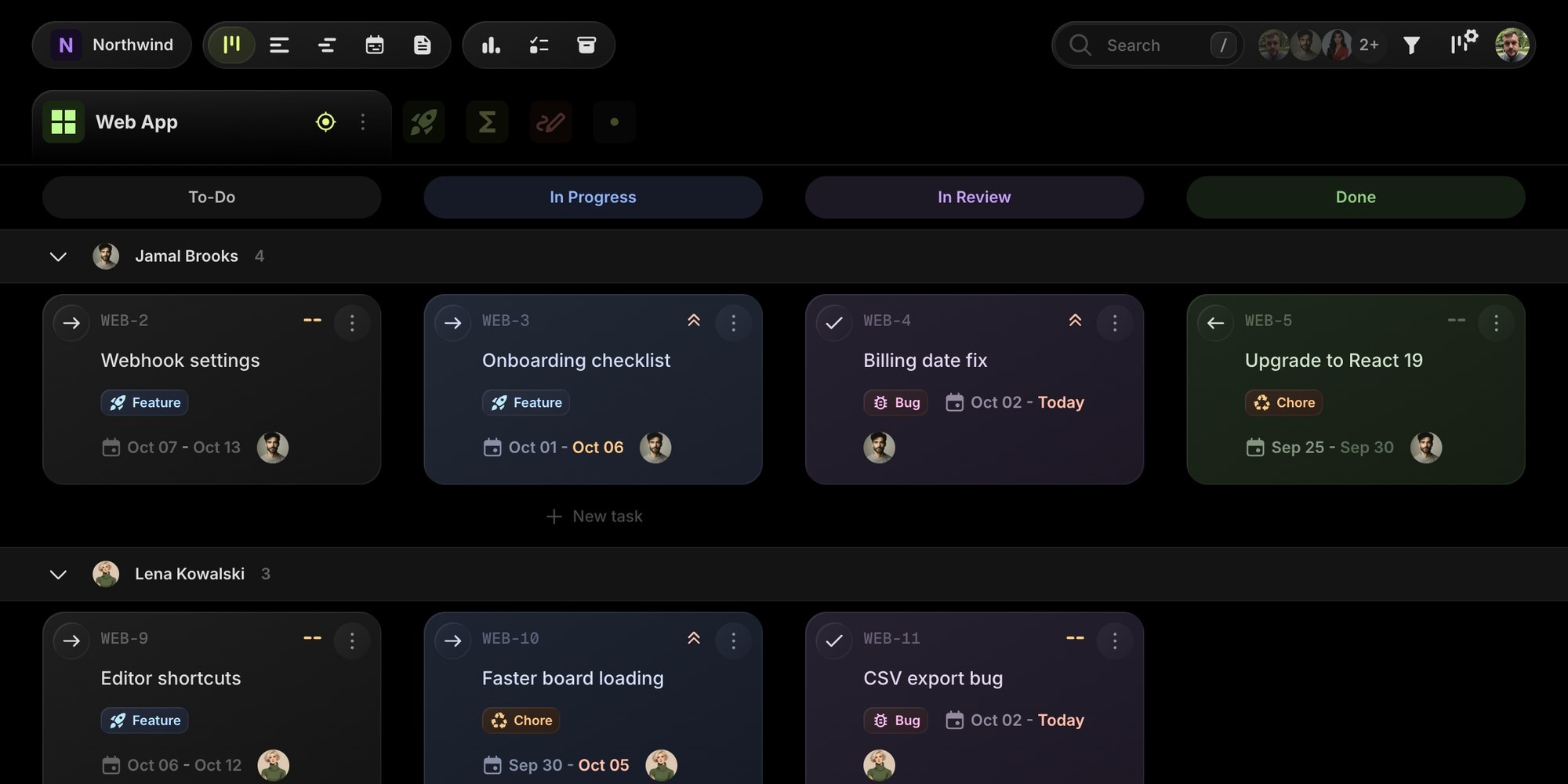
Columns view shows your work in one direction: a column per project, or a column per status in Focus Mode. Group Tasks adds the second direction. It splits the board into horizontal swim lanes that cross every column, so you can see who is working on what, which work is urgent, or what is due this week without leaving the board.
#Turn On Swim Lanes
- Open the Board View Settings popover with the button next to the filter icon in the top right corner.
- Pick an option in the Group Tasks select at the top of the popover.
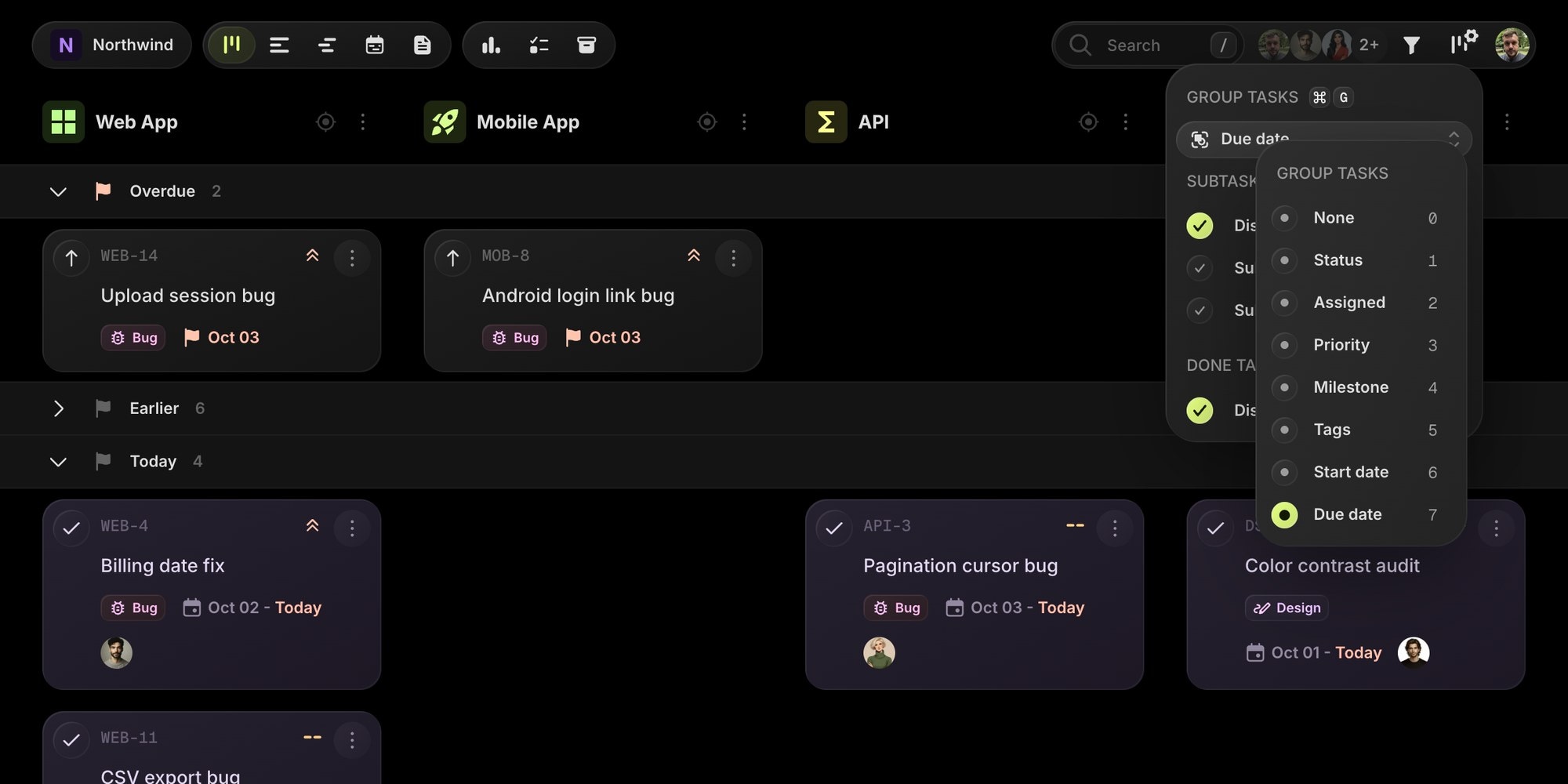
You can also press Cmd + G (Ctrl + G on Windows and Linux) to cycle through the grouping options without opening the popover. While the select is open, press 0 to 9 to pick an option by its number.
Grouping is a personal view setting. Every teammate picks their own grouping, and yours is saved with your board settings, so it is still there after a reload or on another device.
#Group Options
| Group by | Lanes |
|---|---|
| Status | One lane per board status, in board status order. Not available in Focus Mode, where the columns are already statuses. |
| Assigned | One lane per team member who has tasks, sorted A to Z, plus Unassigned at the bottom. |
| Priority | High, Medium, Low, and No priority. |
| Milestone | One lane per milestone, sorted by due date, plus No milestone. The milestone itself is pinned first in its lane. |
| Tags | One lane per tag combination (for example "Bug, Design"), plus No tags. |
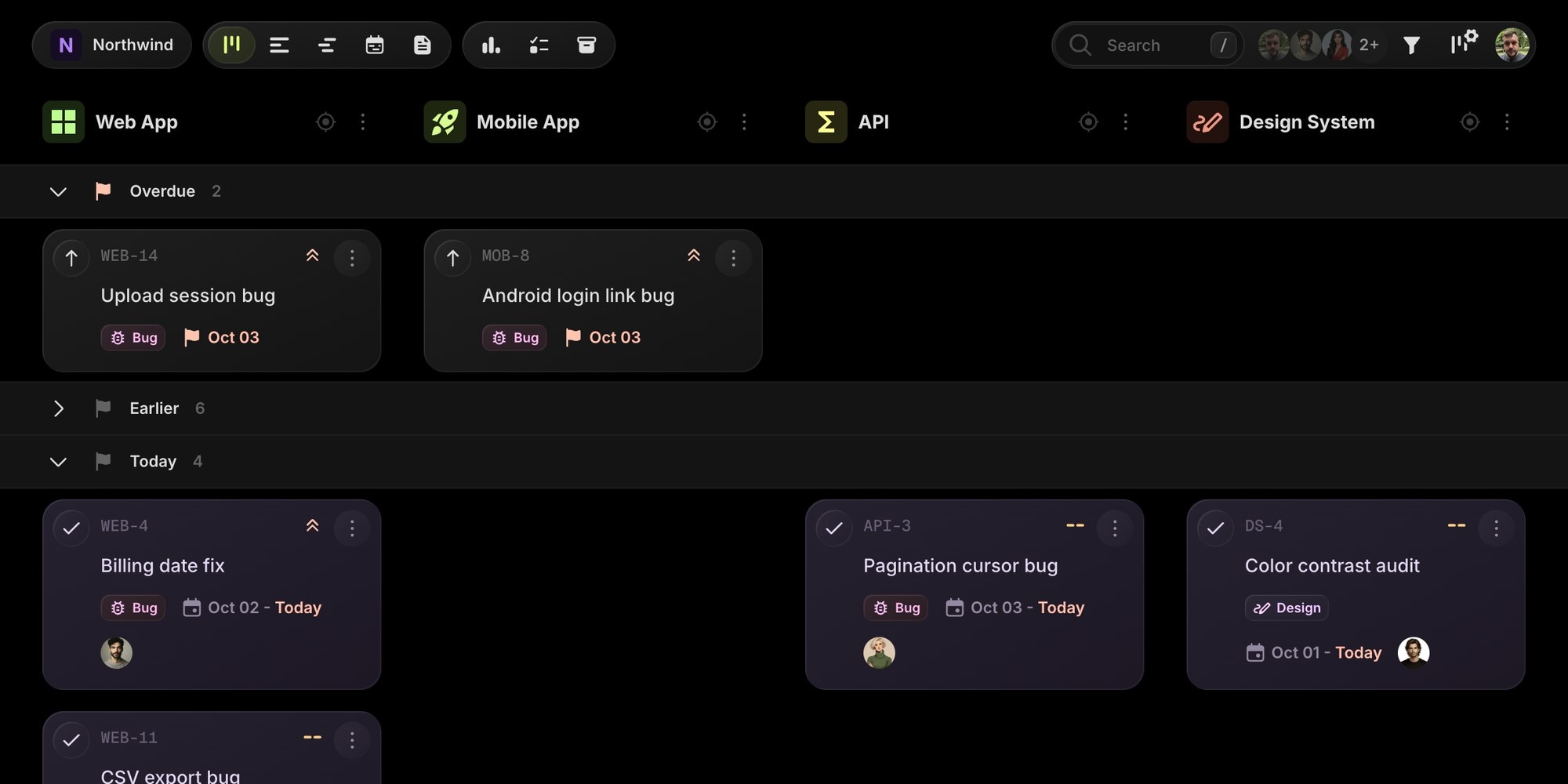
| Start date | Relative date buckets: Earlier, Today, Tomorrow, This week, Next week, Later, and No date. |
| Due date | Same buckets as start date, plus Overdue for unfinished tasks whose due date has passed. Finished tasks with a past due date go to Earlier. |
Status and priority lanes are always shown, even when empty, so you always have somewhere to drop a task. Assignee, milestone, and tag lanes only appear when they have tasks. For date grouping, the Today, Tomorrow, This week, Next week, and No date lanes are always shown, while Overdue, Earlier, and Later only appear when they have tasks. Week boundaries follow the week start day from your Calendar view settings.
Grouping works in both layouts. On the regular board, lanes cross all your project columns, so you can compare projects side by side. In Focus Mode, lanes cross the status columns of a single project, which gives you a classic swim lane Kanban board.
#Collapse Lanes
Click the chevron on a lane header to collapse it down to a single row with the lane name and task count. Collapsed lanes are remembered per grouping, so collapsing "Earlier" in due date grouping does not collapse anything when you switch to assignees. Lane headers stick to the top of the board while you scroll, and lane labels stay visible when you scroll sideways.
#Move Tasks Between Lanes
Drag a task into another lane to change the value that lane represents. The task keeps its project and column, and only the grouped field changes:
- Status sets the task's status.
- Assigned reassigns the task, or unassigns it in the Unassigned lane.
- Priority sets the priority.
- Milestone links the task to that milestone, or unlinks it in No milestone.
- Due date sets the date for the lane: Today, Tomorrow, the last day of the current week for This week, the first day of next week for Next week, or clears it in No date.
- Start date works the same way and moves the due date by the same number of days, so the task keeps its duration.
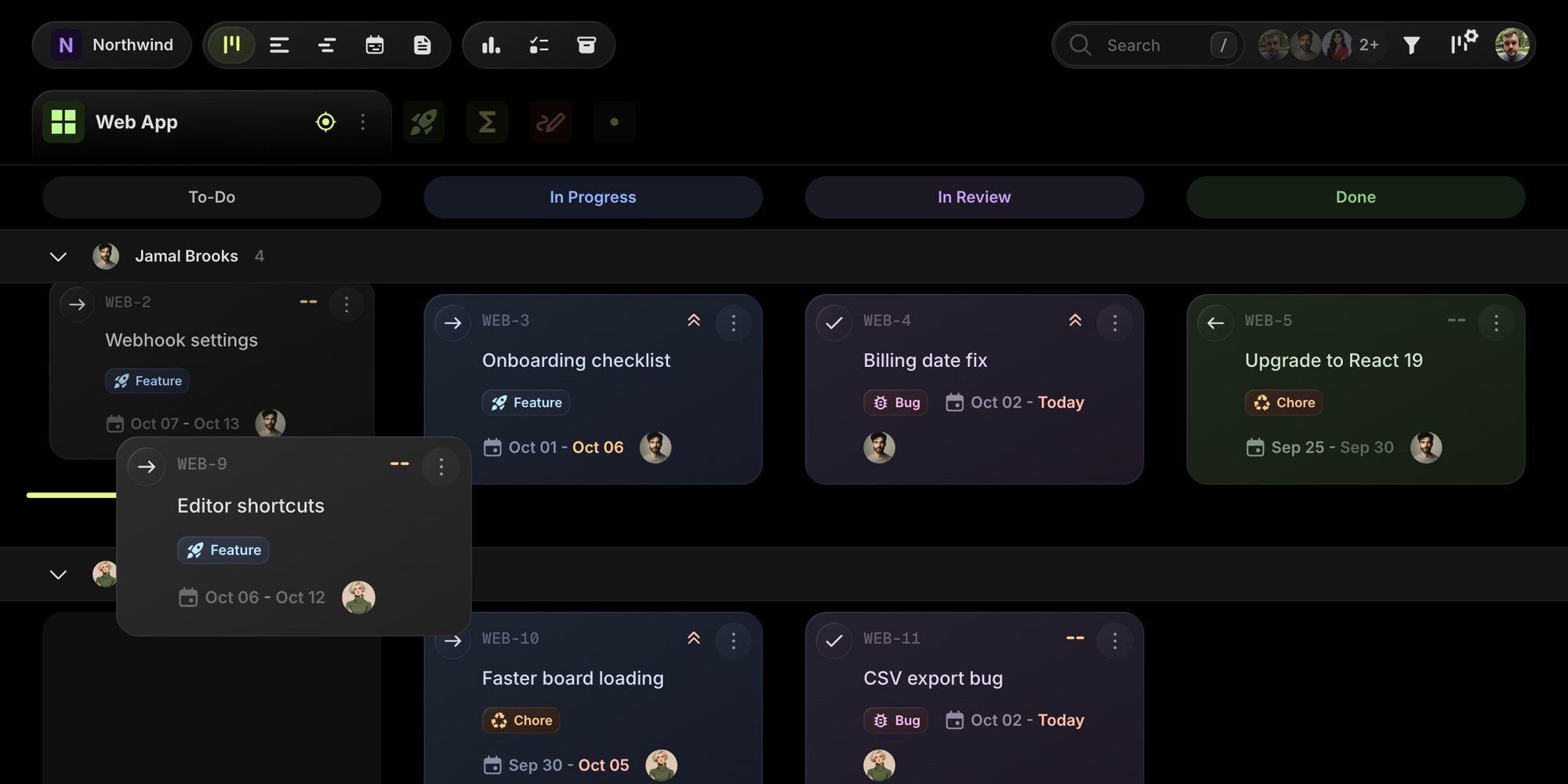
You can drag into another lane and another project column in the same move. Dropping into a lane also runs your board automations and is recorded in the task history, just like editing the field in task details.
Some lanes do not accept drops because they do not map to a single value: tag lanes, and the Overdue, Earlier, and Later date lanes. You can still reorder tasks inside them.
When the board is grouped by anything other than status, moving a task inside its lane never changes its status, even if you drop it between tasks of a different status. In Focus Mode, columns are statuses, so dropping into another column still changes the status as usual.
#Add Tasks to a Lane
Hover over a cell (one lane in one column) to reveal the New task button at its bottom. A task created this way is prefilled with the cell's project and lane value, for example the assignee, priority, milestone, tag combination, or date of that lane. Press Enter after saving to create the next task in the same cell.
The C shortcut does the same: hover a cell or its lane header and press C to start a prefilled task there. On touch devices the button is always visible.
The New task button is hidden while a filter is active, on public and archived boards, and in the Overdue, Earlier, and Later lanes.
#What Changes While Grouped
To keep lanes compact, a few Columns view features are switched off while grouping is on and come back when you set Group Tasks to None:
- The New task row at the top of each column (use the per-cell button instead)
- WIP limit warnings on status columns (see Statuses)
- Subtasks group sorting, since a subtask can sit in a different lane than its parent
#Keyboard Navigation
Arrow keys (or h, j, k, l) move through cards across lanes. Up and down move through a column from one lane into the next, skipping collapsed lanes. Left and right stay in the same lane when the next column has cards there. See all shortcuts in Keyboard Shortcuts.
#Grouping in List and Gantt Views
The List view and the Gantt view have a Group Tasks option in the same view settings popover, in addition to the group select in their toolbar. Both stay in sync. Cmd + G cycles grouping in whichever of these views is open. The Gantt popover also includes Sort Tasks.