- Dashboard
- Workspace
- Projects
- Board Settings
- Project Settings
- Tasks
- Create Task
- Edit Task
- Change Status
- Order Tasks
- Subtasks
- Task Dependencies
- Milestones
- Pin To Top
- Task Templates
- Duplicate Task
- Move To Board
- Create Note From Task
- Archive Task
- Unarchive Task
- Delete Task
- Task Updates History
- Reminders
- Time Tracking
- AI Tasks
- Export Task
- Share Task
- Import Multiple Tasks
- Export Multiple Tasks
- Notes
- Forms
- Comments
- Text Editor
- Account
- MCP Server
- t0ggles Crew
Form Branching
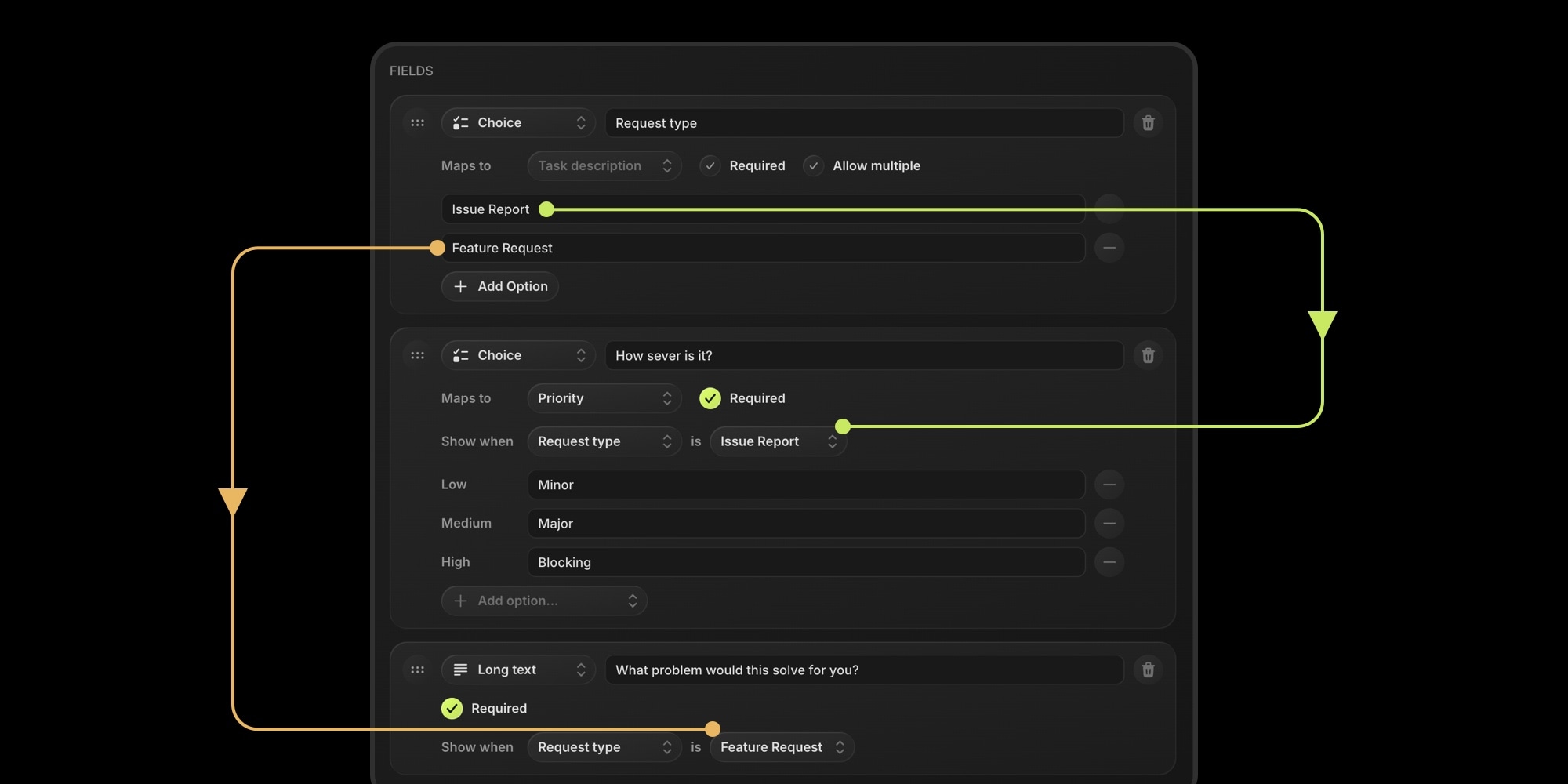
Branching lets a form ask only the questions that matter. Show bug-specific fields when someone picks "Bug report", feature-specific fields when they pick "Feature request" - each submitter sees a short, relevant form instead of a wall of optional questions.
#Show When
Every field (except the first) has a Show when setting in the form builder. It is set to Always by default - the field is visible to everyone. To branch, pick a trigger:
- Open the field's Show when select and choose an earlier Choice or Checkbox field
- Pick the answer values that reveal this field - one or several
- Watch the live preview: the field now appears only when the trigger's answer matches
A condition reads like a sentence: Show when Request type is Bug. For checkbox triggers the values are Checked or Unchecked.
#How Conditions Match
- Any-of: selecting several values means "show for any of these". Show when Request type is Bug, Crash reveals the field for either answer - handy for attaching one field to several branches.
- Multi-select triggers work the same way: if the submitter's selections overlap the condition's values, the field shows.
- Conditions chain: a field can branch on a field that itself branches. When a trigger is hidden, everything behind it hides too - closing a branch closes its sub-branches.
- Triggers must come earlier in the form, so branches always flow top to bottom.
#Hidden Fields Never Get in the Way
- A required field that is hidden by its condition does not block the submission - required only applies while the field is shown.
- Answers typed into a field that later gets hidden are not submitted. If a submitter fills in "Steps to reproduce", then switches from Bug to Feature, the steps stay out of the submission - and out of the created task. Switching back restores what they typed.
- This is enforced on the server too, not just in the browser.
#Branching in Both Layouts
In the classic layout, fields appear and disappear in place as the submitter answers. In the interactive layout, the progress bar and step count adapt live - picking "Bug" on question 1 of 1 turns the form into 1 of 4, and the next questions are the bug branch.
#Route Branches to Different Projects
Branching combines with field mapping into something none of the classic form builders offer: per-branch task routing. Put a mapped choice field inside each branch - the Bug branch maps its answers to your bug-tracking project and tags, the Feature branch to your roadmap project. A hidden mapped field simply falls back to the form's default project and status, so every branch lands where it should.
#Editing a Form with Conditions
The builder keeps conditions valid for you:
- Deleting a trigger field, changing its type away from Choice/Checkbox, or dragging it below a field that depends on it clears the affected conditions - those fields go back to Always
- Removing an option removes it from conditions that used it; renaming a plain option renames it in conditions too
- A condition always needs at least one value - unchecking the last one is ignored
Branching is available on all plans, free plan included.