- Dashboard
- Workspace
- Projects
- Board Settings
- Project Settings
- Tasks
- Create Task
- Edit Task
- Change Status
- Order Tasks
- Subtasks
- Task Dependencies
- Milestones
- Pin To Top
- Task Templates
- Duplicate Task
- Move To Board
- Create Note From Task
- Archive Task
- Unarchive Task
- Delete Task
- Task Updates History
- Reminders
- Time Tracking
- AI Tasks
- Export Task
- Share Task
- Import Multiple Tasks
- Export Multiple Tasks
- Notes
- Forms
- Comments
- Text Editor
- Account
- MCP Server
- t0ggles Crew
Getting Started With t0ggles Crew
#Installation
t0ggles Crew is available for macOS, Windows, and Linux.
#macOS
- Download the DMG from the t0ggles Crew page
- Open the DMG and drag t0ggles Crew to your Applications folder
- Launch t0ggles Crew from Applications
The app is code-signed and notarized by Apple.
#Windows
- Download the installer from the t0ggles Crew page
- Run
t0ggles Crew-*-win-x64-setup.exeand follow the prompts - Launch t0ggles Crew from the Start menu or desktop shortcut
#Linux (AppImage)
- Download the AppImage from the t0ggles Crew page
- Make it executable:
chmod +x t0ggles-Crew-*-linux.AppImage - Run the AppImage directly
#Linux (Debian/Ubuntu)
- Download the .deb package from the t0ggles Crew page
- Install with:
sudo dpkg -i t0ggles-Crew-*-linux.deb - Launch from your application menu
#Prerequisites
Before using t0ggles Crew, install at least one CLI provider:
- Claude Code:
npm install -g @anthropic-ai/claude-code - OpenAI Codex:
npm install -g @openai/codex - OpenCode:
npm install -g opencode-ai
The CLI provider must also have the t0ggles MCP server configured so agents can interact with your board during runs. See CLI Providers for setup details.
#Connect Your Board
When you launch t0ggles Crew for the first time, a setup wizard guides you through the initial configuration.
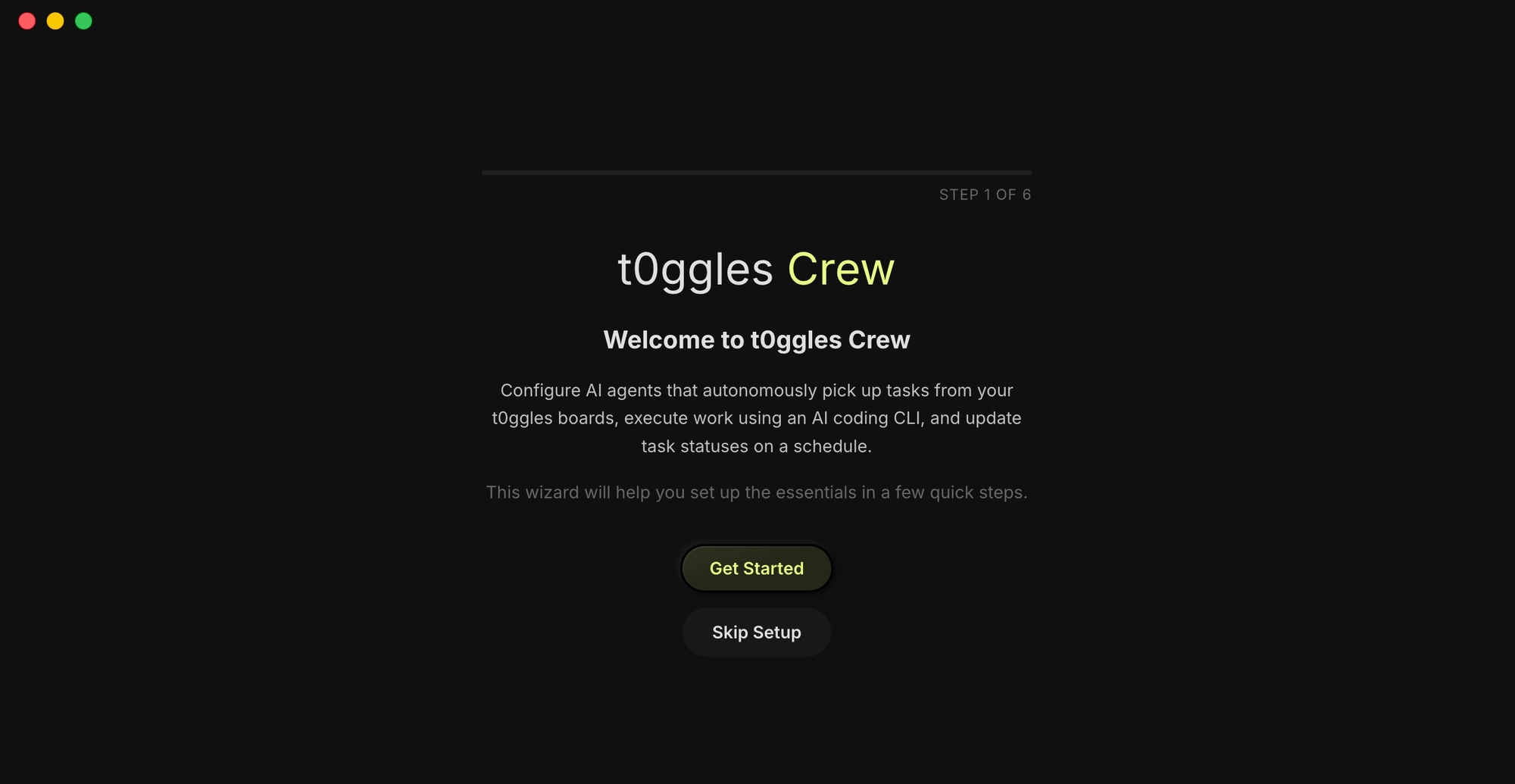
- Create a new project and give it a name
- Select the local code folder for the project
- Click "Connect to t0ggles" - a picker page opens on t0ggles.com where you select your board and project
- The selected board and project are linked to your Crew project automatically
- Configure the t0ggles MCP server in your CLI provider (see CLI Providers) so agents can access your board during runs
- Create agent users on your t0ggles board so pipelines can be linked to bot identities
#Create a Pipeline
Pipelines define what your AI agents do. Each pipeline has an agent identity, a prompt, a schedule, and a timeout.
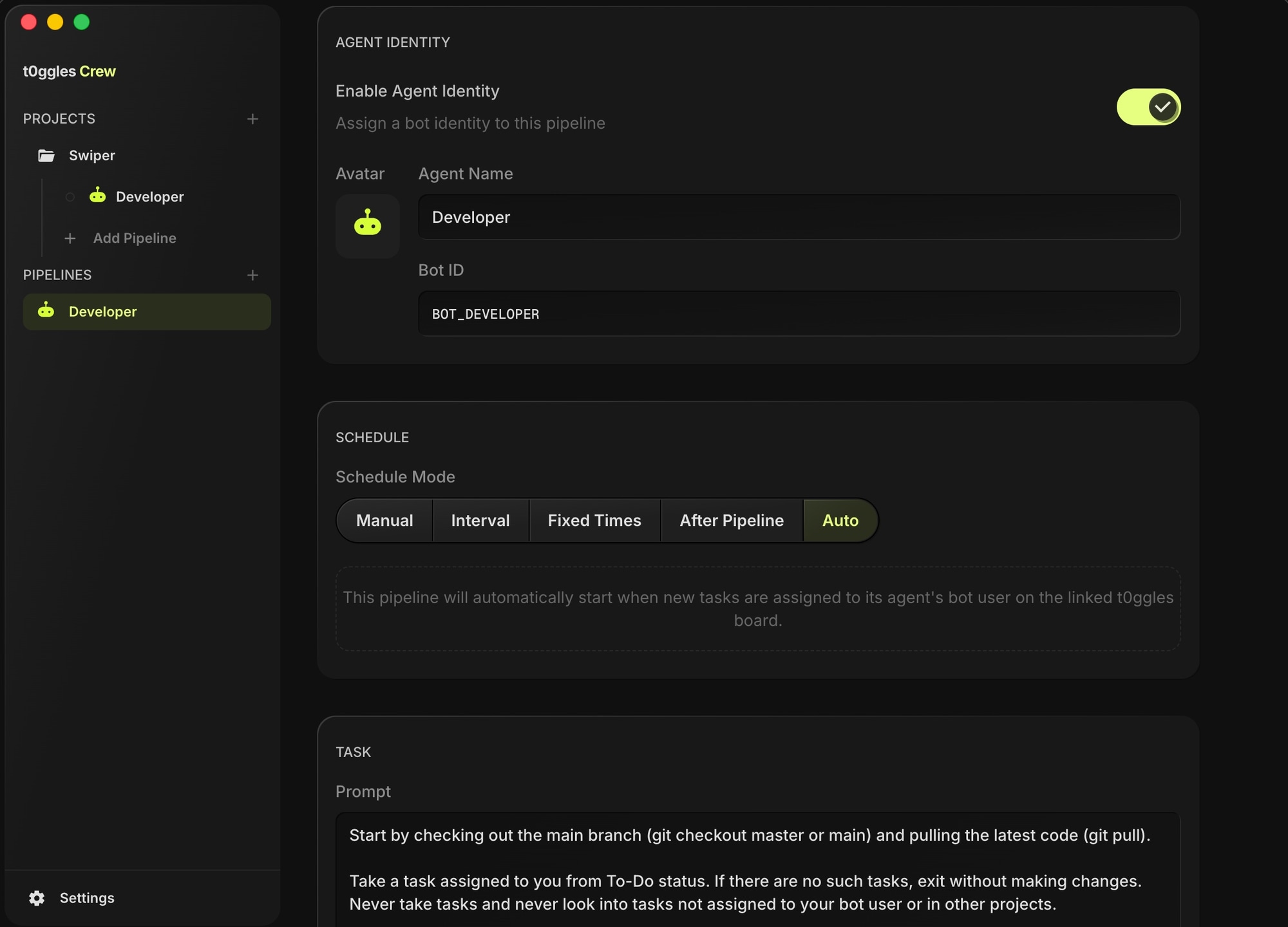
- Go to your project and click "Add Pipeline"
- Give it a name (e.g., "Feature Developer", "Code Reviewer")
- Write a prompt describing the agent's task (see Pipeline Examples for inspiration)
- Configure the agent identity (name, bot user ID)
- Set a schedule (manual, interval, fixed times, or auto)
- Save and enable the pipeline
#Watch It Work
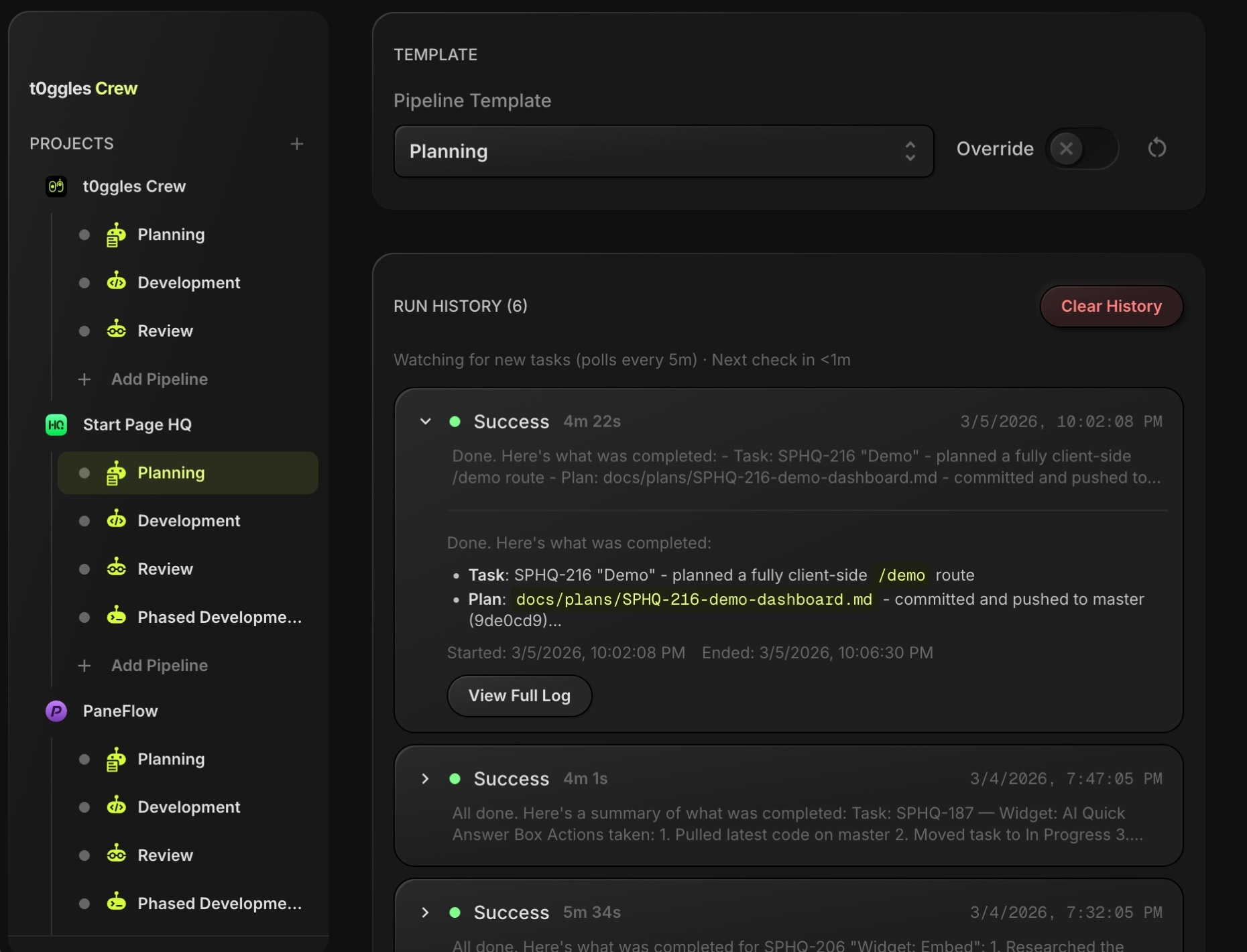
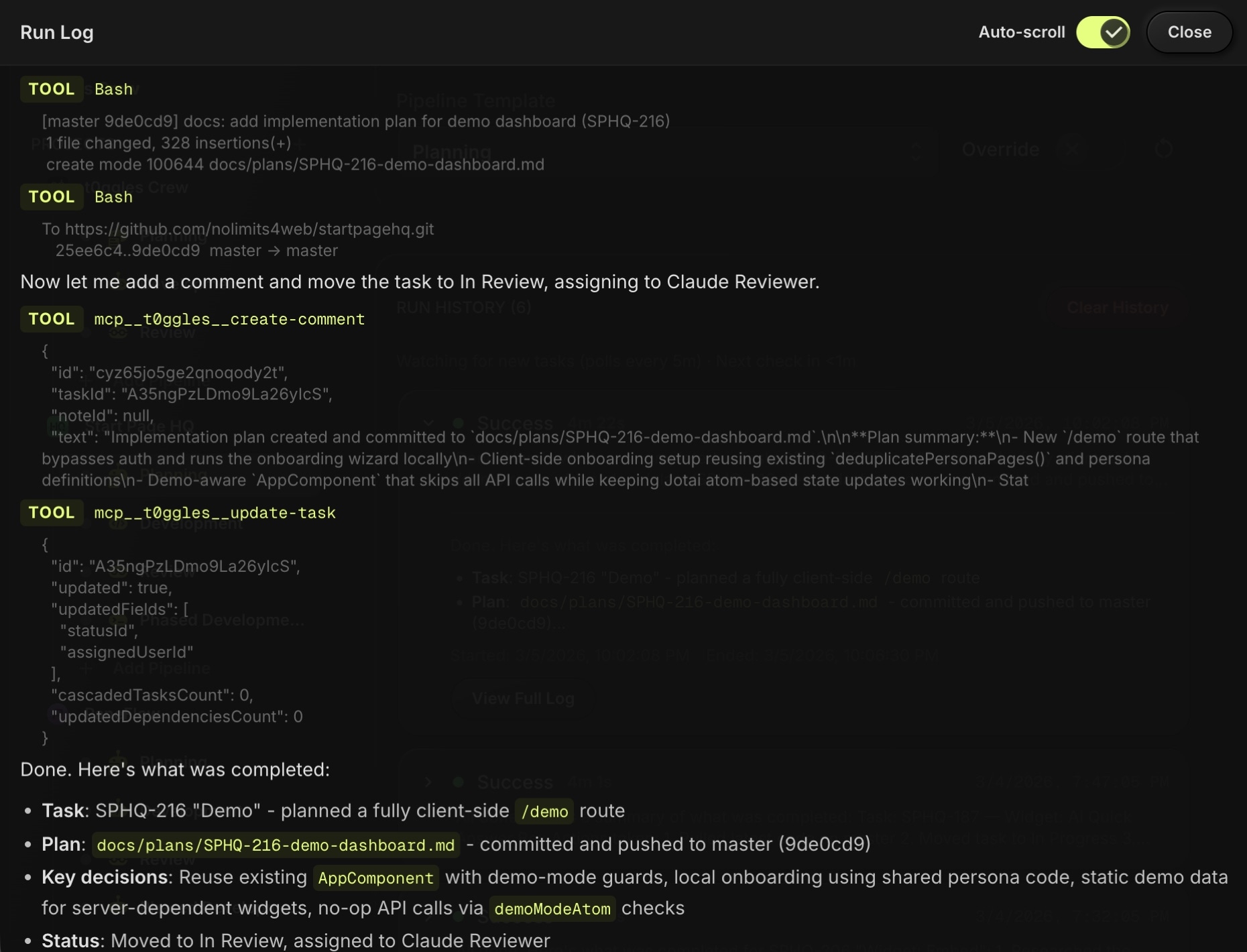
Once a pipeline is enabled and scheduled, t0ggles Crew runs it automatically. You can monitor execution in real-time.
- View live streaming output from each run
- Check run history with durations and statuses
- See task updates on your t0ggles board