- Dashboard
- Workspace
- Projects
- Board Settings
- Project Settings
- Tasks
- Create Task
- Edit Task
- Change Status
- Order Tasks
- Subtasks
- Task Dependencies
- Milestones
- Pin To Top
- Task Templates
- Duplicate Task
- Move To Board
- Create Note From Task
- Archive Task
- Unarchive Task
- Delete Task
- Task Updates History
- Reminders
- Time Tracking
- AI Tasks
- Export Task
- Share Task
- Import Multiple Tasks
- Export Multiple Tasks
- Notes
- Forms
- Comments
- Text Editor
- Account
- MCP Server
- t0ggles Crew
Submissions and Approval
Every form keeps a full record of its submissions. Click a form in the forms list (or the Submissions button in the builder toolbar) to open its submissions table.
Both admins and board members with access to all projects can work the queue - review, approve or decline, and message submitters - so a support agent doesn't need admin rights to handle intake. Editing forms and permanently deleting submissions stay admin-only.
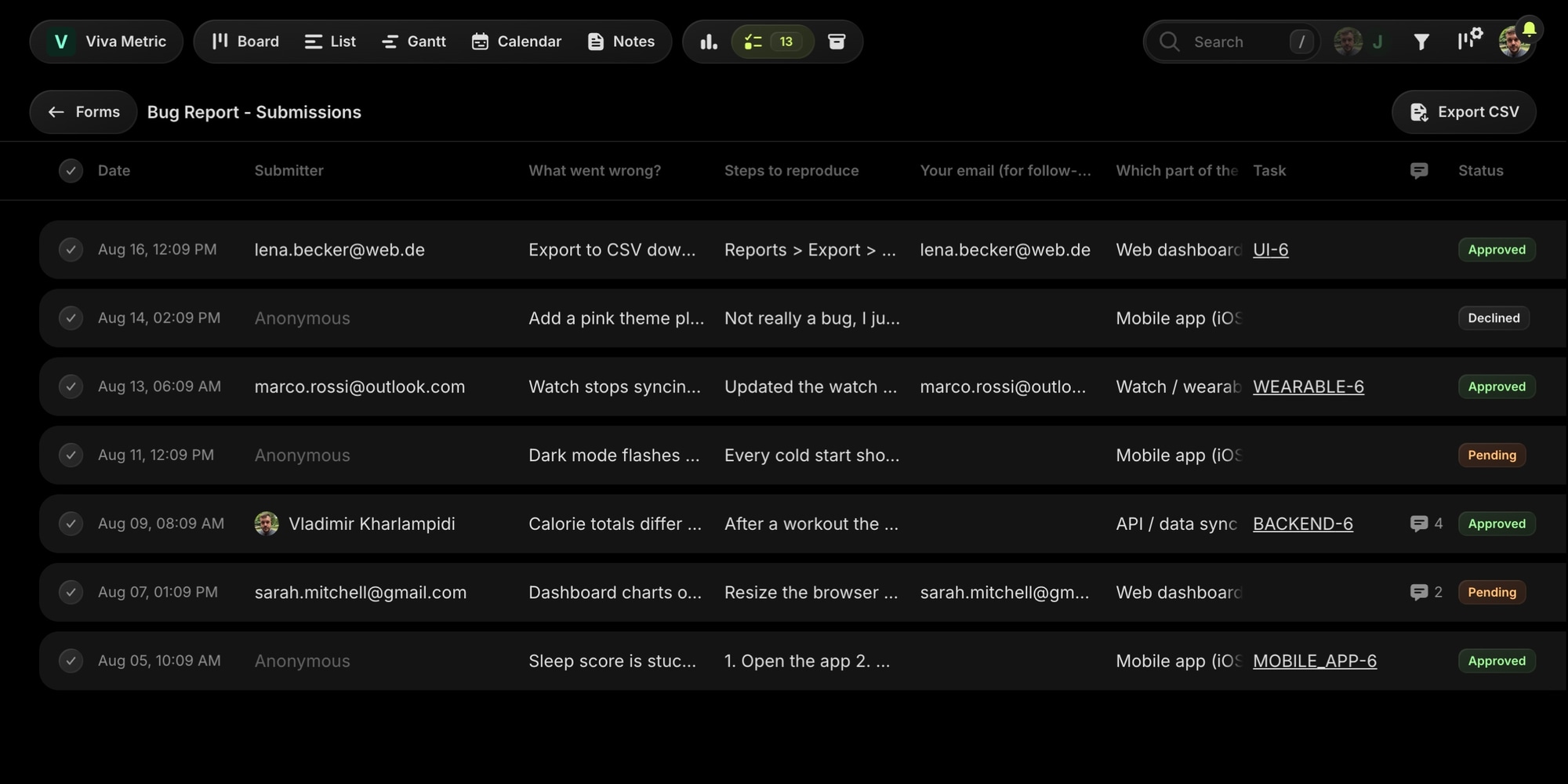
The table shows the date, the submitter (name and avatar for members, verified email, or "anonymous"), a column per form field, a link to the created task, the number of messages in the thread, and the status - Pending, Approved with the task key, or Declined. New submissions appear in the table live, and click any row to open the full submission:
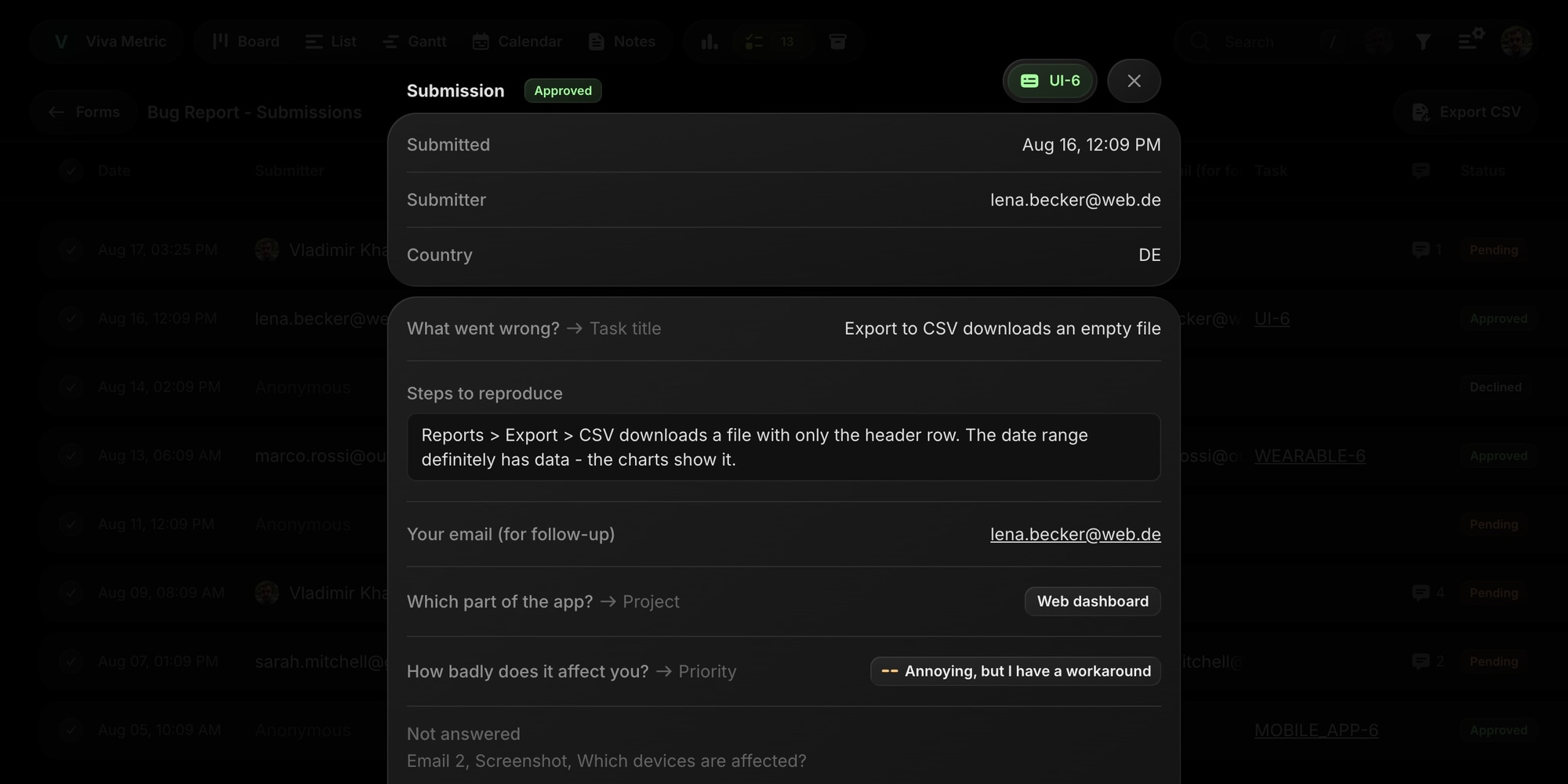
The details view shows every raw answer exactly as submitted, with an arrow showing where each mapped answer was routed. Raw answers are kept forever - even after a task is created - so you can always recover from a misconfigured mapping.
#Approval Mode
With Require approval enabled in the form settings, submissions wait in a pending queue and no task is created until you approve. This is the default for public forms - anonymous strangers shouldn't write directly to your board.
- Approve - applies the form's field mappings and creates the task. Mappings are applied at approval time, so fixing a form's mapping also fixes how its pending submissions will land.
- Decline - no task is created. The answers stay in the table for the record; uploaded files are deleted.
Select multiple rows with the checkboxes and use the With selected menu to approve, decline, or delete in bulk.
#Message the Submitter
Every submission has a message thread at the bottom of its details view. Type a message and t0ggles emails it to the submitter; when they reply from their inbox, the reply lands right back in the thread - a two-way conversation without the submitter ever needing a t0ggles account.
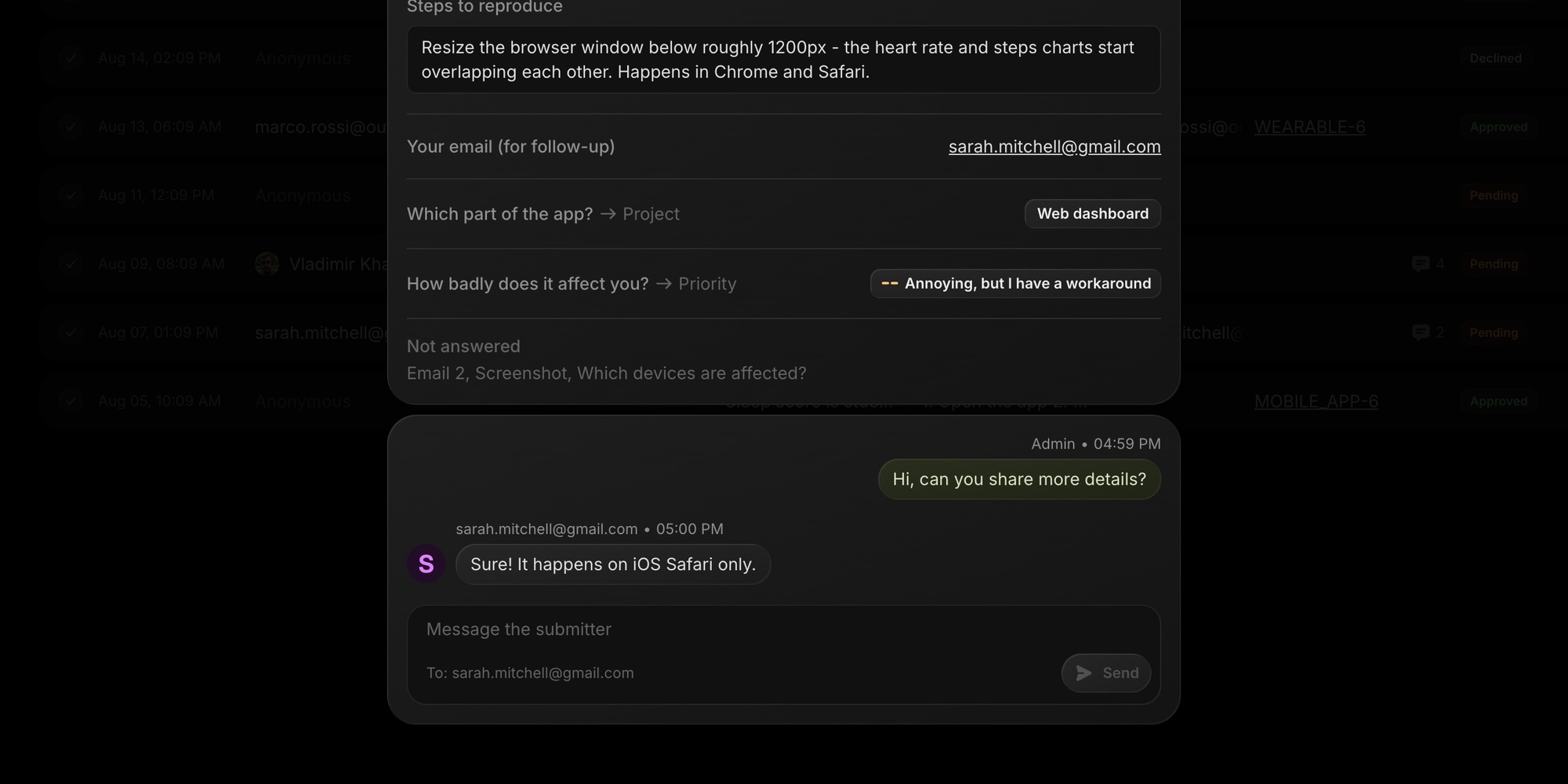
Where the email goes depends on how the form was submitted:
- Members - the member's t0ggles account email.
- Verified email - the address the submitter verified.
- Public - an answer from an Email field on the form. If the form has several email fields, pick which one; if it has none (or the submitter left it empty), there is nothing to reply to and the composer is hidden.
Messaging works on pending, approved, and declined submissions alike - ask for missing details before approving, or close the loop with "this is fixed" after. The submissions table shows a message count per row, so open conversations never get lost.
#Notifications
Board admins get an in-app and push notification for every new submission - and for every submitter reply in a message thread - linking straight to it. The Forms button in the board navbar shows a badge with the pending submissions count, so the queue never goes stale unnoticed.
#Export to CSV
Click Export CSV above the table to download all submissions with their answers - for spreadsheets, reporting, or moving data elsewhere.
#Triage With AI
The t0ggles MCP server includes form tools, so an AI assistant can work the intake queue for you: list new submissions, read the answers, and approve or decline in bulk - "approve everything from the Bug Report form that mentions a crash".