- Dashboard
- Workspace
- Projects
- Board Settings
- Project Settings
- Tasks
- Create Task
- Edit Task
- Change Status
- Order Tasks
- Subtasks
- Task Dependencies
- Milestones
- Pin To Top
- Task Templates
- Duplicate Task
- Move To Board
- Create Note From Task
- Archive Task
- Unarchive Task
- Delete Task
- Task Updates History
- Reminders
- Time Tracking
- AI Tasks
- Export Task
- Share Task
- Import Multiple Tasks
- Export Multiple Tasks
- Notes
- Forms
- Comments
- Text Editor
- Account
- MCP Server
- t0ggles Crew
Time Tracking
Time tracking helps you measure how much time is spent on tasks. You can start and stop timers, log time manually, and view a complete history of all time entries for each task.
#Enable Time Tracking
Time tracking is a board-level setting. To enable it:
- Open Board Settings from the board menu.
- Go to the Properties tab.
- Enable the Time Tracking property.
Once enabled, time tracking controls appear in task details for all tasks on the board.
#Show Timer on Task Cards
By default, time tracking is only visible in task details. To also show a timer button on task cards (in Columns and List views):
- Open Board Settings and go to the Properties tab.
- Find the Time Tracking property and click to configure it.
- Enable Show on task card.
#Start a Timer
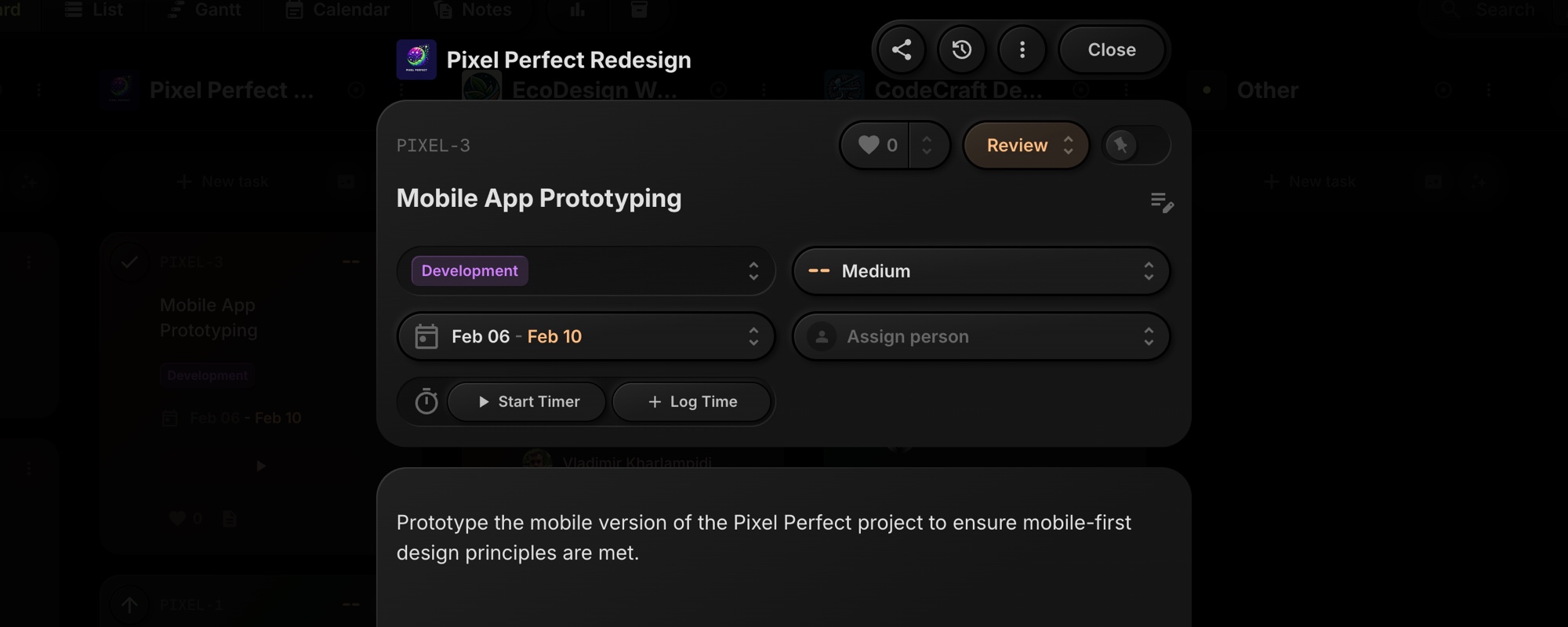
To start tracking time on a task:
- Open the task to view task details.
- Find the Time Tracking property in the properties section.
- Click Start Timer to begin tracking.
The timer will start counting and display the elapsed time in real-time.
#Stop a Timer
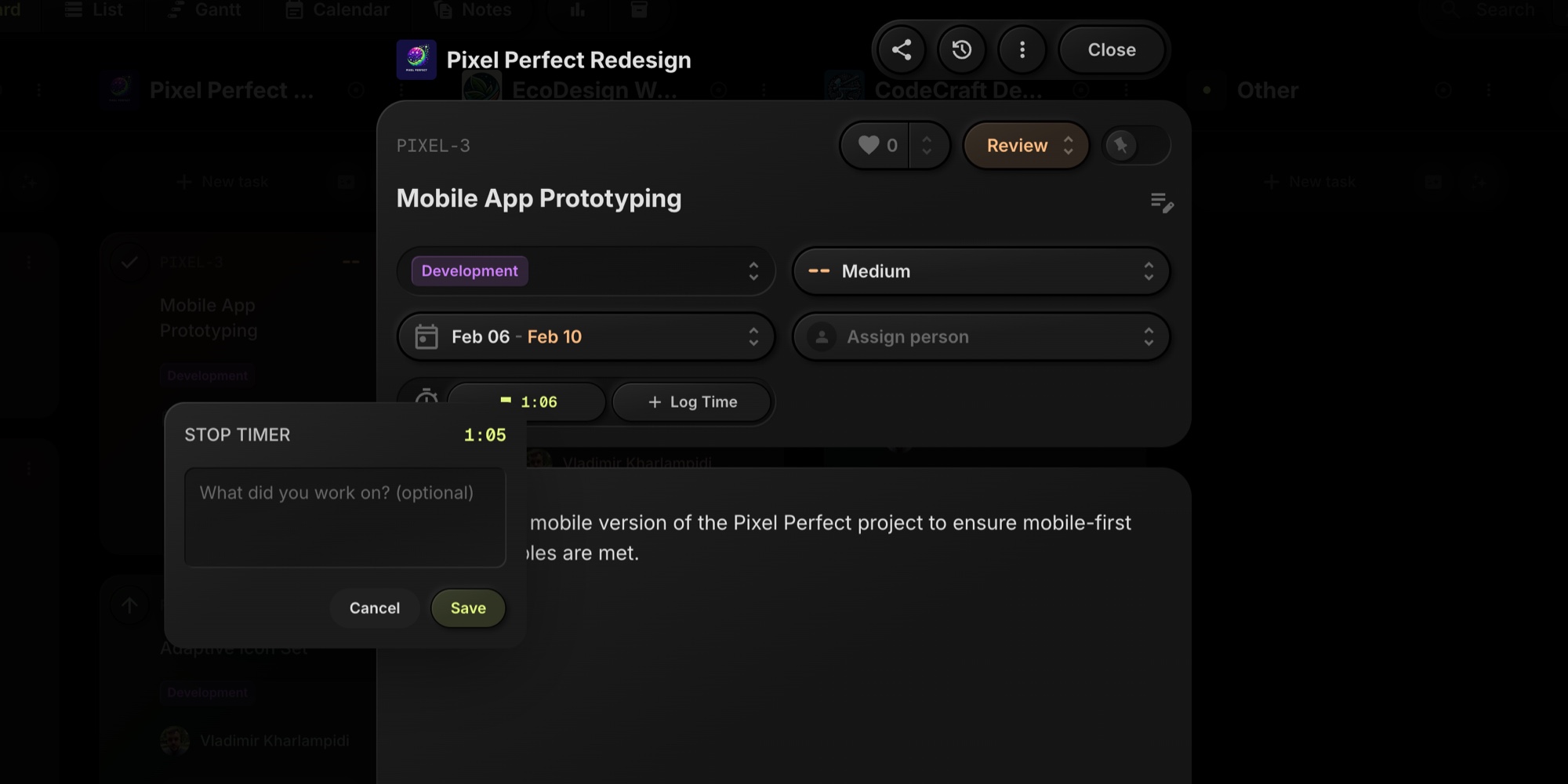
When you're done working on a task:
- Click the Stop button (yellow square icon) next to the running timer.
- A popover appears asking "What did you work on?"
- Enter an optional description of the work completed.
- Click Save to record the time entry.
The time spent is saved and added to the task's total tracked time.
#Log Time Manually
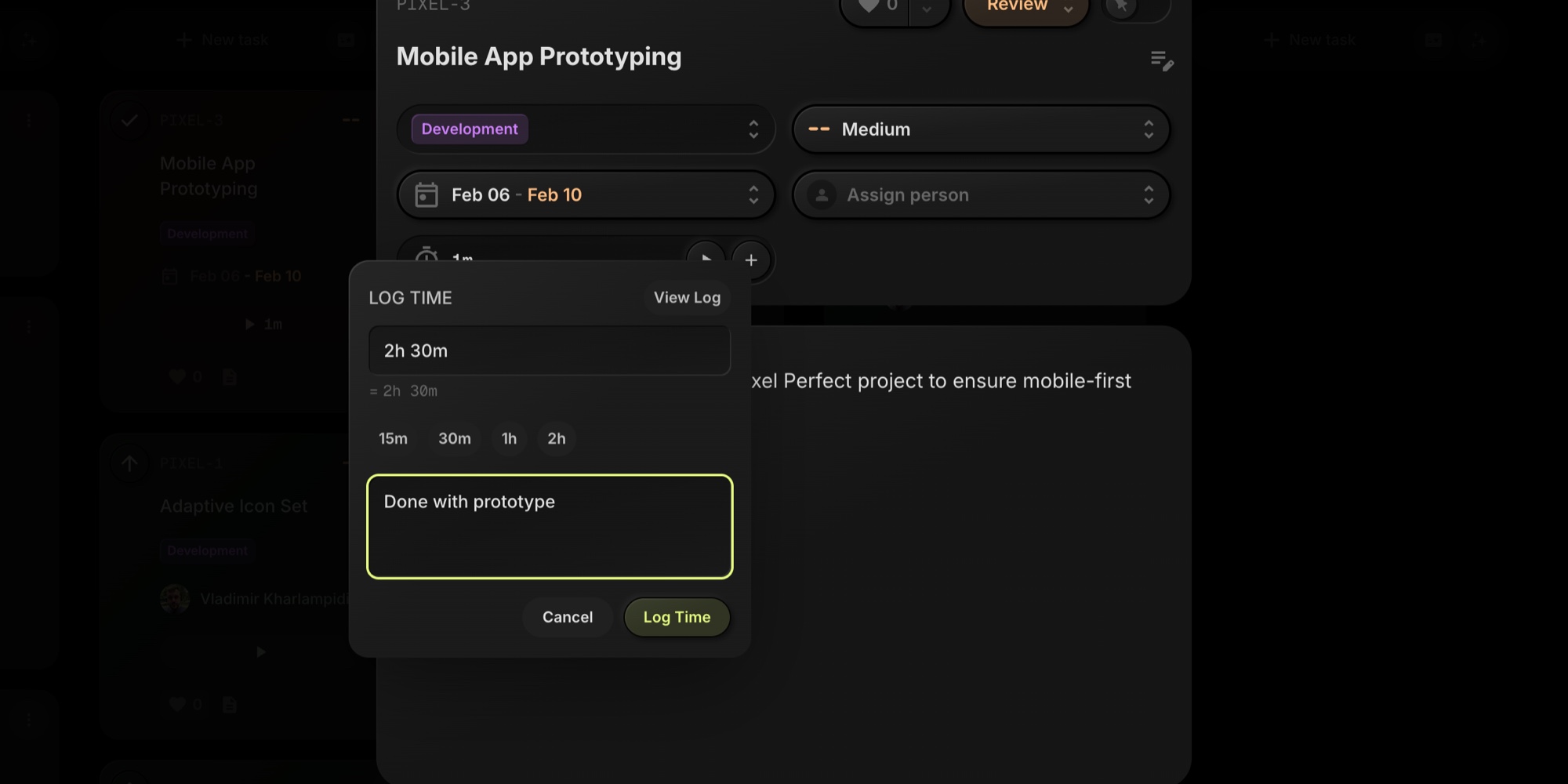
To add time without using a timer:
- Open the task to view task details.
- Click the + Log Time button (or the + button if time has already been tracked).
- Enter the duration using any of these formats:
2h 30m- hours and minutes1:30- hours:minutes90- minutes (numbers greater than 10)2- hours (single digits)1.5h- decimal hours
- Use the quick presets (15m, 30m, 1h, 2h) to quickly set common durations.
- Add an optional description of the work.
- Click Log Time to save the entry.
#View Time Log
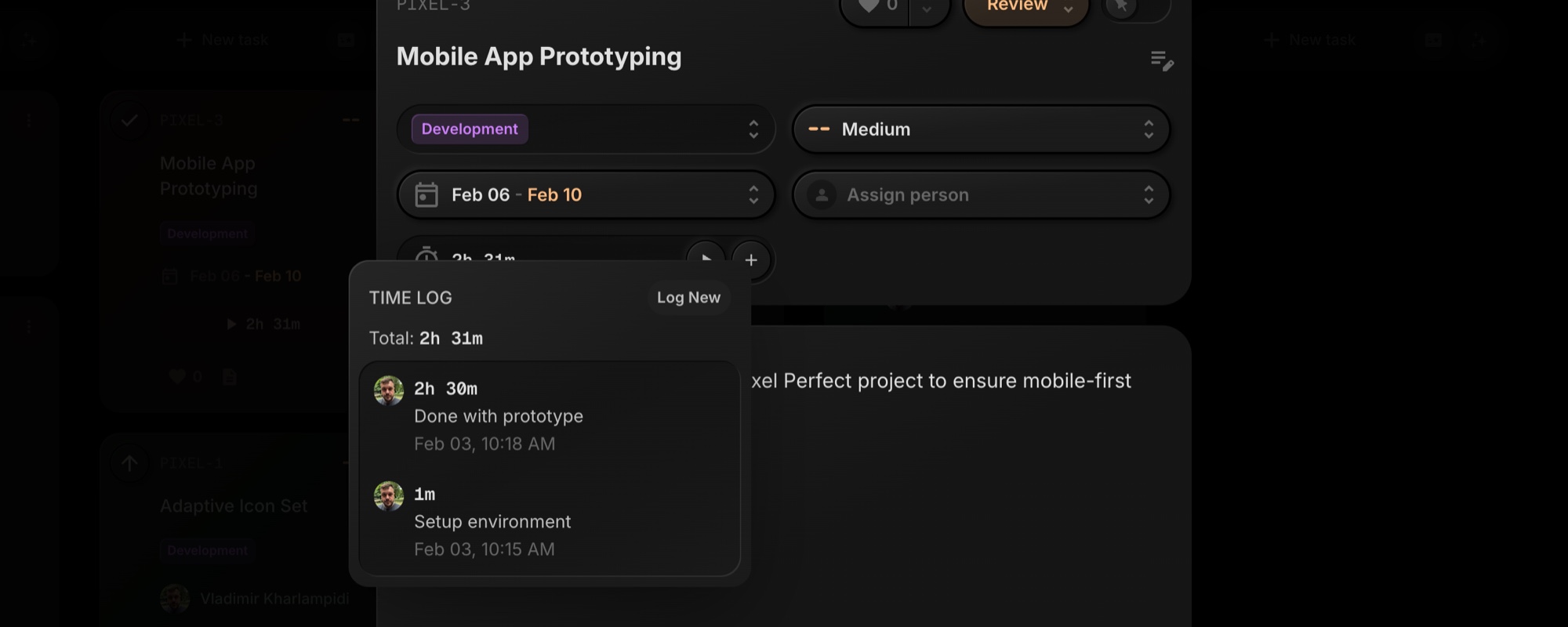
To see all time entries for a task:
- Open the task to view task details.
- Click the + Log Time button (or + button).
- Click View Log in the top-right corner of the popover.
The time log shows:
- Total time tracked on the task
- Individual entries with duration, description, user avatar, and timestamp
Click Log New to switch back to adding a new time entry.
#Time on Task Cards
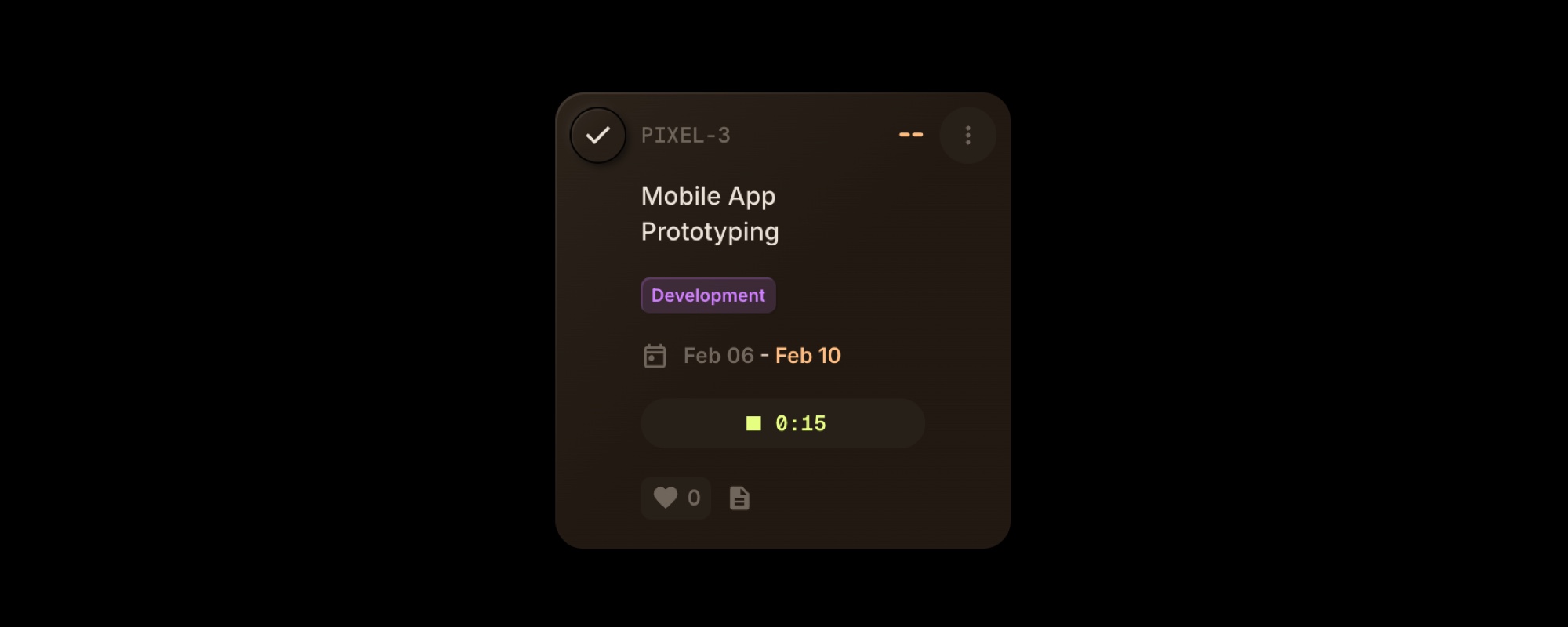
When "Show on task card" is enabled in board settings, task cards display time tracking controls:
- Play button with total time - Shows cumulative tracked time. Click to start a new timer.
- Running timer - When a timer is active, shows the elapsed time with a stop button.
This provides quick access to start and stop timers without opening task details.
#Auto-Stop Behavior
Timers automatically stop in these situations:
- Task moved to Done - When a task is moved to a completed status, any running timer is automatically stopped and saved.
- Task archived - Archiving a task with a running timer will stop the timer first.
This ensures no time is lost when completing or archiving tasks.
#Permissions
- Board members can start timers, log time, and edit or delete their own entries.
- Board admins and owners can edit or delete any time entry.
- Guest users can view total time but cannot track time.
- Public visitors cannot see time tracking information.
Only the user who started a timer can stop it.
#Tips
- You can run timers on multiple tasks simultaneously - each task tracks time independently.
- If a timer runs for more than 24 hours, it displays in red as a warning.
- Time entries appear in the task's activity history for full transparency.
- Time data is included in Board Reports for project-level time analysis.