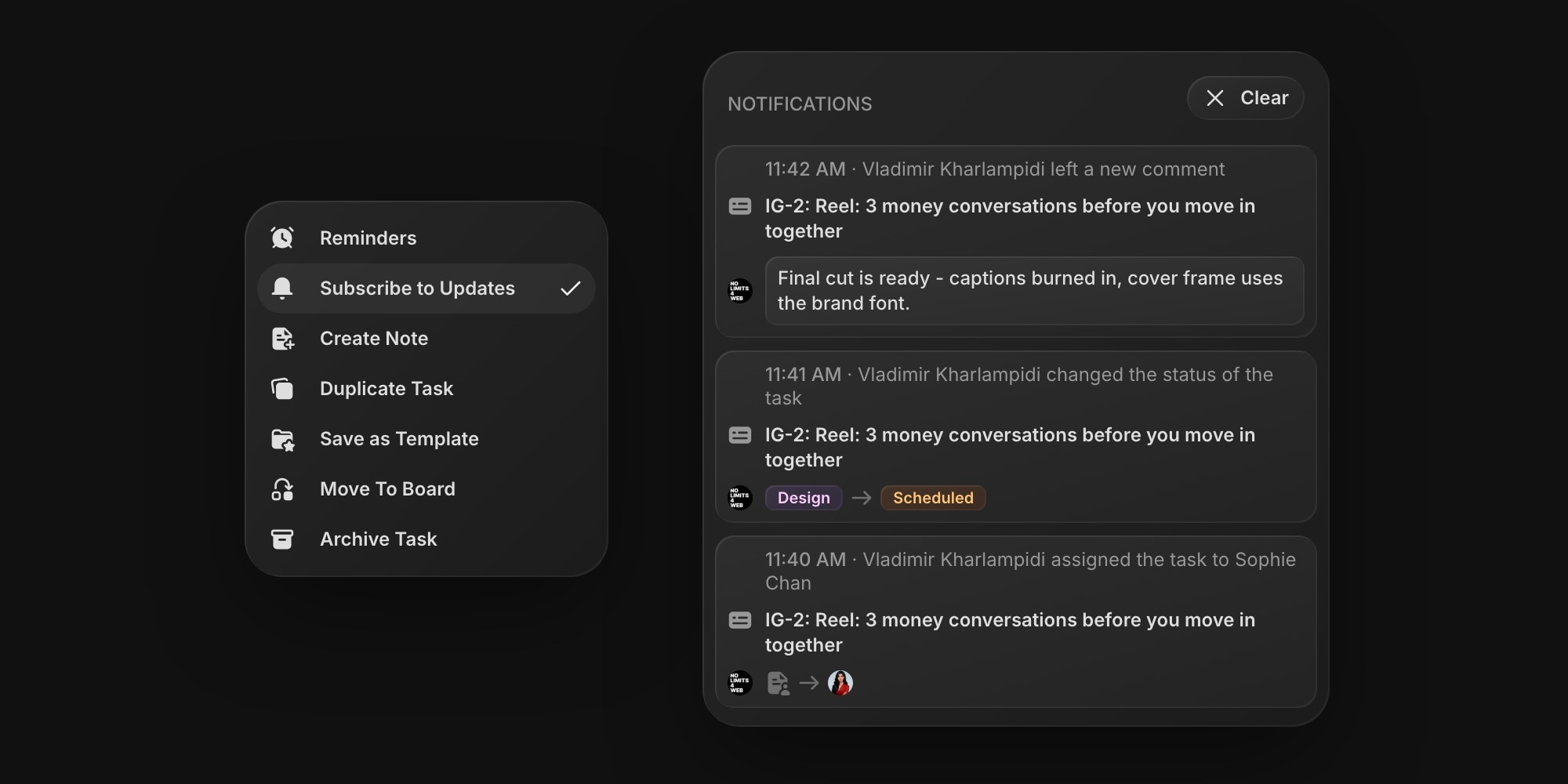
You can now subscribe to any task on your board. Until now, task notifications only reached the creator, the assignee, and people mentioned in comments. Now anyone on the board can follow a task and stay in the loop.
#How It Works
- One click to subscribe - open a task, click the More (three dots) button, and choose Subscribe to Updates. A checkmark shows you're subscribed, and clicking it again unsubscribes
- New comments - get notified whenever someone comments on the task
- Status changes - know the moment the task moves to review, gets blocked, or lands in Done
- Assignee changes - see when the task is handed to someone else or left unassigned
- Every channel - subscriber notifications arrive in-app, by email, and as push notifications, following your notification settings
- No duplicates - if you're also mentioned in a comment or assigned to the task, you get one notification, not two
Task creators now also get notified when the status of their task changes - previously only the assignee did.
#Why This Matters
Plenty of people care about a task without owning it. A project manager watching a release blocker, a designer waiting for a fix before the next iteration, a support lead who promised a customer an update, or a stakeholder following a client deliverable. Until now, staying informed meant checking the board again and again or asking for status in chat.
Subscriptions bring the updates to you. Remote and async teams get visibility without extra check-ins, and assignees get fewer "any news on this?" messages - the people who need to know already do.
#For AI Assistants
The MCP server has a new subscribe-task tool, so your AI assistant can subscribe you to tasks - for example, every blocker in the current sprint - or unsubscribe you when you're done following them.
#Getting Started
Open any task, click the three dots in the top-right corner, and choose Subscribe to Updates. Learn more about what you get notified about and how to set up reminders for follow-ups on a schedule.