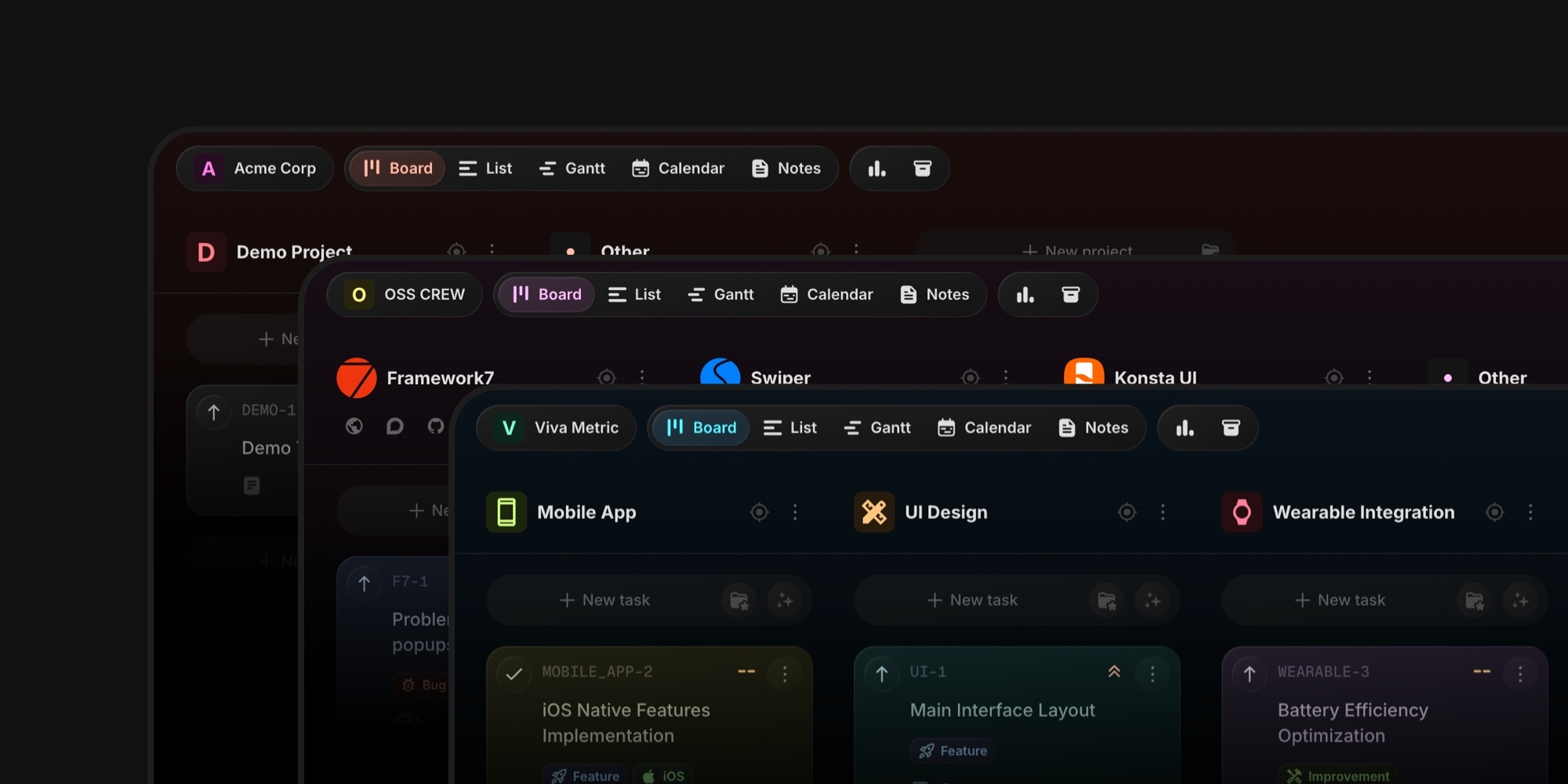
Board Appearance: Custom Brand Colors Come to t0ggles
Your board is often the first thing clients, teammates, and community members see when they open your workspace. Starting today, it doesn't have to look like everyone else's. With the new Board Appearance settings, you can replace the default t0ggles brand color with your own, add a subtle background accent gradient, and even hand-pick colors for your project icons.
Whether you run client boards on a custom domain, share a public roadmap, or just want your workspace to feel like home, your board can now carry your brand everywhere it goes.
#Custom Brand Color
Pick any color, and the whole app recolors while the board is open. Buttons, tabs, switches, checkboxes, focus rings, and accents all follow your brand - not just a logo in the corner, but the entire interface.
The best part: the color applies for everyone viewing the board. Team members, guest users, and visitors of public boards all see your brand color. That makes it a perfect fit for agencies running client boards and white-label setups where the product should feel like yours.
Setting it up takes seconds:
- Open Board Settings, click the three dots button next to the tabs, and select Appearance.
- Click the color picker and choose your color - use the palette presets, the color area, or enter an exact hex value.
- Watch the live preview - the example elements at the top of the tab show exactly how tabs, switches, and checkboxes will look.
- Close Board Settings, and the new color syncs in real-time to everyone with the board open.
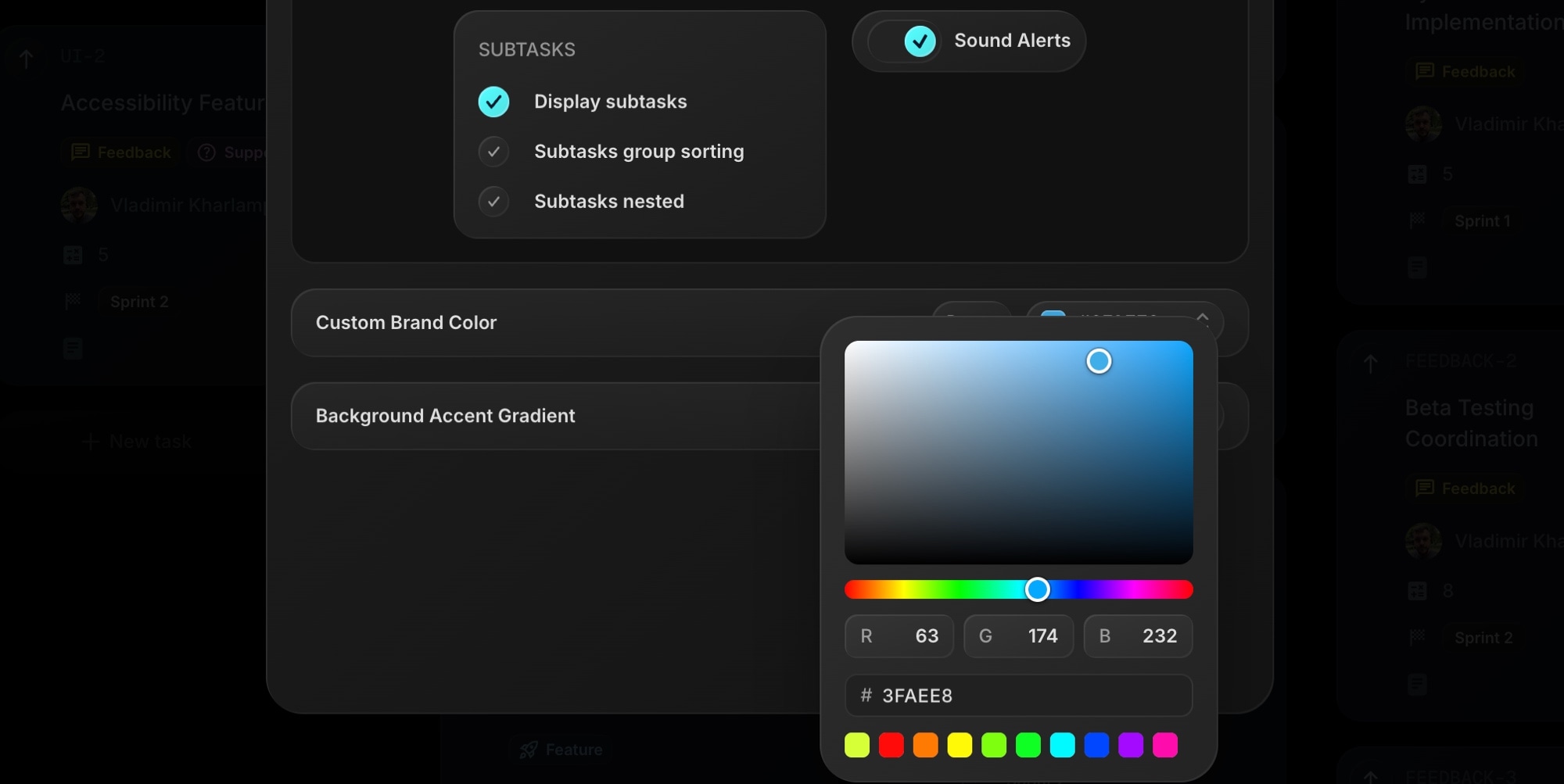
Changed your mind? Click Reset to return to the default t0ggles color at any time.
#Background Accent Gradient
For an extra touch of polish, you can enable a Background Accent Gradient - the top of the board gets a soft tint of your brand color that gently fades out as you scroll. It's subtle, it's clean, and it instantly makes the board feel more custom.
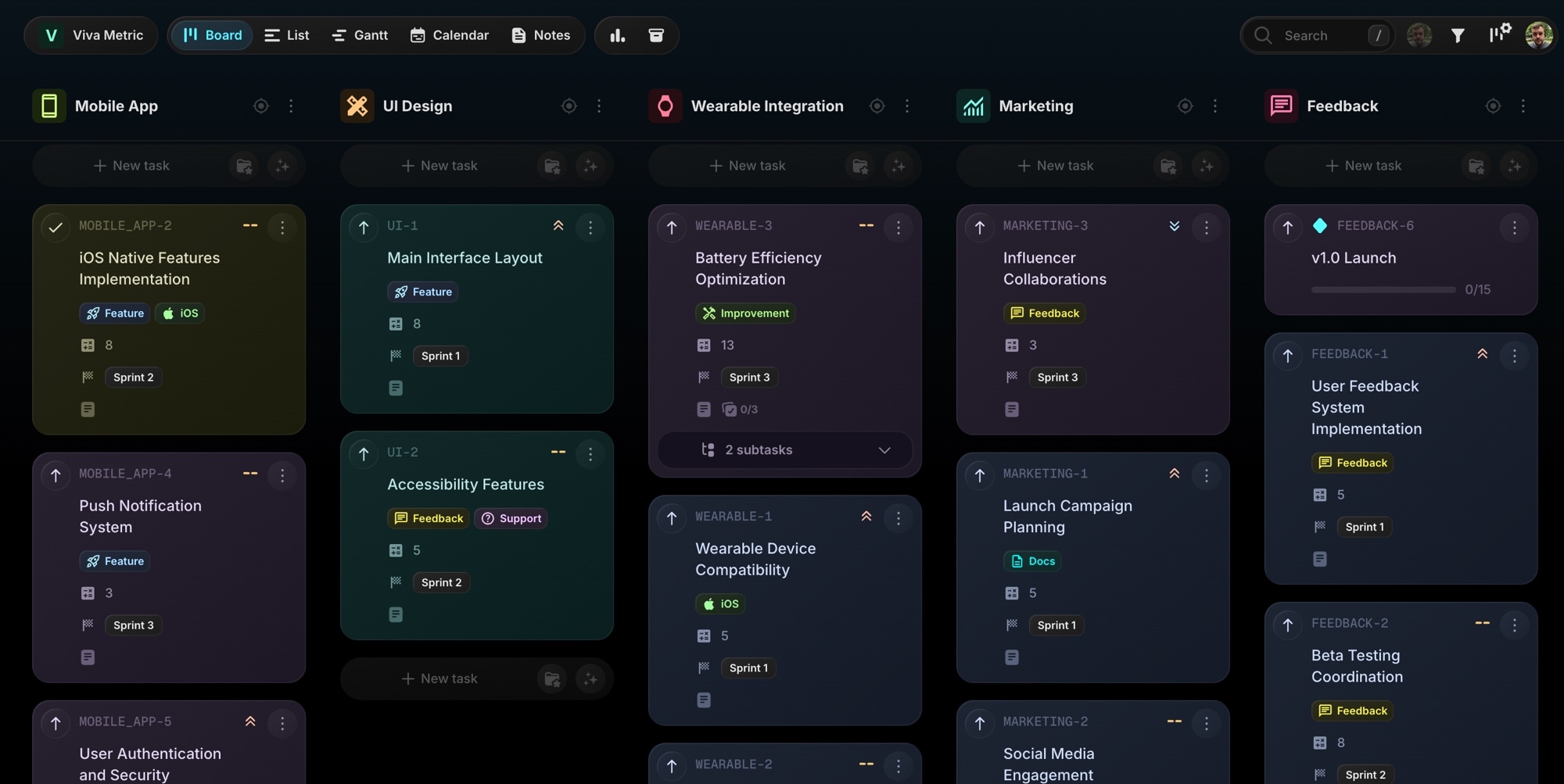
The gradient works with the default t0ggles color too, so you can enable it even without picking a custom brand color. It is displayed on desktop, while on mobile devices it is skipped for performance reasons - the custom brand color still applies everywhere.
#Custom Project Icon Colors
Project icons in t0ggles have always been colored automatically based on the project title. That works great out of the box, but sometimes you want full control - matching a client's brand, color-coding project types, or just picking a color you like better.
Now you can. Open Edit Project, click the project icon, and you'll find a new Icon Color option:
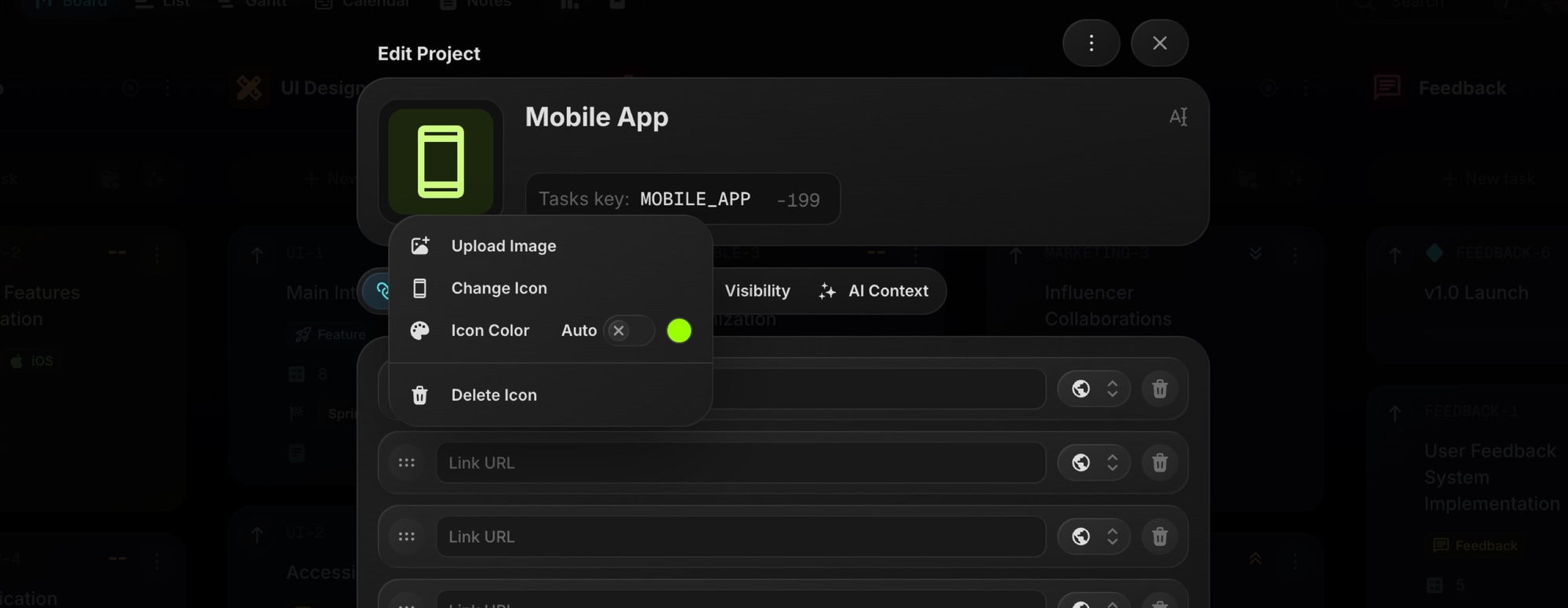
Pick any color with the same full-featured picker - palette presets, color area, RGB values, or an exact hex code. The icon and its background tint update instantly across the board, task lists, and everywhere the project appears.
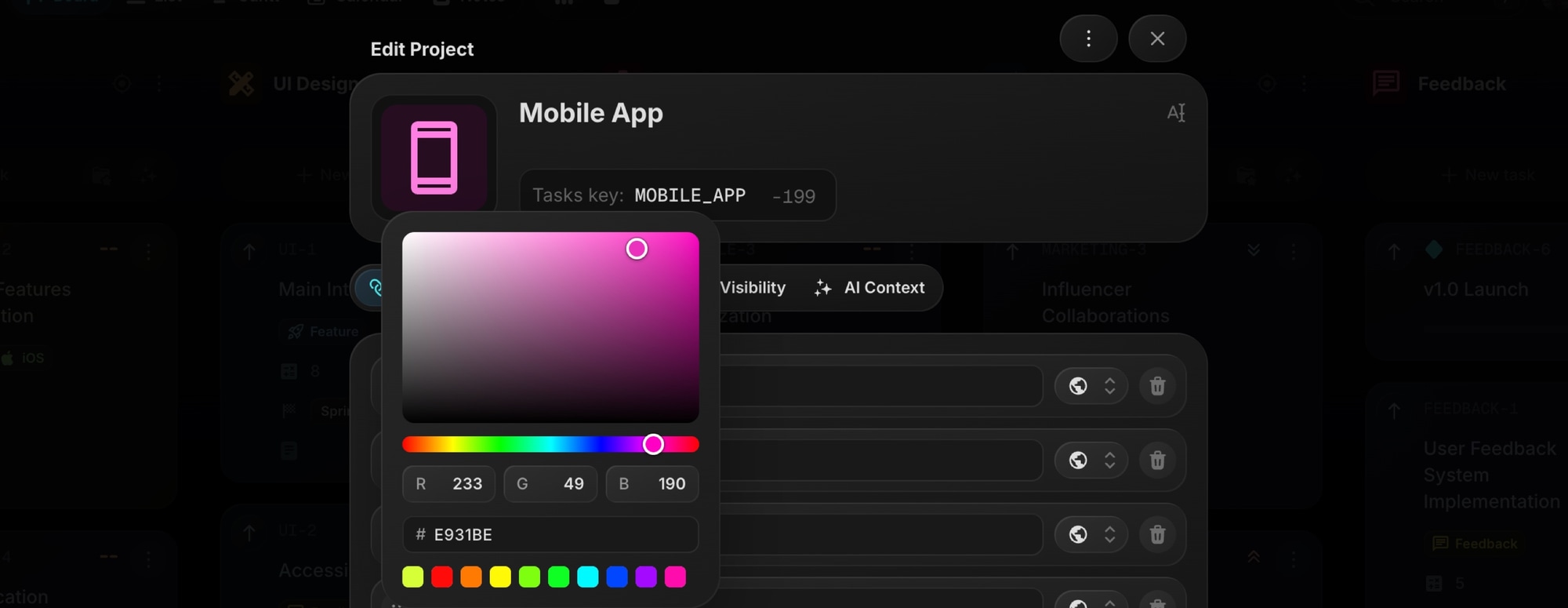
Switching back is one click - clear the color and the icon returns to Auto mode with its title-based color.
#Made for Client Work and Public Boards
These features shine brightest when your board faces the outside world:
- Agencies can give every client board the client's own brand color, so stakeholders feel at home the moment they open it.
- Public roadmaps and changelogs stay on-brand for your community, especially when paired with public boards and custom domains.
- Product teams on multi-project boards can use custom icon colors to visually group related projects at a glance.
Only board admins can change the appearance settings - everyone else simply sees the customized board.
#Getting Started
- Go to Board Settings → three dots → Appearance.
- Pick your brand color and toggle on the Background Accent Gradient.
- For project icons, open Edit Project, click the icon, and set an Icon Color.
For all the details, check the Board Appearance docs.
Not on t0ggles yet? Start free and have your first branded board running in minutes - no card required → t0ggles.com
Don't Miss What's Next
Get updates, design tips, and sneak peeks at upcoming features delivered straight to your inbox.