Time Tracking in t0ggles: Finally Know Where Your Hours Go
How long did that feature actually take? Where did this week's hours go? These questions come up constantly - in client billing, sprint retrospectives, and capacity planning. Yet most teams either don't track time at all, or they bounce between their project board and a separate time tracking app.
Time Tracking in t0ggles is a native way to track time spent on tasks without switching tools or breaking your flow. Start a timer with one click, log time manually when you forget, and see exactly where your team's hours are going.
#The Problem With Separate Time Tracking
Teams that need accurate time data usually end up with one of two setups:
No tracking at all. You estimate how long things took after the fact, leading to inaccurate billing, unrealistic future estimates, and no real visibility into where effort goes.
A separate time tracking tool. You constantly switch between your project board and another app. Timers get forgotten. Manual entries are guessed. The data exists, but it's disconnected from the actual work.
Both approaches create friction. Either you don't have the data you need, or getting it requires extra effort that pulls you away from the work itself.
#Time Tracking Built Into Your Workflow
t0ggles Time Tracking lives where you already work - right in your task details. No new apps to open. No browser tabs to manage. Start tracking when you start working, stop when you're done.
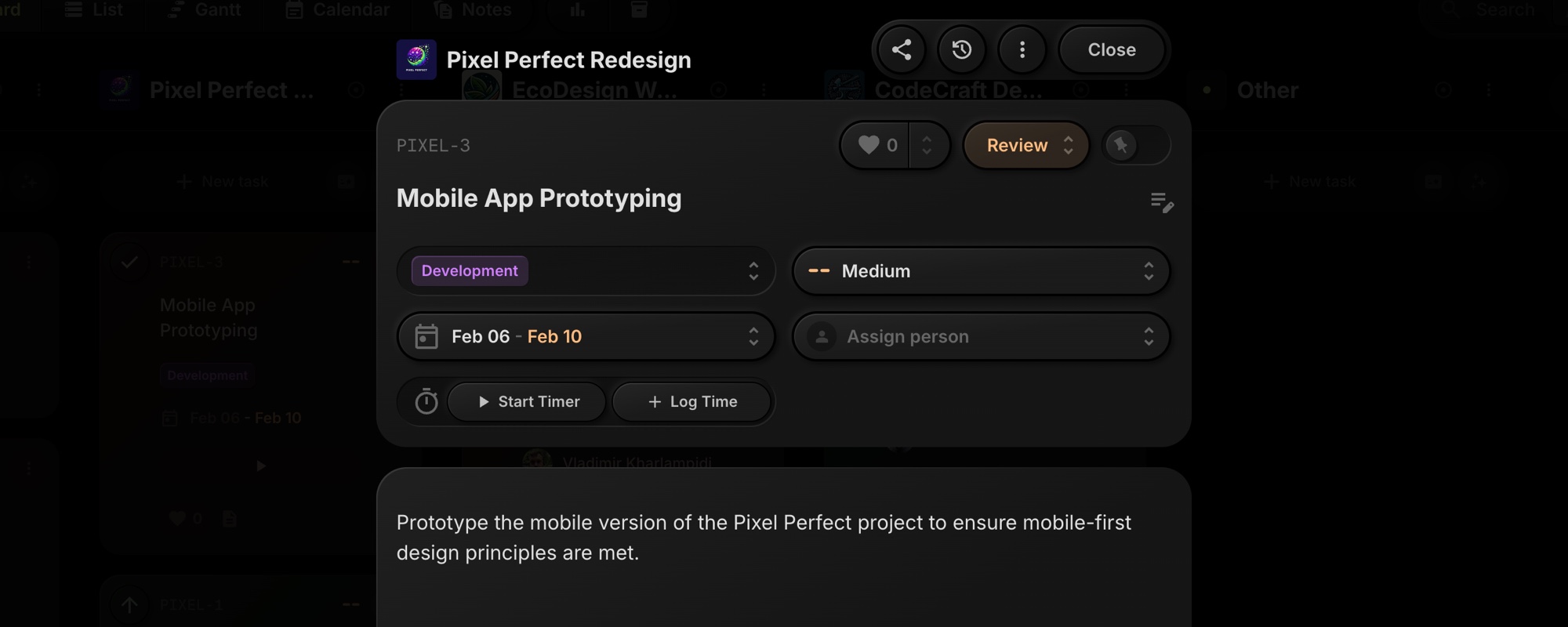
The design follows the same philosophy as everything else in t0ggles: simple, fast, and out of your way until you need it.
#How It Works
#Enable Time Tracking
Time tracking is disabled by default - you choose which boards need it. To turn it on, open Board Settings → Properties and enable the Time Tracking property. Once enabled, time tracking controls appear in task details for all tasks on the board.
#Starting A Timer
Open any task and click Start Timer. That's it. The timer begins counting, and you'll see the elapsed time updating in real time. Continue working on your task - the timer runs in the background.
You can run timers on multiple tasks simultaneously. Working on a feature while waiting for code review on another? Track both. Each task manages its own timer independently.
#Stopping A Timer
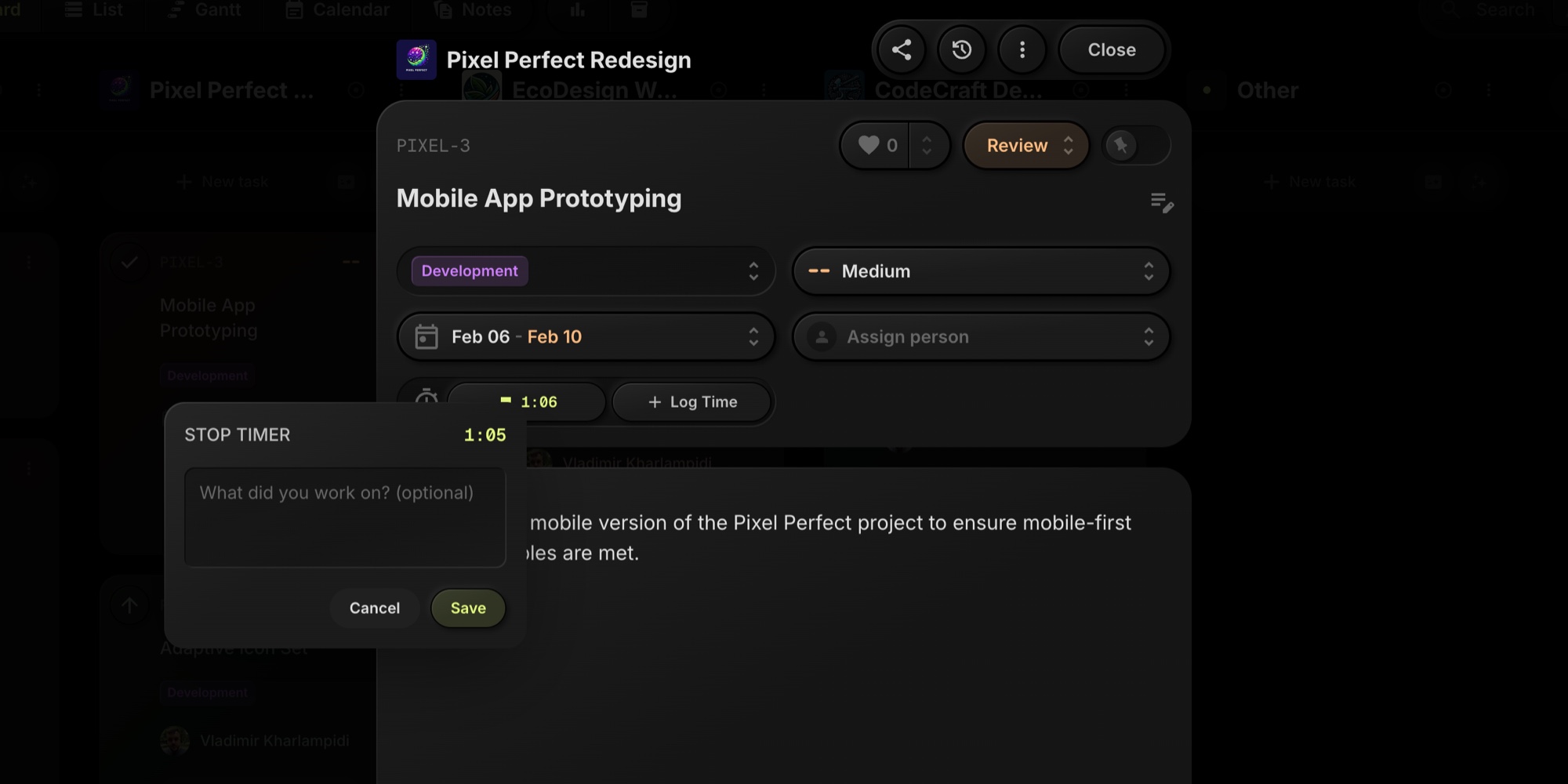
When you're done, click the stop button. A popover appears asking "What did you work on?" - add an optional description of what you accomplished, then save. The time entry is recorded and added to the task's total.
Descriptions aren't required, but they're valuable. When you look back at a task's time log, you'll see not just how long things took, but what specific work was done.
#Manual Time Entry
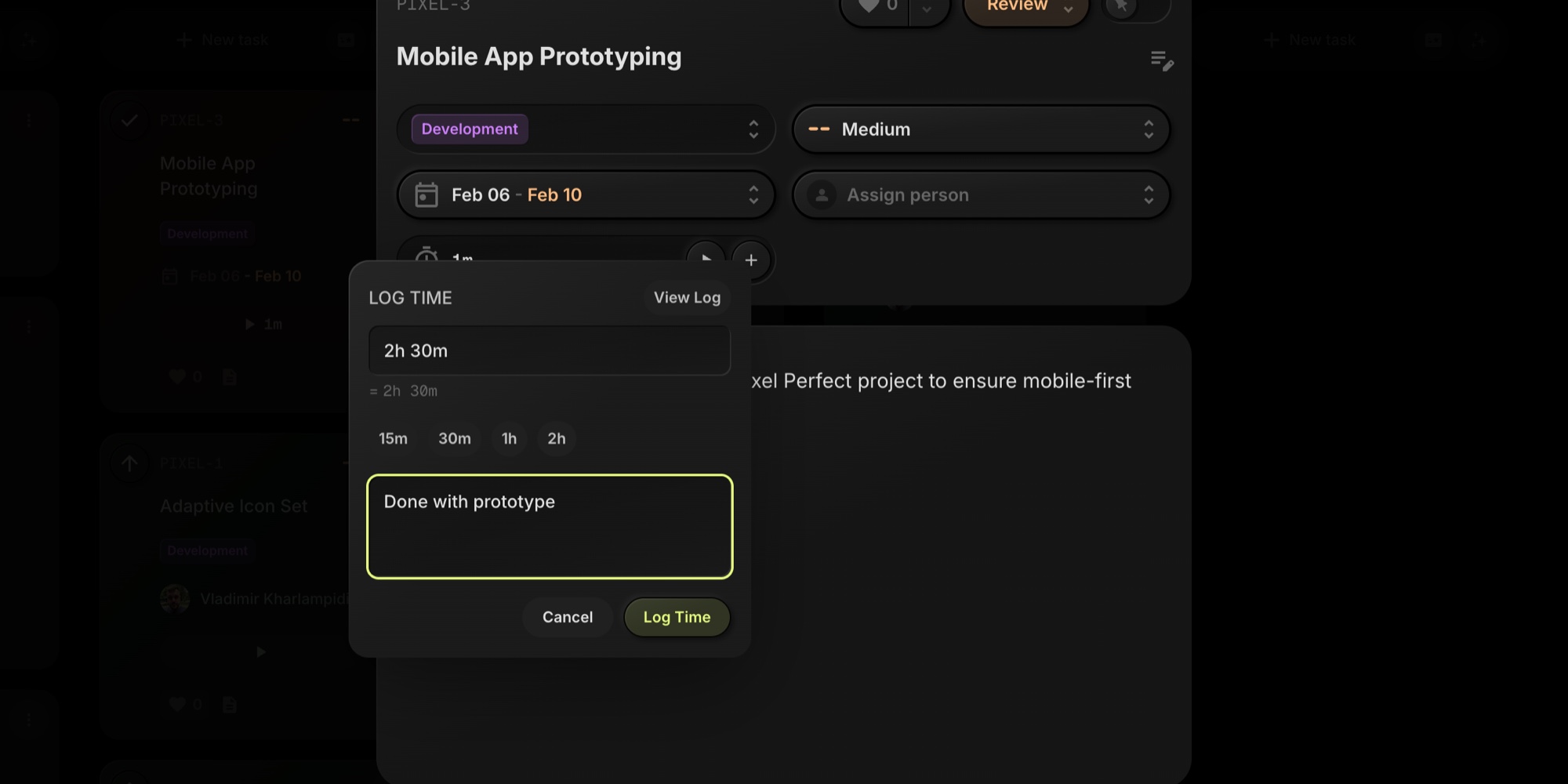
Forgot to start a timer? No problem. Click Log Time to add an entry manually. Enter the duration in whatever format feels natural:
2h 30m- hours and minutes1:30- colon format90- just minutes (numbers over 10)2- just hours (single digits)1.5h- decimal hours
Quick presets for common durations - 15m, 30m, 1h, 2h - save extra keystrokes when you're logging routine work.
#Viewing The Time Log
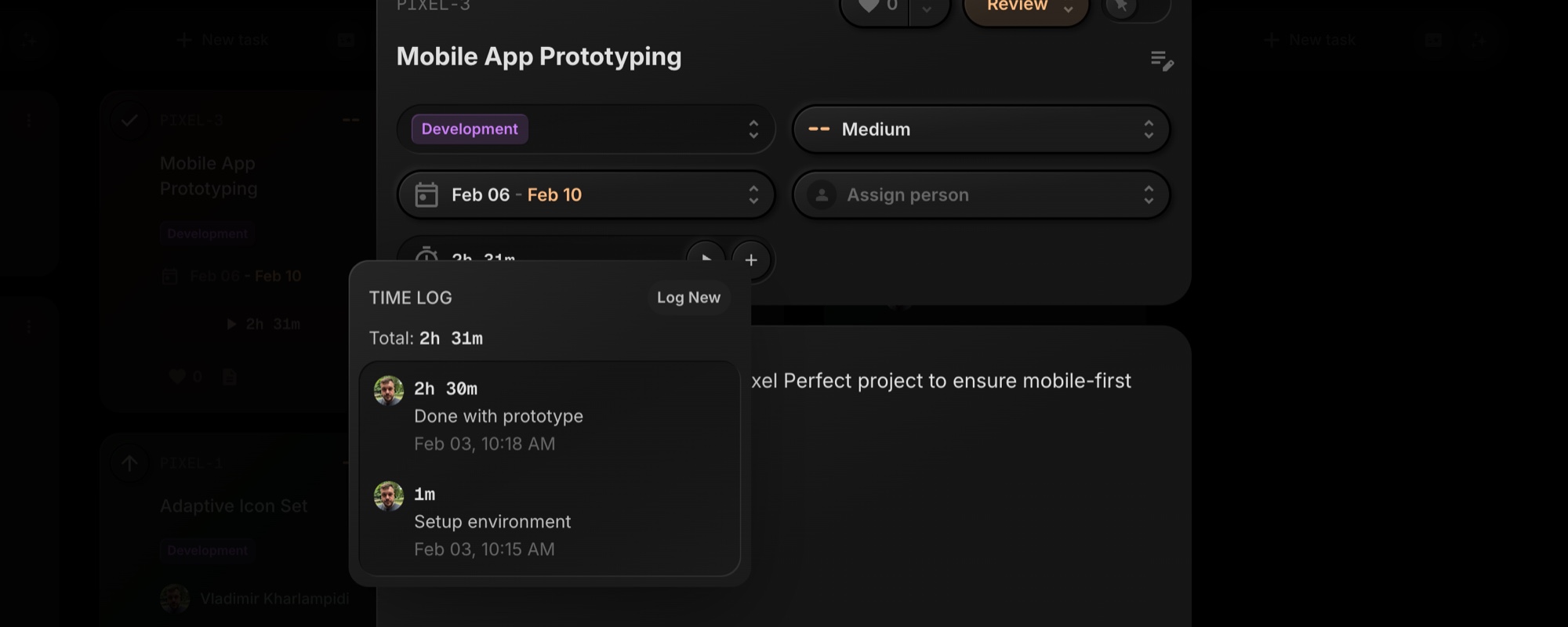
Every task keeps a complete history of time entries. Click View Log to see:
- Total time tracked on the task
- Individual entries with duration, description, who logged it, and when
This transparency matters for teams. You can see not just the total, but the breakdown - how many sessions, who contributed time, what work was done in each session.
#Time On Task Cards
For teams that want quick access to timers without opening task details, enable the Show on task card option in Board Settings → Properties.
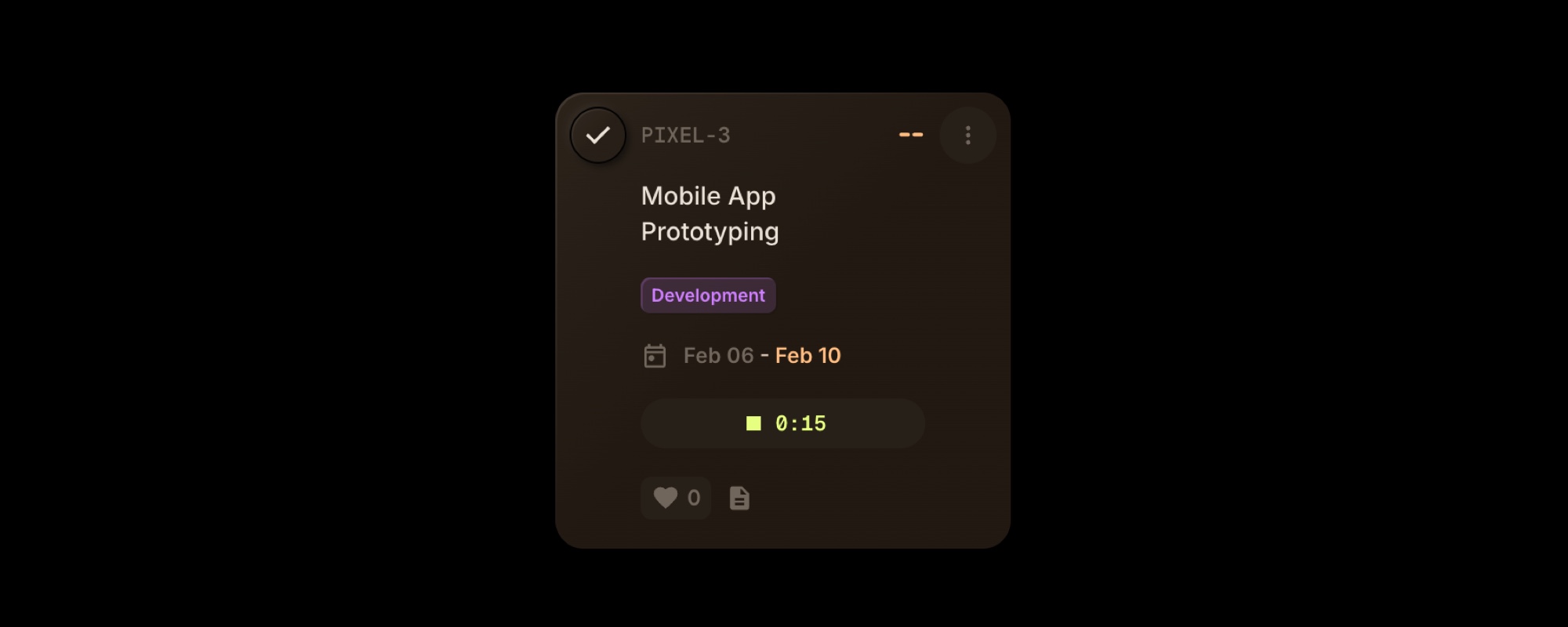
Task cards then display a compact timer button:
- Play button with total time - Shows cumulative tracked time. Click to start a new timer.
- Running timer - When active, shows elapsed time with a stop button.
This works in both Columns and List views, giving you one-click access to start and stop timers as you move through your board.
#Smart Auto-Stop Behavior
Timers automatically stop when they should:
- Task moved to Done - When you complete a task, any running timer stops and saves automatically. No orphaned timers running forever.
- Task archived - Archiving a task stops its timer first.
This ensures your time data stays accurate even when you're moving fast and forget to manually stop tracking.
#Time Tracking In Reports
Time data flows into Board Reports, giving you project-level visibility into where hours are going.
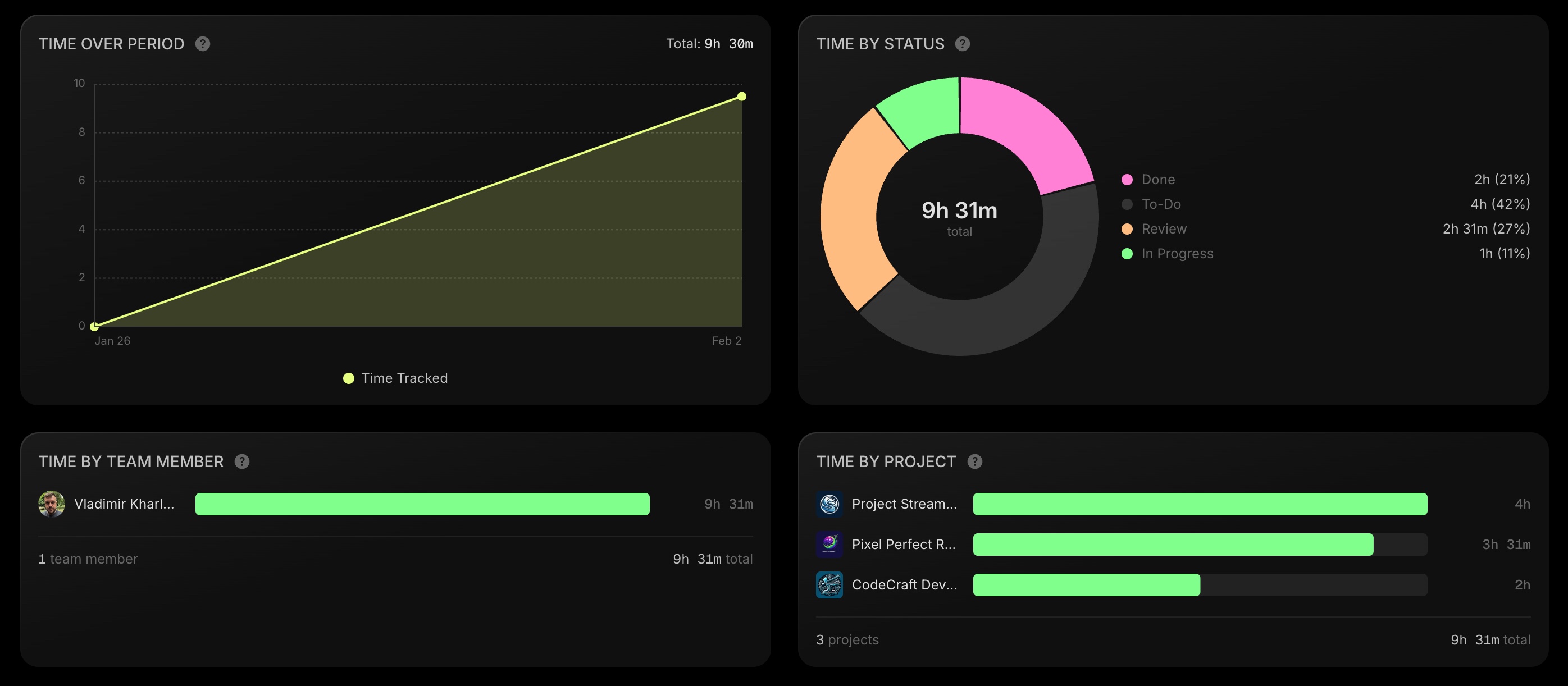
Four new charts help you analyze time investment:
Time Over Period - A cumulative view of tracked time across your selected date range. See patterns in when your team is logging the most hours.
Time By Status - Where is time being spent in your workflow? High time in "In Progress" is expected. High time in "To Do" might indicate tasks sitting too long before work begins.
Time By Team Member - Understand workload distribution. Who's logging the most hours? Is effort balanced across the team?
Time By Project - For multi-project boards, see which projects are consuming the most time. Compare against priorities to ensure alignment.
All time data can be exported to CSV or PDF alongside your other report metrics.
#Use Cases
#Client Billing
Agencies and freelancers need accurate time records for invoicing. With t0ggles Time Tracking, every billable hour is captured where the work happens. Export time data for billing reports, or use the per-task totals to verify project budgets.
#Sprint Retrospectives
How long did that "simple" feature actually take? Time data removes guesswork from retrospectives. Teams can see actual effort versus estimates, identify tasks that consistently take longer than expected, and make better predictions for future sprints.
#Capacity Planning
When you know how long similar tasks took in the past, you can plan more realistically. Time data by project and team member helps managers understand true capacity and avoid overcommitting.
#Personal Productivity
Even solo users benefit from time awareness. Seeing where your hours go reveals patterns - maybe you spend more time on email than you realized, or certain types of tasks consistently take longer than you budget for.
#Permissions And Collaboration
Time tracking respects your existing team structure:
- Board members can start timers, log time, and edit or delete their own entries
- Board admins and owners can edit or delete any time entry
- Guest users can view total time but cannot track time themselves
- Public visitors don't see time tracking information
Only the person who started a timer can stop it - no accidentally stopping a teammate's running timer.
#MCP Integration
For teams using AI assistants with our MCP Server, the new log-time tool lets you add time entries through natural language:
- "Log 2 hours on task PROJ-123 for API implementation"
- "Add 30 minutes to the code review task"
Time tracking fits naturally into AI-assisted workflows.
#Getting Started
- Open Board Settings and go to the Properties tab
- Enable the Time Tracking property
- Optionally enable Show on task card for quick access from your board
- Open any task and click Start Timer to begin tracking
Time tracking is available now on all t0ggles boards.
#Simple, Integrated, Useful
We could have built time tracking as a separate feature with its own dedicated views, complex configuration, and premium pricing tiers. Instead, we made it a native property that works like everything else in t0ggles - enable it, use it, get value from it.
No app switching. No data silos. No learning curve. Just accurate time data, captured where you already work.
Start tracking time on your next task and see where your hours actually go.
Don't Miss What's Next
Get updates, design tips, and sneak peeks at upcoming features delivered straight to your inbox.