Keyboard Shortcuts: Navigate Your Board Without Touching the Mouse
Some of the most productive people you know rarely touch their mouse. They navigate, edit, and manage everything from the keyboard - faster, smoother, and with fewer interruptions to their flow. Until now, project management tools haven't really supported that style of work.
t0ggles now has full keyboard shortcuts support. Navigate through tasks, switch between views, open task details, change status, assign users, set priorities, manage dates and tags - all without lifting your hands from the keyboard. If you're the kind of person who uses vim keybindings or memorizes shortcuts in every tool you use, this one's for you.
#Why Keyboard Shortcuts Matter
Every time you reach for the mouse, there's a small context switch. It's barely noticeable once, but multiply it across hundreds of task interactions per day and it adds up. Keyboard-driven workflows eliminate that friction.
For project managers reviewing a full board, keyboard navigation means you can move through tasks one by one, check details, update statuses, and move on - all in a continuous flow. For developers who already live in keyboard-first tools like terminals and code editors, shortcuts make t0ggles feel like a natural extension of the workflow.
#What You Can Do From the Keyboard
#Navigate Between Views
Switch to any board view instantly:
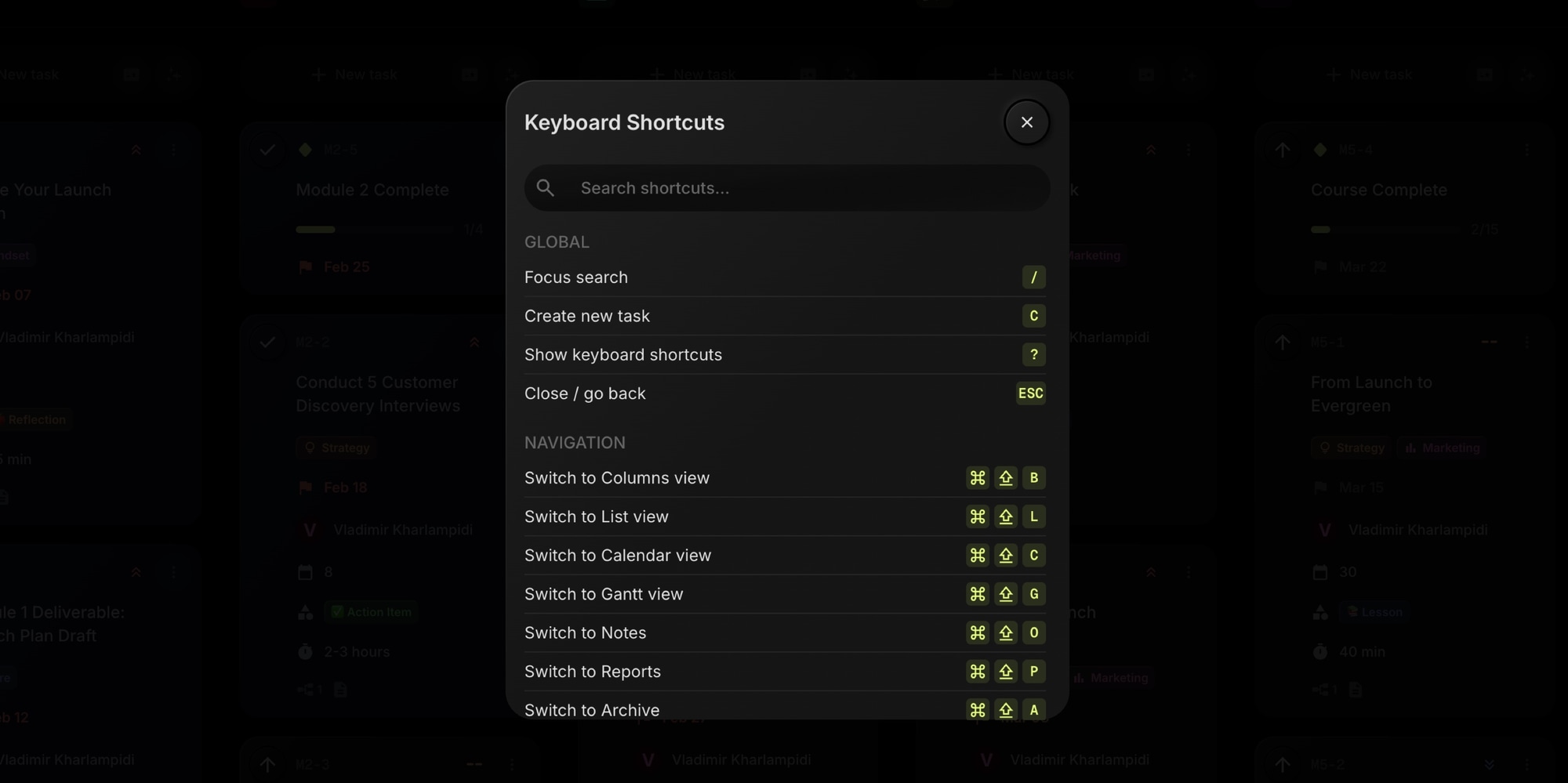
- Ctrl+Shift+B - Columns (Kanban) view
- Ctrl+Shift+L - List view
- Ctrl+Shift+C - Calendar view
- Ctrl+Shift+G - Gantt chart
- Ctrl+Shift+O - Notes
- Ctrl+Shift+P - Reports
- Ctrl+Shift+A - Archive
You can also use Ctrl+1 through Ctrl+9 to jump straight to a specific project on your board.
#Move Through Your Board
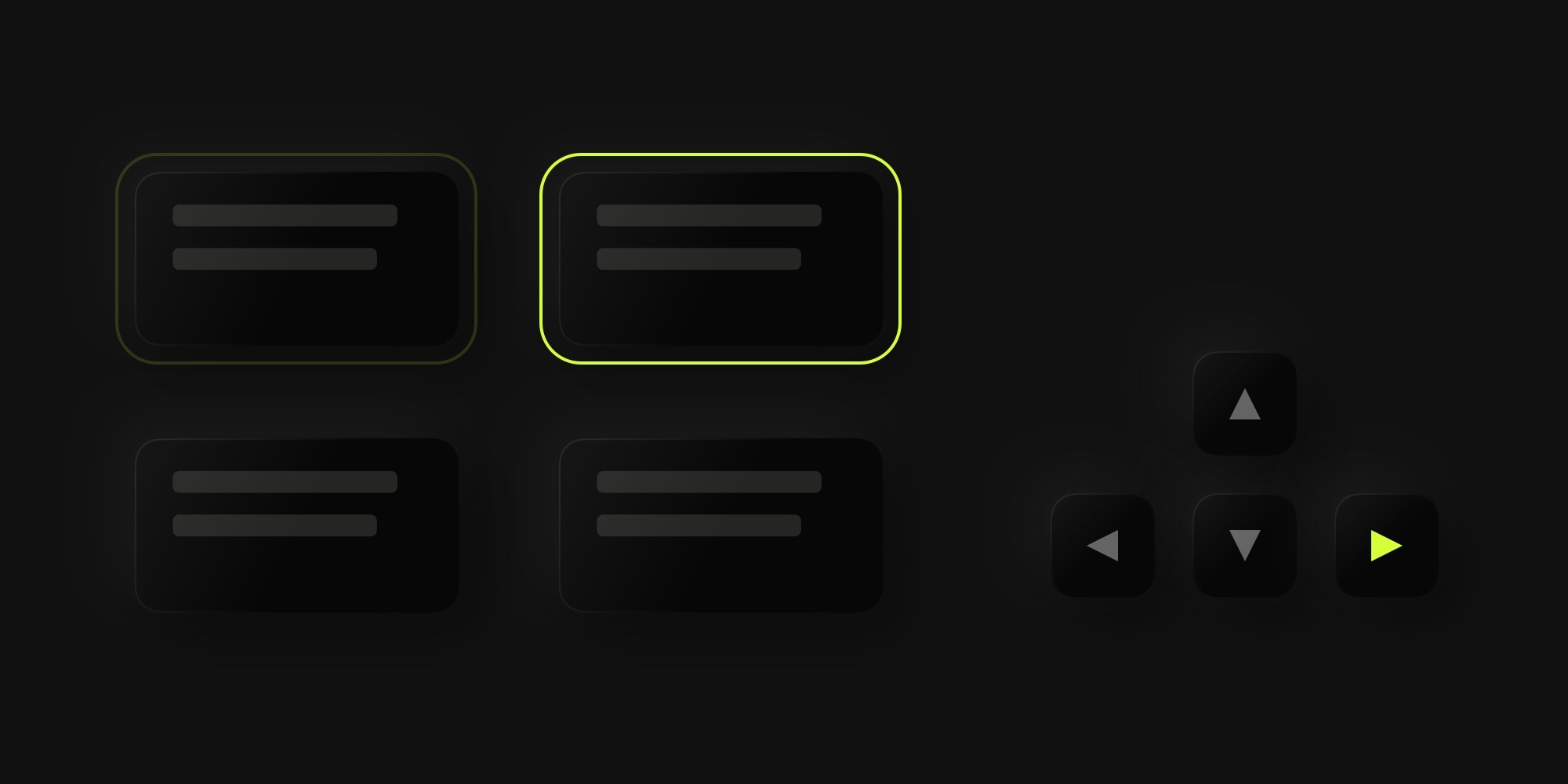
Arrow keys move focus between tasks. Press Enter to open the focused task, or E to quick-edit it inline. You can also use vim-style keys (H, J, K, L) if that's more your style.
Once a task is focused, you can act on it immediately:
- A - Assign a user
- P - Set priority
- T - Open tags
- D - Set dates
- [ and ] - Move to previous/next status
- X - Mark as done
- Backspace - Archive
- W - Start or stop the timer
No clicking, no dropdowns, no hunting for buttons. Focus a task, press a key, done.
#Task Details Shortcuts
When you have a task open, the same single-key shortcuts work for editing properties:
- S - Change status
- P - Set priority
- A - Assign user
- D - Open dates
- T - Edit tags
- M - Focus the comment input
And for task actions:
- Shift+S - Add a subtask
- Shift+L - Link an existing task as subtask
- Shift+D - Add a dependency
- W - Start or stop the time tracker
- . - Open the more actions menu
- X - Move to done
- Backspace - Archive
#Global Shortcuts
- / - Focus the quick search bar
- C - Create a new task
- ? (Shift+/) - Open the shortcuts help dialog
- Escape - Close the current panel or go back
#Quick Pick in Selects
When a dropdown is open - status, priority, assignee - you can press 0-9 to instantly select an option by its position. 0 selects "none", 1 picks the first option, and so on. Combined with the property shortcuts, this means changing a task's priority is literally two keystrokes: P, then 1 for low, 2 for medium, or 3 for high.
#The Help Dialog
Press ? from anywhere in the app to open the keyboard shortcuts help dialog. It shows every available shortcut grouped by category, with a search bar so you can quickly find what you need. It's your cheat sheet while you're learning the shortcuts - and you'll probably stop needing it after a week.
#Built for Power Users, Accessible to Everyone
You don't have to use keyboard shortcuts. Everything still works with the mouse exactly as before. But for those who prefer keyboard-driven workflows - developers, designers who know their way around Figma shortcuts, or anyone who's ever configured custom keybindings - these shortcuts make t0ggles significantly faster to use.
The shortcuts follow familiar patterns. Arrow keys for navigation, Enter to open, Escape to close, single letters for common actions. If you've used keyboard shortcuts in Gmail, GitHub, or Linear, you'll feel right at home.
#Getting Started
- Press ? on any board to see all available shortcuts
- Start with navigation: arrow keys to move, Enter to open tasks
- Learn the property shortcuts: P for priority, A for assign, S for status
- Combine shortcuts for fast workflows: arrow to a task, X to mark done, arrow to the next
See the full shortcuts reference
Keyboard shortcuts are available now on all t0ggles boards. Open your board, put your hands on the keyboard, and try pressing ? to get started.
Don't Miss What's Next
Get updates, design tips, and sneak peeks at upcoming features delivered straight to your inbox.