Does Linear Have a Kanban Board? How Board View Works, and Where It Stops
Yes - Linear has a kanban board. Every issue list in Linear can be shown as a Board view: one column per workflow status, cards you drag between columns, and it is included on every plan including Free. Press Cmd/Ctrl + B on any issues page to switch. Columns can be grouped by status, assignee, project, priority, label or parent issue, and a Rows option adds swimlanes on top. What Linear's board does not do: WIP limits, arbitrary columns that are not workflow statuses, or card styling beyond toggling properties on and off.
This guide walks through how the Linear kanban board actually works in a real workspace, the display options worth knowing, and the gaps that send some teams looking for a more board-first tool.
#How to Switch Linear to Board View
Linear's default layout for issues is the List view - a dense table grouped by status. The kanban board is the same set of issues in a different layout, and there are three ways to get there:
- Keyboard: press Cmd + B (Mac) or Ctrl + B (Windows/Linux) on any issues page to toggle between List and Board.
- Display menu: click the Display button (sliders icon, top right), then choose Board at the top of the popover. Shift + V opens the same menu.
- Command palette: open it with Cmd/Ctrl + K and type "board".
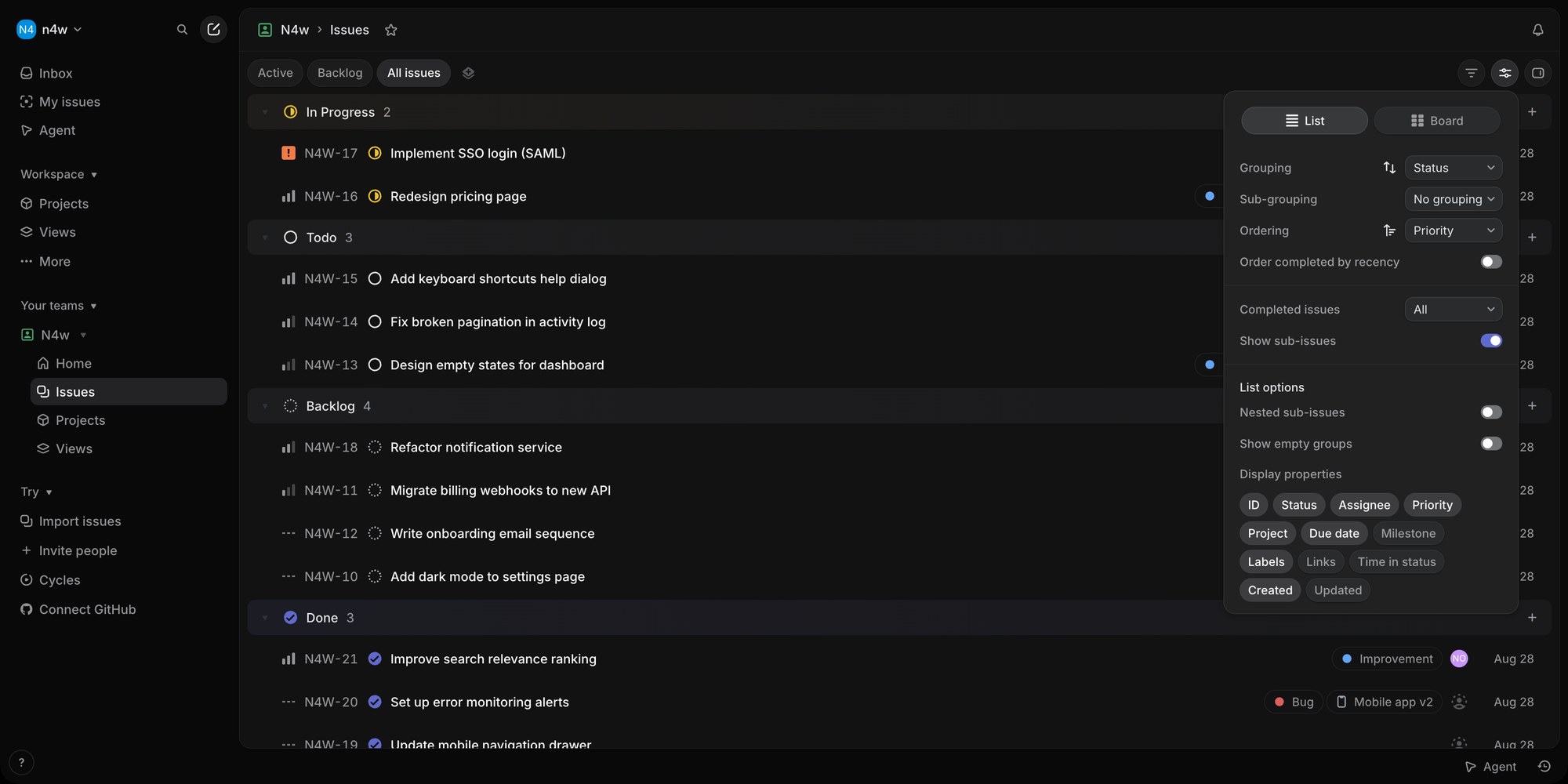
The layout choice is per view. Your team's All issues page can be a board while Backlog stays a list, and the same goes for project pages, cycle pages and custom views. Navigate away and Linear remembers the layout for you. Workspace admins can also push a layout to everyone with Set default for everyone at the bottom of the Display menu.
Project and initiative pages add a third layout, Timeline, but the kanban board itself is only List or Board.
#What the Linear Kanban Board Looks Like
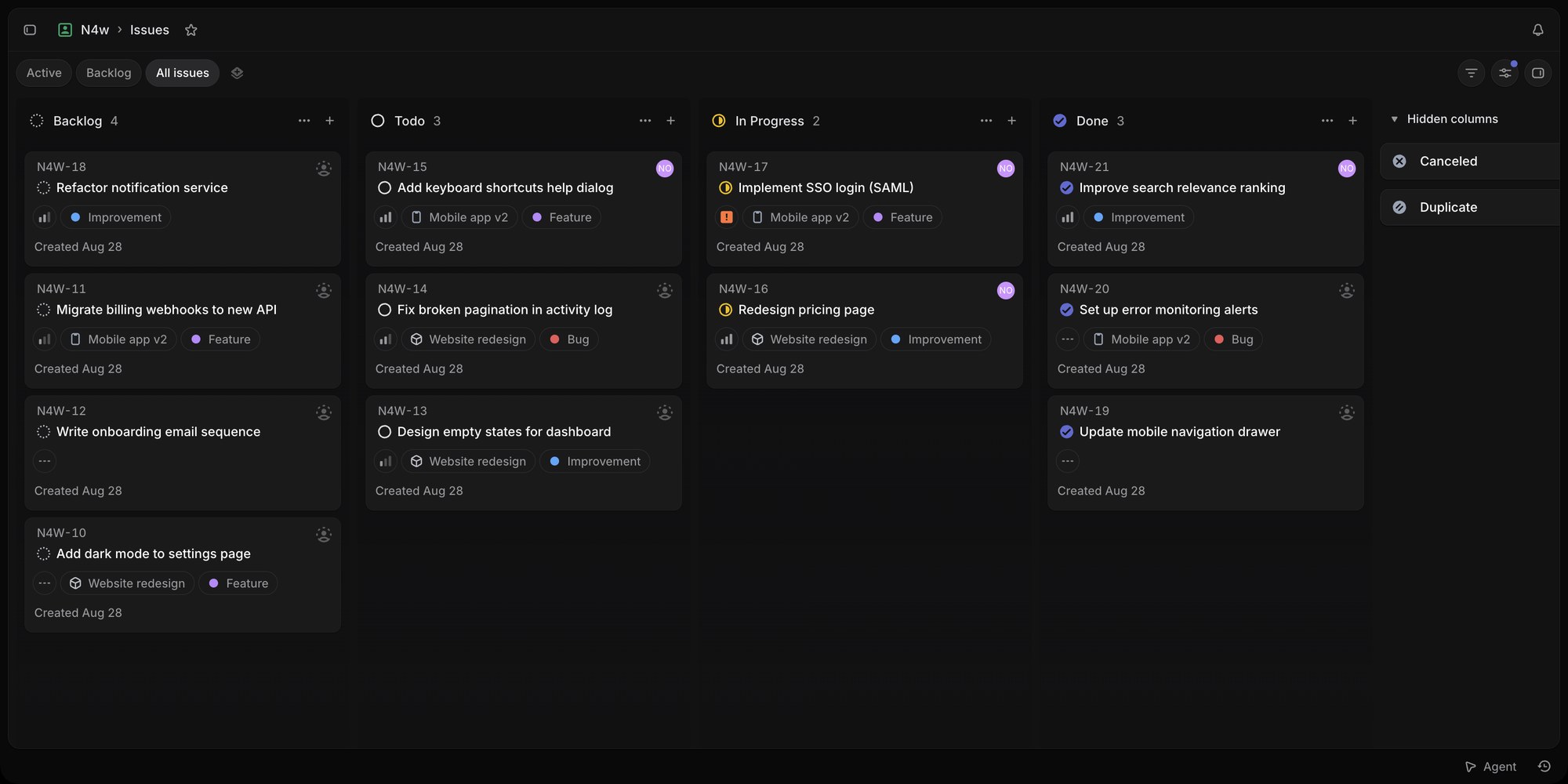
Out of the box a board groups by Status, so a fresh team gets four columns matching Linear's default workflow: Backlog, Todo, In Progress and Done. Each card shows the issue ID, title, priority, project, labels and assignee, and dragging a card into a column changes its status.
Two details separate Linear's board from a generic kanban tool:
- Columns are your workflow statuses, not free-form lists. Linear organizes statuses into fixed categories - Backlog, Unstarted, Started, Completed, Canceled - and you can add custom statuses inside each category (an "In Review" between In Progress and Done, for example). Statuses are configured per team under Team Settings, so a column like "Waiting on Client" has to exist as a status before it can exist on the board.
- Canceled and Duplicate live in a Hidden columns tray. Rather than showing every terminal status as a full column, Linear parks the ones you hide in a collapsible tray on the right. You can drag cards into a hidden column without unhiding it. Any column can be hidden from its three-dot menu, and hidden columns always appear last.
The + button on each column header creates an issue directly in that status, and the column count next to each header tells you how many issues are in it - which matters later, because that number is the closest Linear gets to a WIP limit.
#Display Options: Columns, Rows, Ordering
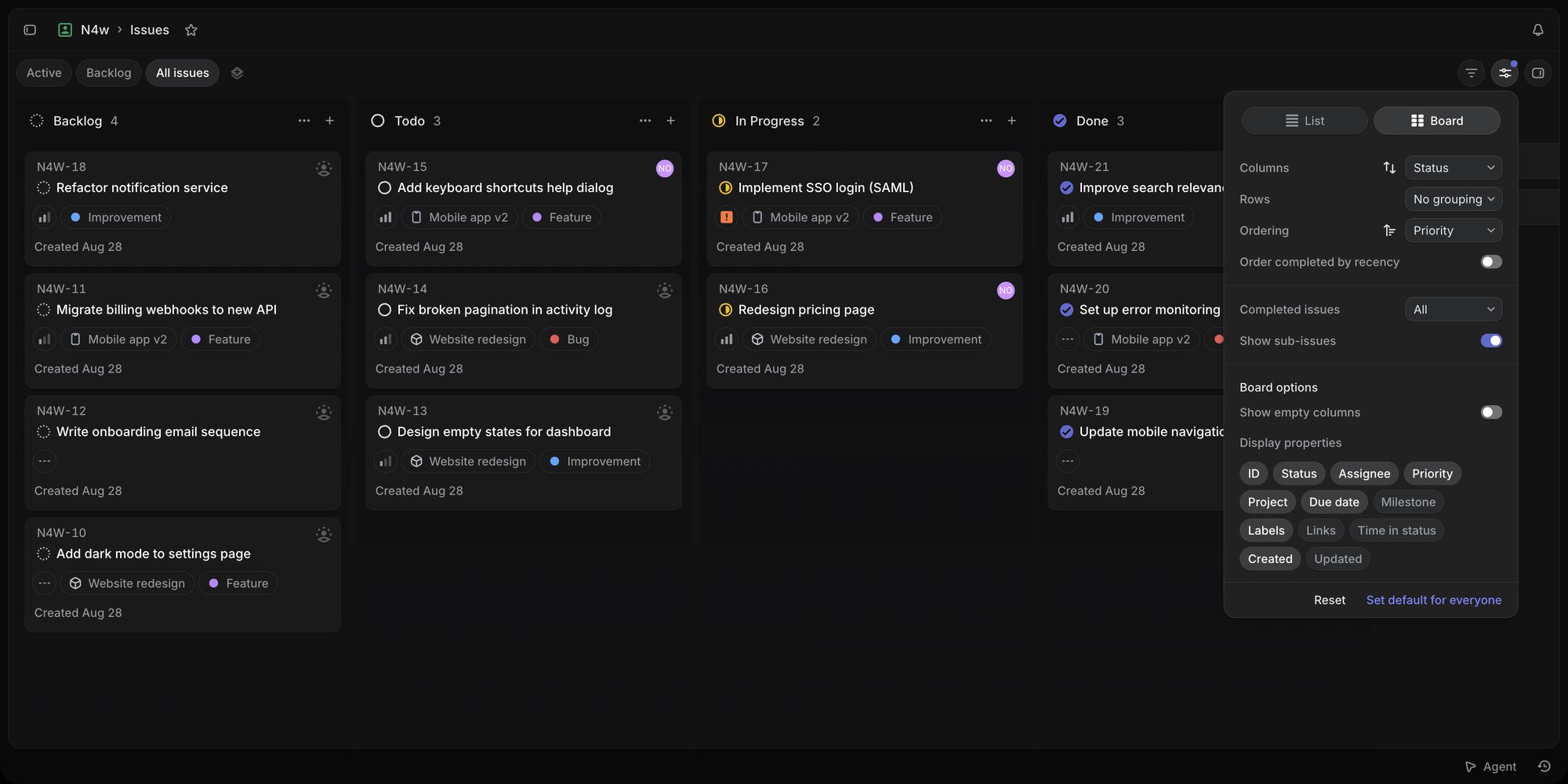
The Display menu is where the board gets useful. Open it with the sliders icon or Shift + V.
#Columns
Status is the default, but columns can be any of these fields:
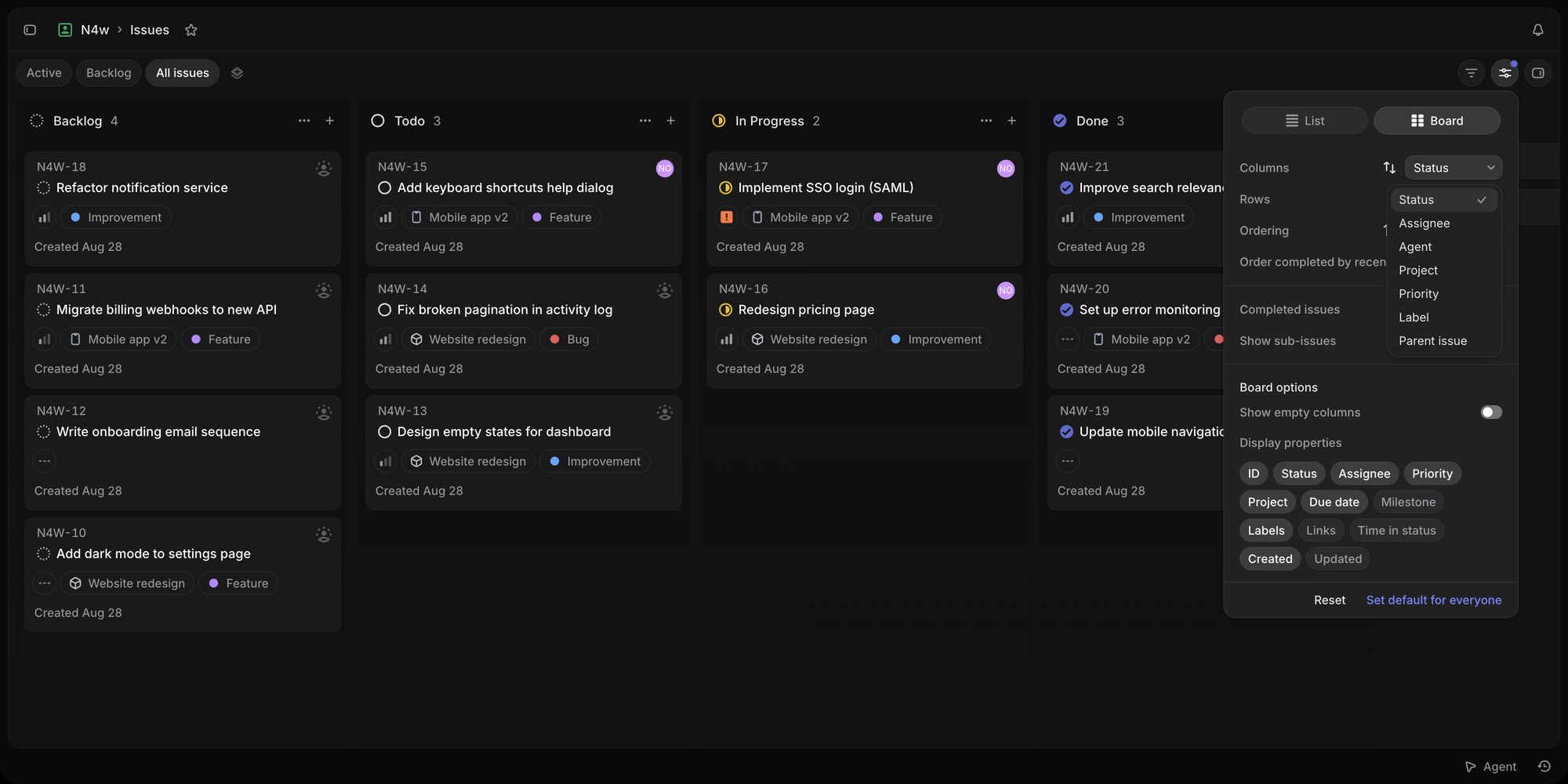
- Status - the classic kanban flow
- Assignee - one column per person, a quick workload check
- Agent - one column per AI agent, if you use Linear's agent platform
- Project - a column per project, useful on a team page that spans several projects
- Priority - Urgent, High, Medium, Low, No priority
- Label - a column per label, handy for bug / feature / improvement triage
- Parent issue - sub-issues grouped under their parent
Linear's docs list more grouping options on particular views, including cycle, team, customer, release and SLA status where those apply.
#Rows (Swimlanes)
The Rows dropdown adds a second dimension. Set columns to Status and rows to Project and you get a swimlane board: one horizontal lane per project, each crossing the same status columns.
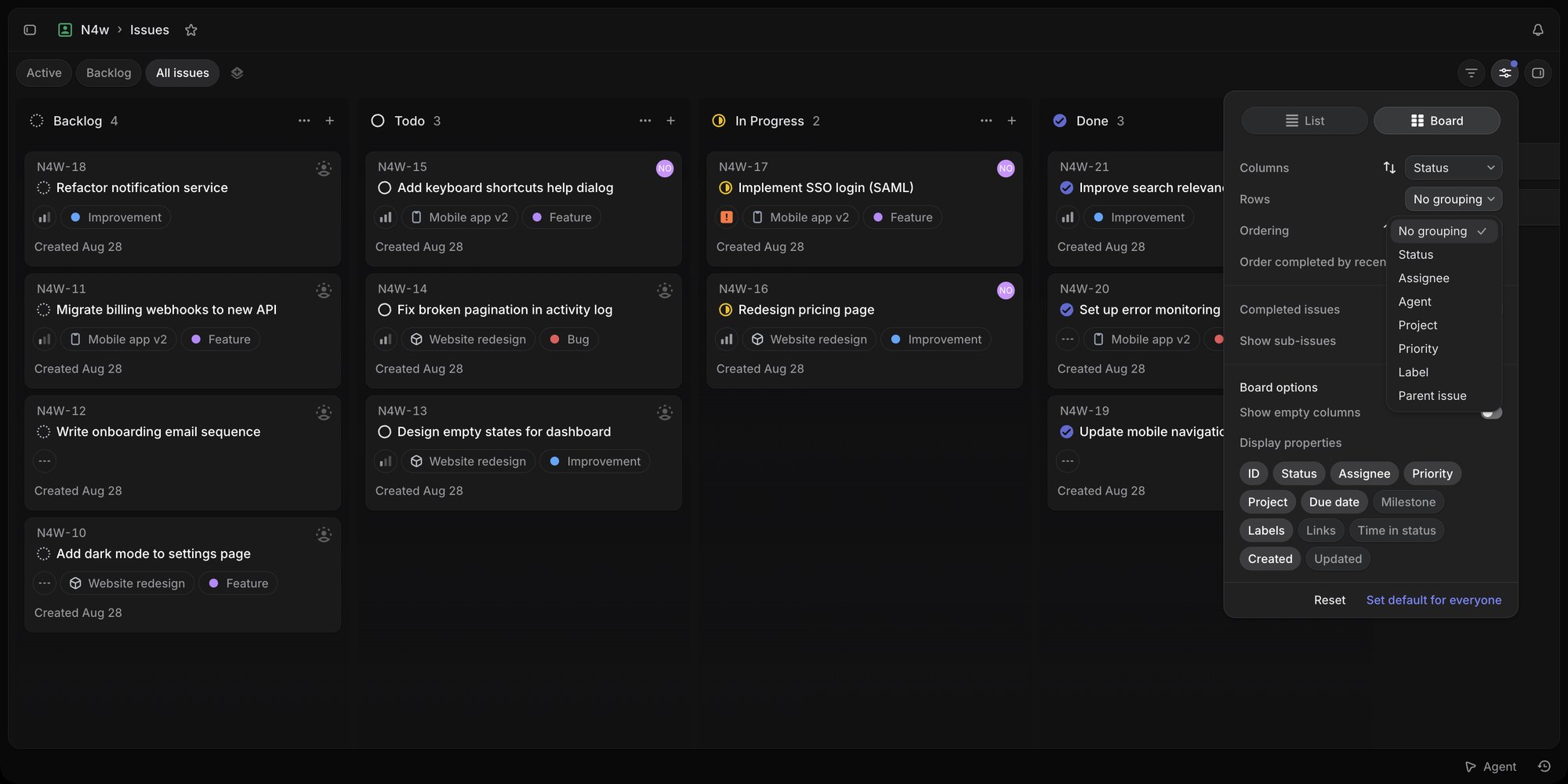
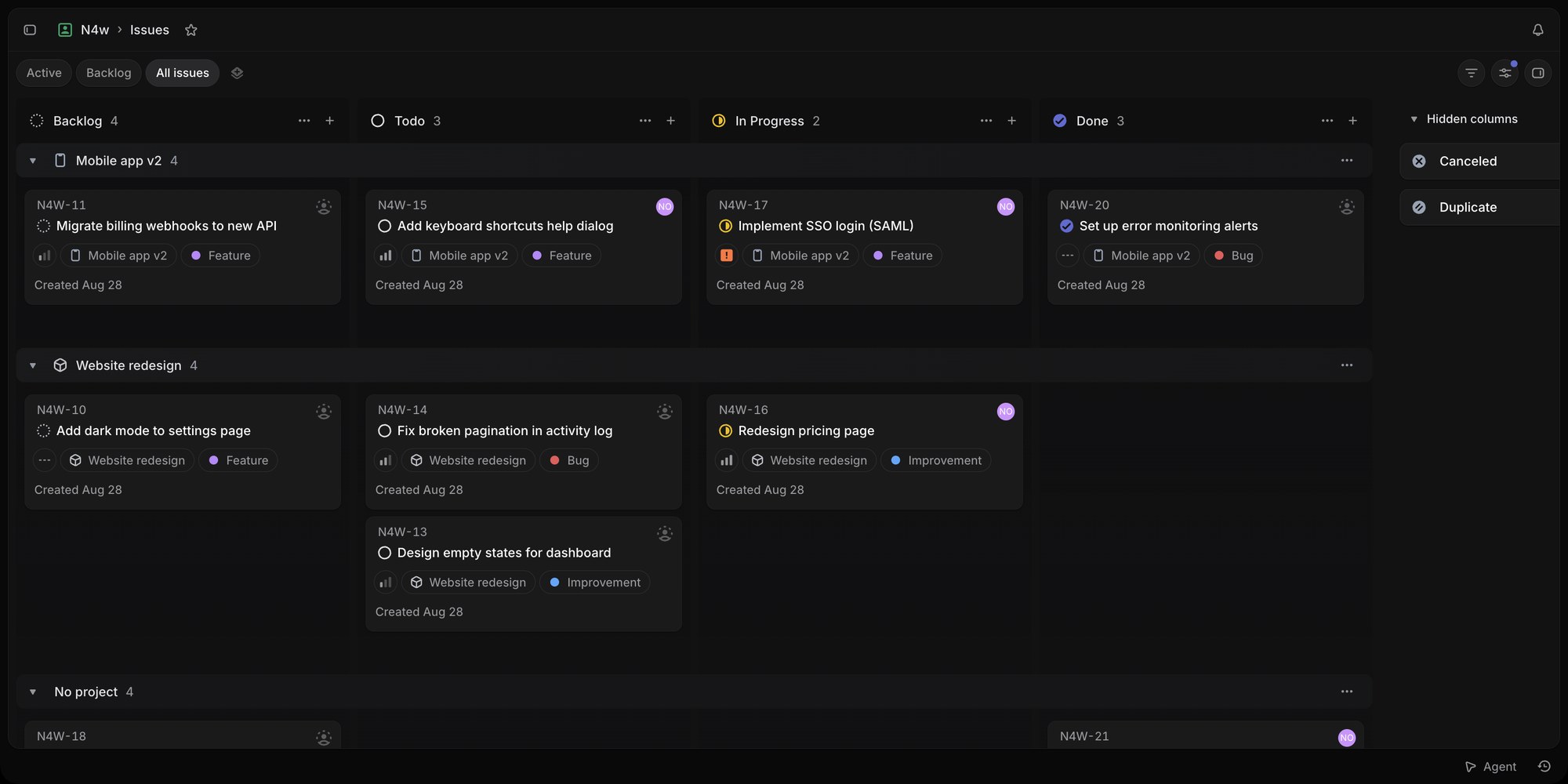
Each lane collapses independently (press T on a lane to toggle it), and the "No project" lane catches everything unassigned. Rows accept the same fields as columns, so Status columns with Assignee rows gives you a per-person flow board, and Project columns with Status rows flips the whole thing around.
#Ordering and Everything Else
- Ordering - Manual is the default on boards, which is what makes drag-and-drop position stick. You can order by Priority, Last created, Last updated, Due date or Link count instead, but then dragging a card between columns only changes its group, not its position within the column. Board and list views of the same page share one ordering setting.
- Completed issues - show all, none, or only those completed in a recent window, so Done does not grow forever.
- Show sub-issues - include or hide sub-issues on the board.
- Show empty columns - off by default, so a status with zero issues disappears.
- Display properties - toggle ID, Status, Assignee, Priority, Project, Due date, Milestone, Labels, Links, Time in status, Created and Updated on cards. Descriptions never show on cards; hover a card and press Space to peek at it.
#Kanban on a Project or Across Teams
The board layout is available anywhere Linear lists issues:
- Team issues - the board most people mean by "Linear kanban board"
- Project pages - a project's issues as a board, across whichever teams contribute to it
- Cycles - the current sprint as a board
- Custom views - save any filtered board as a view, including All teams views that pull issues from the whole workspace
That last point matters if you have several teams. Because workflows are per team, an All teams board groups by status names, so "In Review" on one team and "Code Review" on another show up as separate columns unless you name them identically.
#What Linear's Kanban Board Cannot Do
Linear's board is a view over an issue tracker, not a board-first tool. For engineering teams that is usually the right trade, but there are real gaps to know before you commit:
| Kanban feature | Linear |
|---|---|
| WIP limits | No. Columns show a count, but there is no per-column maximum and no warning when a column is overloaded |
| Free-form columns | No. Every column is a workflow status in a fixed category order, configured per team in settings |
| Swimlanes | Yes - Rows by status, assignee, agent, project, priority, label or parent issue |
| Card styling | Toggle properties on or off only - no card colors, covers or per-status color schemes |
| Calendar view | No. Layouts are List, Board and (on projects) Timeline |
| Board on the free plan | Yes, with the 250-issue workspace cap - see Linear free plan limits |
| Public board | No native public boards; sharing needs a third-party tool |
| Non-engineering teams | Workable, but statuses, cycles and triage are designed around software issues |
The missing WIP limit is the one that bites kanban purists. Limiting work in progress is the mechanism that makes kanban a flow system rather than a to-do list with columns, and in Linear the only way to enforce it is a team agreement plus glancing at the column count.
#If You Want a Board-First Kanban Tool
If the Linear board works for you, keep it - it is fast, keyboard-driven and free. Teams tend to look elsewhere when they hit one of three walls: they need WIP limits, they manage several projects and want them side by side, or they include non-engineers who find issue-tracker vocabulary heavy.
t0ggles is built for that case. The board shows multiple projects as columns with status-colored cards, and Focus Mode turns any single project into a classic status-column kanban with one click. Each status can carry a Max tasks value - the column turns red the moment you exceed it, which is the WIP limit Linear lacks. Card appearance is configurable through Task Style settings, and the same tasks flip into List, Calendar and Gantt views.
| Kanban feature | Linear | t0ggles |
|---|---|---|
| WIP limits | No | Yes - per-status Max tasks with red overload highlight |
| Columns | Workflow statuses per team | Projects side by side, or statuses in Focus Mode |
| Swimlanes | Yes - Rows | Projects as columns act as lanes; grouping in List and Gantt |
| Card styling | Property toggles | Status color styles, badges, cover images |
| Views | List, Board, Timeline | Columns, List, Calendar, Gantt |
| Public boards | Third-party tools | Built in, with custom domains |
| Free plan | Unlimited members, 250 issues | 1 board, 3 members, 100 tasks, all views included |
| Paid | From $10/user/month | $5/user/month, everything unlimited |
Linear's free plan is more generous on headcount - unlimited members against 3 on the t0ggles free plan - so a large team evaluating on free will feel the t0ggles seat cap first. The t0ggles paid plan is a single $5/user/month tier with no feature gating.
For a fuller head-to-head see t0ggles vs Linear, or compare Linear with a pure kanban tool in Linear vs Trello.
#Frequently Asked Questions
#Getting Started
- Open any issues page in Linear and press Cmd/Ctrl + B to see it as a board.
- Open Display and set Rows to Project or Assignee to try swimlanes.
- Hide the columns you do not need from each column's three-dot menu - they move to the Hidden columns tray.
- Watch the count on your In Progress column; if you find yourself wishing it turned red at a limit, try t0ggles free and set Max tasks on the status.
Bringing your cards over from Trello? See how to migrate from Trello to Linear for what Linear's importer keeps and what it drops.
Don't Miss What's Next
Get updates, design tips, and sneak peeks at upcoming features delivered straight to your inbox.