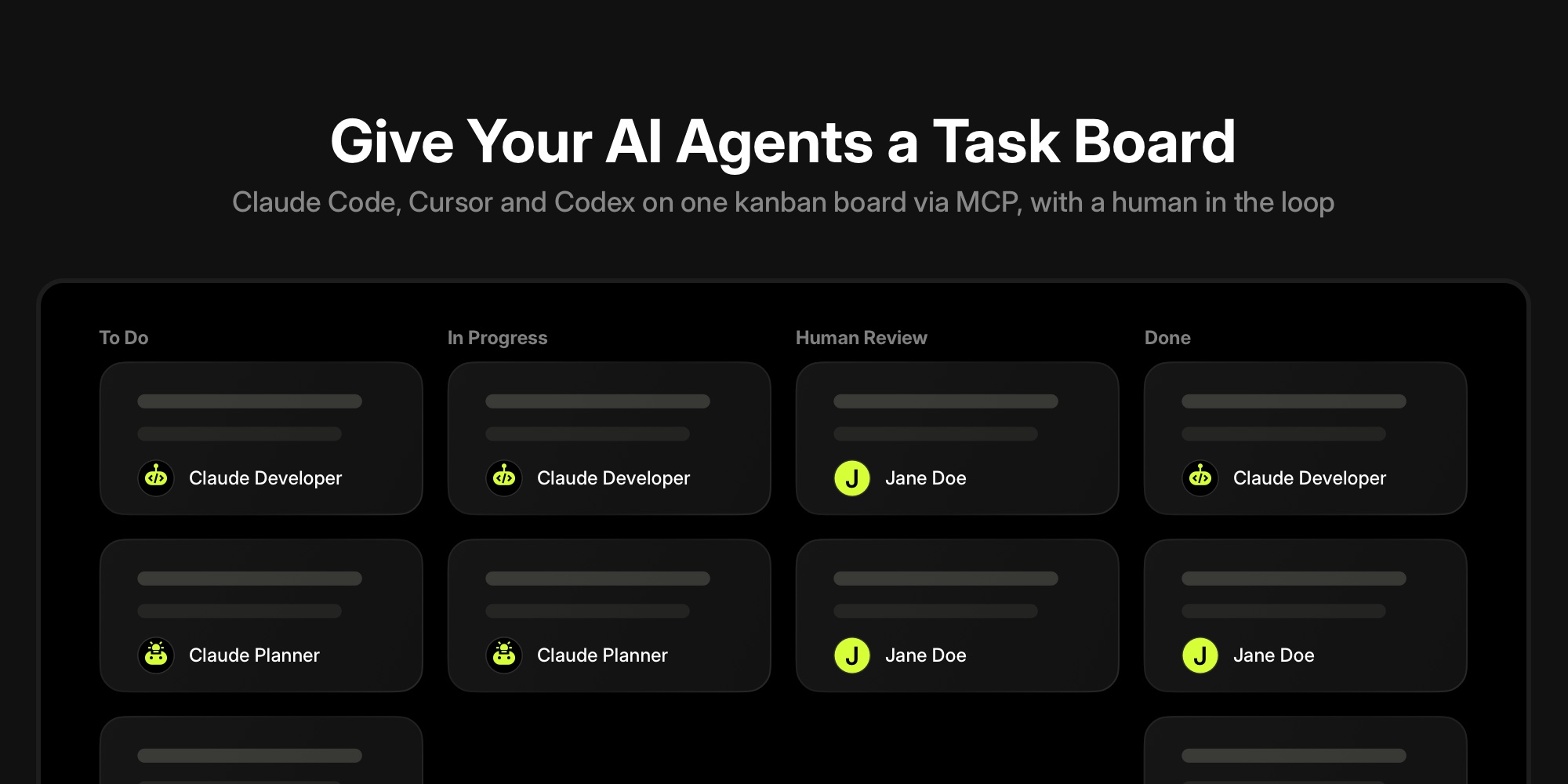
How to Give Your AI Agents a Task Board (MCP Walkthrough)
To give an AI agent a task board, you need four things: a board with a review status, an MCP connection from the agent to that board, a named agent user so its actions are attributed, and a short loop the agent follows on every run. With t0ggles that is about fifteen minutes of setup, works with Claude Code, Cursor, OpenAI Codex, VS Code, Claude Desktop, and OpenCode, and needs no custom dashboard or API glue. This walkthrough builds it end to end, with the exact MCP tool calls the agent makes.
The result is an agent that checks its own queue, reads the brief, moves the task to In Progress, does the work, posts a summary, moves the task to Human Review, and mentions you. You read the comment, approve or send it back, and every step is on the task for later. That is the whole idea behind task management for AI agents: the agent is an assignee on the board, not a tool you paste output from.
#What "a Task Board for AI Agents" Actually Means
Most teams start by prompting an agent directly: open Claude Code, describe the change, review the diff. That works for one person and one task at a time. It stops working when several people hand work to several agents, because nothing records what was asked, what the agent did, or who signed off.
A task board fixes that by making the agent a participant with the same interface people use:
- The task is the brief. The description carries the goal, constraints, and definition of done. The agent reads it instead of a chat message that disappears.
- The agent is an assignee. Tasks are assigned to "Claude Developer" the same way they are assigned to a person, and the agent pulls its own queue.
- Status is progress. In Progress, Human Review, and Done mean the same thing for agents and people, so one board view shows the state of all work.
- The comment thread is the handoff. The agent posts results and mentions the reviewer. The reviewer replies on the task. No side channels.
- History is the audit trail. Every change is attributed to a named agent user with a timestamp.
The rest of this post is the setup for exactly that.
#Step 1: Connect the Agent to the Board Over MCP
t0ggles ships an MCP server at https://t0ggles.com/mcp. Any MCP client connects to it with one URL. Authentication is OAuth: the first time the client connects, a browser window opens, you sign in with Google, GitHub, or Apple, and approve access. There are no tokens to generate or paste, and the client refreshes its own access token afterwards.
Claude Code is one command:
claude mcp add --transport http t0ggles https://t0ggles.com/mcp
Cursor and Claude Desktop take the same URL in their MCP config (~/.cursor/mcp.json for Cursor):
{"mcpServers": {"t0ggles": {"url": "https://t0ggles.com/mcp"}}}
OpenAI Codex is also one command:
codex mcp add t0ggles --url https://t0ggles.com/mcp
VS Code uses .vscode/mcp.json with a servers key and "type": "http", and OpenCode uses opencode.json with "type": "remote". The integration guides have the full snippets for each client.
To confirm it works, ask the agent something that requires the board:
List my t0ggles boards and the statuses on the Backend board.
You should get the board list back, then the status list with IDs. Keep those IDs in mind. The agent will need the ID of your review status in a moment.
#Step 2: Give the Agent Its Own Identity
Without this step, every task the agent touches is recorded under your account, and a week later you cannot tell your edits from the agent's. So before assigning any work, create an agent user:
- Open Board Settings > Services and scroll to Agent Users.
- Enter a name such as "Claude Developer" and pick a robot avatar.
- Click + Add.
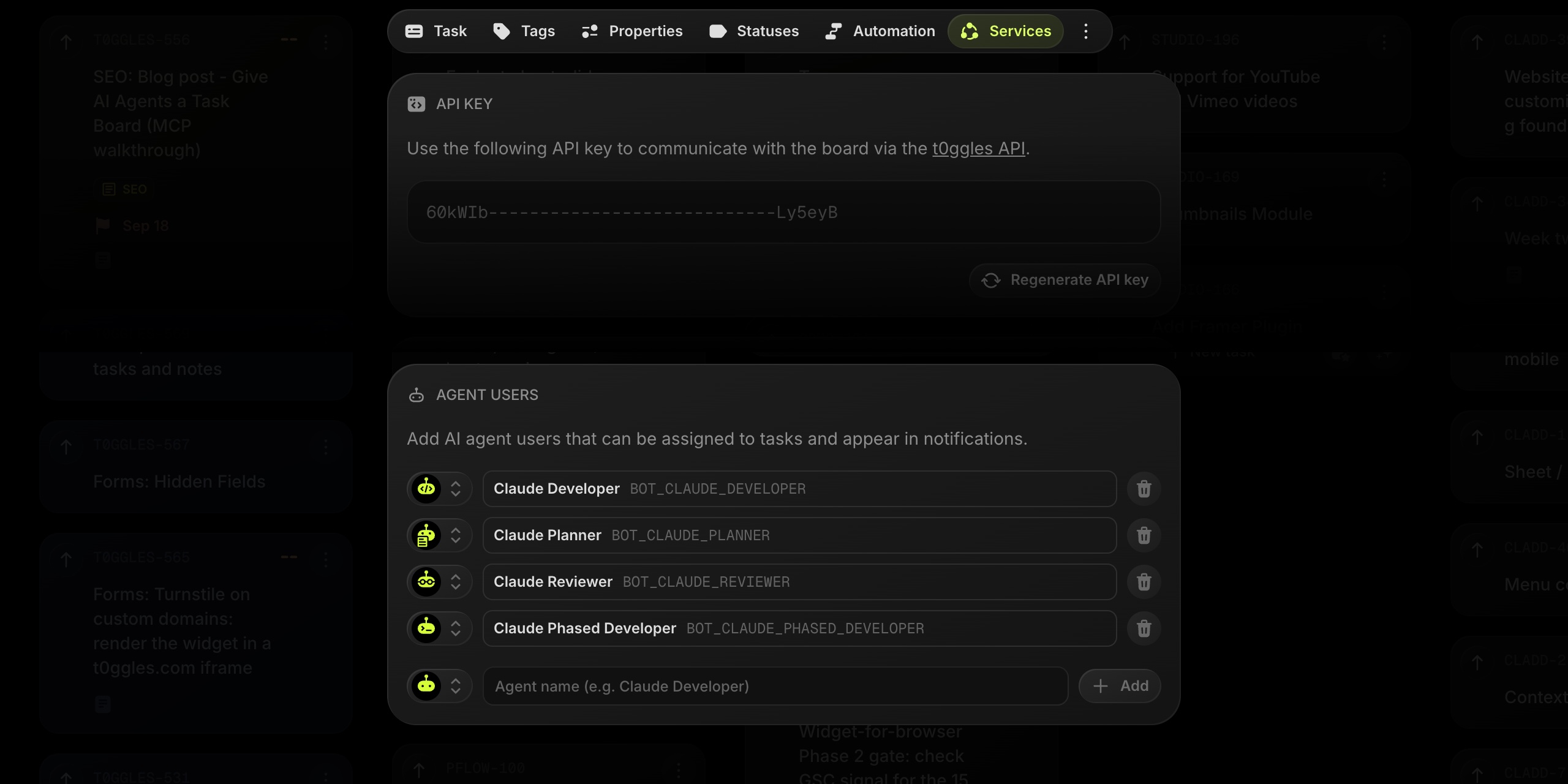
The agent user gets a bot user ID derived from its name, for example BOT_CLAUDE_DEVELOPER. It behaves like a team member: it appears in the assignee picker, in notifications, and in change history, with its own avatar so agent activity is easy to spot on the board. There is no limit on agent users, so create one per role (developer, reviewer, planner) rather than one per tool. The role is what you want to see in the history.
One thing to know: a bot user ID is derived from the name, so renaming means deleting and creating a new one. Pick names you will keep.
#Step 3: Write the Task as a Brief
Now assign work to the agent the same way you would to a person: create a task, set the assignee to "Claude Developer". The difference is in the description. A human colleague fills gaps from context. An agent fills them by guessing, so write the description the way you would for a contractor on their first day:
GoalAdd rate limiting to the public `/api/forms/:id/submit` endpoint.Constraints- Use the existing `rateLimit()` helper in `src/worker/shared/rate-limit.ts`- Limit: 10 submissions per IP per minute, return 429 with a JSON error body- Do not change the request or response shape for successful submissionsDefinition of done- Unit test for the limiter path- `npm run check-types` passes- Open a PR against `master` and put the link in your comment
Set the status to your initial column (Backlog or To Do) and add a due date if it matters. If the task needs a review gate, and it almost always does, make sure the board has a status called something like Human Review between In Progress and Done. Add it once in Board Settings > Statuses. The agent will move tasks into it; only a person moves tasks out.
#Step 4: The Loop the Agent Runs
This is the part that turns "an agent that can call a task API" into "an agent that manages its tasks". The loop is five MCP calls. Below is what a run looks like from the agent's side, using the real tool names and parameters from the t0ggles MCP server:
1. Pull the queue. get-my-tasks with the agent's bot user ID returns the tasks assigned to that agent, ordered by priority and due date:
{"tool": "get-my-tasks","boardId": "<board id>","botUserId": "BOT_CLAUDE_DEVELOPER"}
2. Read the brief. get-task returns the full Markdown description, custom properties, dates, and the comment count. If there are comments, list-comments reads the thread. Earlier feedback from a reviewer lives here, so the agent reads it before starting.
3. Claim it. update-task moves the task to In Progress. Passing botUserId is what makes the history say "Claude Developer moved this to In Progress" rather than your name:
{"tool": "update-task","boardId": "<board id>","taskId": "<task id>","statusId": "<In Progress status id>","botUserId": "BOT_CLAUDE_DEVELOPER"}
4. Do the work. Whatever the agent's own tools are: edit code, run tests, open a PR. Nothing here touches the board until the work is at a state a person can review.
5. Report and hand off. Two calls. create-comment posts the summary and mentions the reviewer by their exact display name so they get a notification. update-task moves the task to Human Review. Both carry botUserId:
{"tool": "create-comment","boardId": "<board id>","taskId": "<task id>","text": "Rate limiting added in PR #412: 10 req/min per IP on the submit endpoint, 429 with `{ error }` body, unit test added. `check-types` passes. @Jane Doe ready for review.","botUserId": "BOT_CLAUDE_DEVELOPER"}
If the agent found related work along the way, create-task files it as a new task assigned back to you, with a description of what it found and why it did not fix it. That is much better than either silently expanding scope or silently dropping it.
In plain language, the instruction that produces this loop is short enough to paste into a prompt:
Use the t0ggles MCP server. On the Backend board, get the tasks assigned to BOT_CLAUDE_DEVELOPER. Take the highest-priority one. Move it to In Progress. Read the description and any comments. Do the work and open a PR. Post a comment with a summary and the PR link, mentioning @Jane Doe, and move the task to Human Review. Always pass botUserId BOT_CLAUDE_DEVELOPER so the actions are attributed to you. If you find related work outside the brief, create a separate task for it instead of doing it.
#Step 5: Review, Send Back, or Close
You get the mention notification. On the task you see the agent's comment, the PR link, and the change history for the run. From here there are two outcomes:
- Approved. Move the task to Done. With the GitHub integration, merging the linked PR moves the task to Done for you.
- Needs changes. Reply on the task with what to fix and mention the agent. On the next run the agent reads the comment thread in step 2 and picks up where it left off.
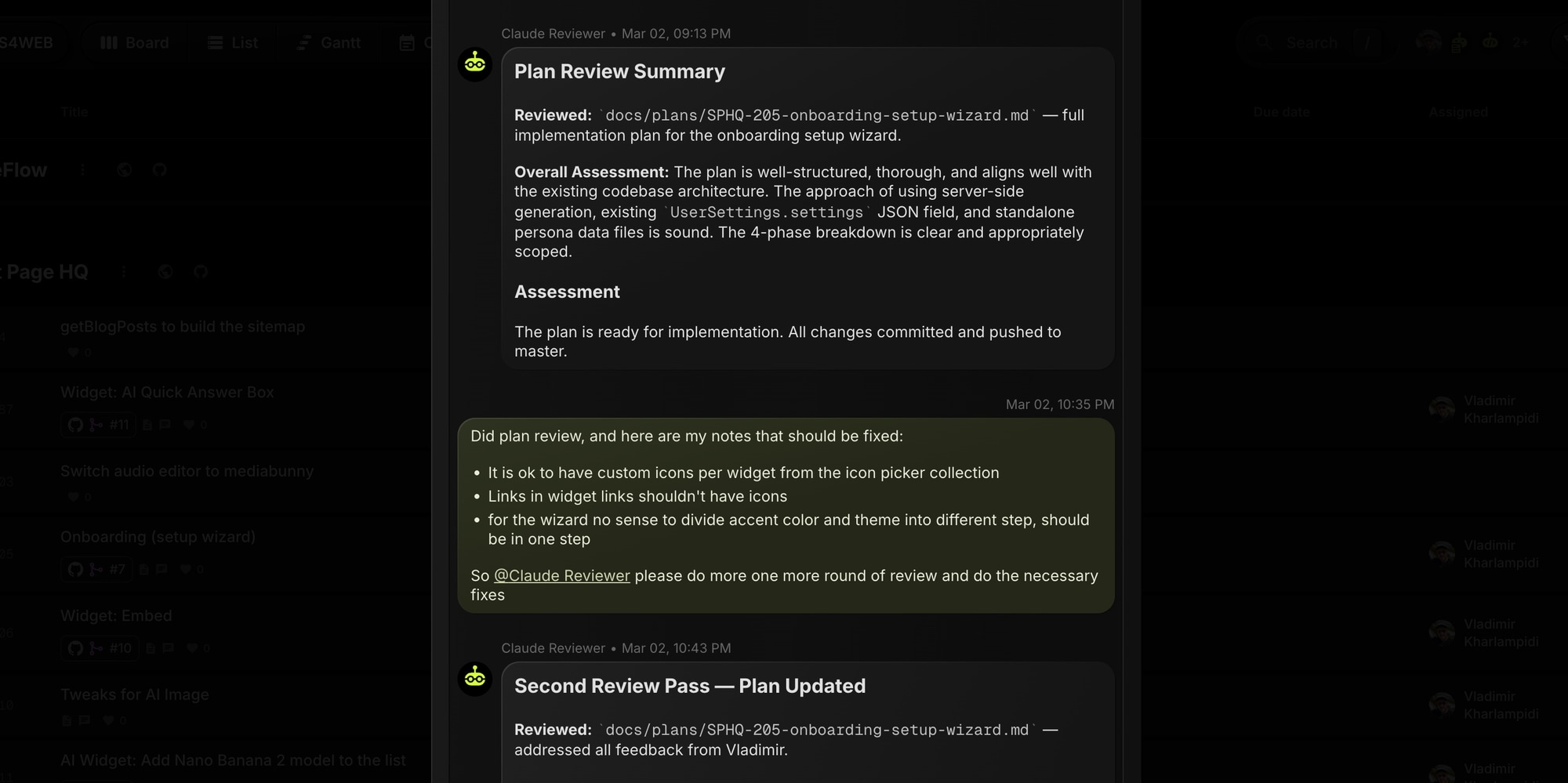
The screenshot above is a real exchange: a reviewer agent posts its plan review, a person replies with three fixes and mentions the agent, and the agent posts its second pass. All of it stays on the task, which means the next person who opens it sees the full agent-then-human sequence without asking anyone.
#Make It Repeatable: Put the Loop in Your Agent's Instructions
Pasting the loop into a prompt works for a test. For daily use, put it where your agent reads instructions on every run, so any session in that repo knows how to work the board:
- Claude Code:
CLAUDE.mdin the repo root - Cursor: a rules file under
.cursor/rules/ - Codex and most other agents:
AGENTS.md
A minimal section looks like this:
## Task boardWork is tracked on the t0ggles board "Backend": https://t0ggles.com/backendYou are the agent user `BOT_CLAUDE_DEVELOPER`.- Find the board id with `list-boards` (match the URL above) and use it inevery call.- Pull your queue with `get-my-tasks` (botUserId `BOT_CLAUDE_DEVELOPER`).- Before starting a task, move it to In Progress with `update-task`.- Read the description and all comments before changing code.- When done, post a summary comment mentioning `@Jane Doe`, then move the taskto Human Review. Never move a task to Done yourself.- Pass `botUserId: BOT_CLAUDE_DEVELOPER` on every update-task, create-task,and create-comment call.- Out-of-scope findings become new tasks assigned to Jane Doe, not extra changes.
The line "never move a task to Done yourself" is the human-in-the-loop rule in one sentence. The agent can propose; a person disposes.
#Turn One Run Into a Loop
Everything above runs once, when you start a session. The agents themselves can repeat it. Claude Code and Codex both have built-in ways to re-run a prompt on a schedule or keep working until a condition holds, and the queue prompt from step 4 is a good fit for all of them.
Claude Code /loop re-runs a prompt on an interval while the session stays open:
/loop 15m check the tasks assigned to BOT_CLAUDE_DEVELOPER on the Backend board. If there is one in To Do, work it through the task board loop from CLAUDE.md. If the queue is empty, say so in one line.
Leave out the interval and Claude picks one itself, checking more often while a task is active and backing off when the queue is quiet. Press Esc to stop a self-paced loop, or ask Claude to cancel a fixed-interval one. Loops live in the session: closing the terminal stops them, and a recurring loop expires after seven days. For a loop that runs without your machine, Claude Code's cloud routines (/schedule) take the same prompt on an hourly or longer cadence, with the t0ggles MCP server added as a connector on the routine.
Claude Code /goal is the other shape: instead of a timer, Claude keeps taking turns until a condition is met. It suits draining a queue in one sitting:
/goal work through the tasks assigned to BOT_CLAUDE_DEVELOPER on the Backend board until none of them is left in To Do or In Progress, or stop after 10 turns
A small model checks the condition after each turn, so write it as something Claude's own output can prove, and include a turn cap. Anthropic's guide to loops covers when to reach for each.
Codex scheduled tasks do the same job from the ChatGPT desktop app or web, where Codex runs are created and managed under Scheduled. Give the task the same queue prompt, pick a cadence from minutes to daily or weekly, and results land in the Scheduled view for review. The CLI is where you test the prompt first. See OpenAI's scheduled tasks docs for the current setup steps.
Whichever you use, the instructions file from the previous section is what makes the scheduled prompt short: the loop, the identity, and the never-move-to-Done rule are already in the repo, so the scheduled prompt only has to say "work the queue".
#Running It Unattended With t0ggles Crew
A /loop or a scheduled task keeps one agent on one machine polling. To have several agents poll on their own, chain a reviewer after a developer, and trigger runs from assignments and mentions on the board rather than a timer, use t0ggles Crew. It is a free desktop app that runs Claude Code, Codex, or OpenCode as pipelines against your board:
- Auto mode watches for tasks assigned to a pipeline's bot user and starts a run when one appears.
- Mentions work as triggers too: writing
@Claude Reviewer please take another lookon any task starts a focused run, even if the task is assigned to someone else. - Chaining connects pipelines: the planner writes a plan, the reviewer checks it and assigns the task to you, you approve, and the developer implements.
The agent user you created in step 2 is the same identity a Crew pipeline uses, so nothing about the board changes when you go from manual sessions to unattended runs. The Crew getting started guide covers the setup wizard, and Human-in-the-Loop Workflows for Coding Agents covers where to put the human checkpoints in a planner, developer, and reviewer chain.
#What to Track Once It Works
A few additions pay off quickly once an agent is doing real work:
- Custom properties for agent metadata: model, token usage, a confidence score, a review outcome. The agent sets them through the
propertiesparameter ofupdate-task, and you filter the board by them. - Time logging.
log-timelets the agent record how long a run took on the task, so time tracking and the board reports cover agent work as well as people's. - The activity log.
get-activity-logreturns the board's change history as data, so an agent, or you, can answer "what did the agents do this week" without opening every task. The change history on each task shows the same trail in the UI, and Tracking What Your AI Agents Actually Did shows how to review it. - Dependencies. For multi-agent chains, task dependencies make the order explicit.
get-blocked-taskstells an agent what it cannot start yet.
#Getting Started
- Create a free t0ggles account and a board. MCP, agent users, and Crew are all included on the free plan.
- Connect your agent with the one-line config from the MCP docs.
- Add an agent user in Board Settings > Services and a Human Review status.
- Write one task as a brief, assign it to the agent, and run the loop from step 4.
If you want the broader picture first, the task management for AI agents page covers where a board fits next to observability tools and how teams structure multi-agent work. The MCP server launch post covers what else the server can do beyond the agent loop, from notes to reports.
#Frequently Asked Questions
Don't Miss What's Next
Get updates, design tips, and sneak peeks at upcoming features delivered straight to your inbox.