How to Make a Trello Board in Notion (and the Trello Integration Options)
Yes - you can make a Trello board in Notion. Create a database, switch its layout to Board and group it by a Status property: every status becomes a column (a Trello list) and every page becomes a card you drag between columns. Board view is included on every Notion plan, including Free. What Notion does not give you is a live connection to an existing Trello board - its Trello importer is a one-time migration - or kanban basics like WIP limits.
This guide walks through building a Trello-style board in a real Notion workspace, how Trello concepts map to Notion, every way to connect Trello and Notion, and where a Notion board falls short of a dedicated kanban tool.
#How to Make a Trello Board in Notion
A Notion board is a view of a database, so the first step is always a database. There are three ways to get one:
- Inline on any page - type
/board viewand press Enter. Notion creates a new database with a board view in place. - As a full page - create a new page, open the ••• menu in the "Get started with" options under the title and choose Board.
- On an existing database - click + next to the view tabs at the top of the database and choose Board.
When a board is created, Notion groups it by the database's Status property. If there is no Status property, it falls back to a select, multi-select, person or relation property, and if there is none of those either, it creates a new Status property for you. Each option becomes a column.
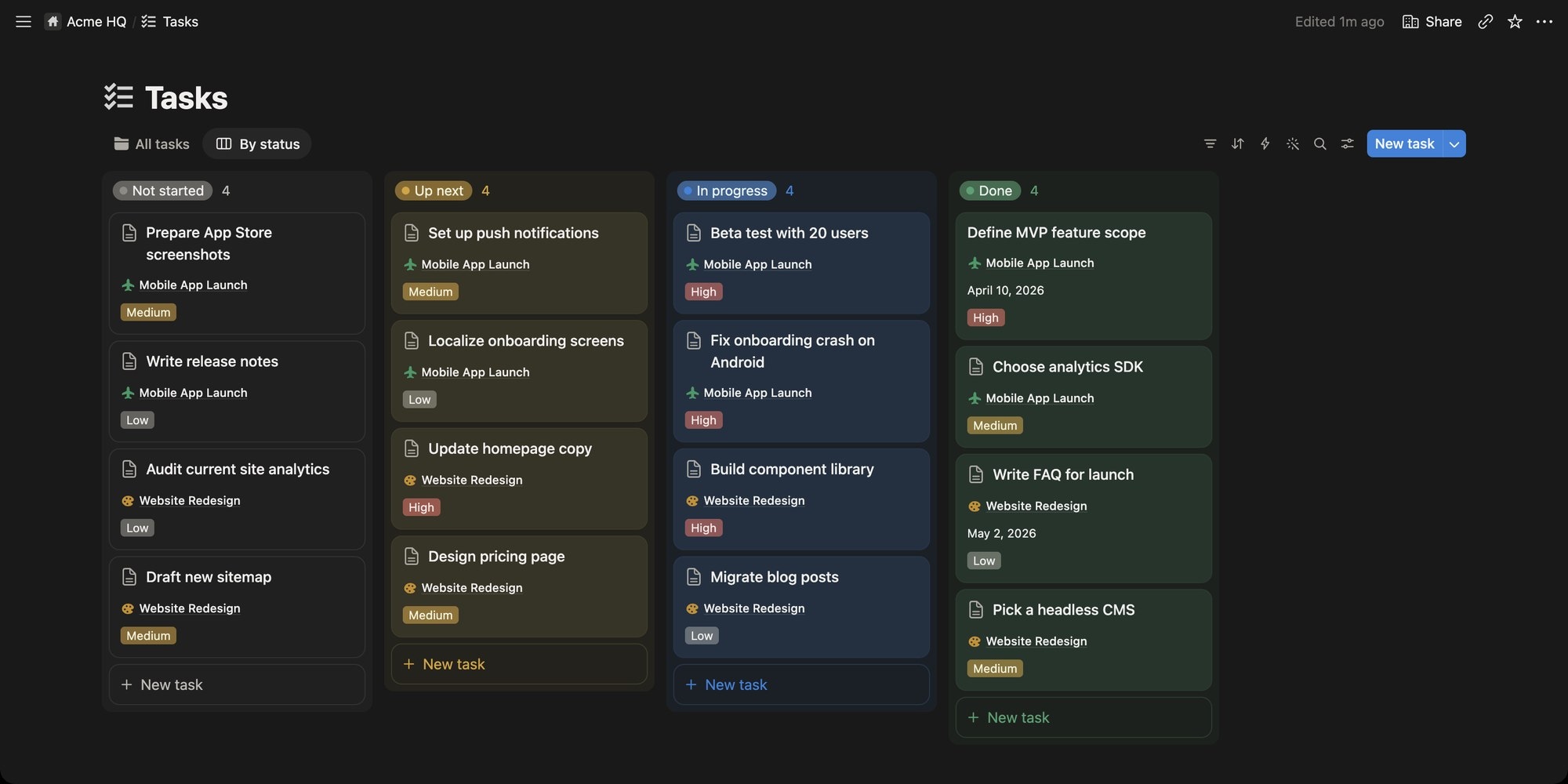
The board above is the Tasks database from a fresh free workspace, grouped by Status with four options: Not started, Up next, In progress and Done. Cards show a project (a relation to a Projects database) and a Priority select. Click + New task at the bottom of a column and the new card is created with that column's status already set. Drag a card into another column and its status changes.
The Status property is worth knowing before you design columns. Every option belongs to one of three fixed categories - To-do, In progress and Complete - and you can add as many options as you like under each. You can rename the options but not the three categories. If you want columns that do not fit that model, group by a Select property instead.
#Trello Concepts Mapped to Notion
Notion's board is built from database parts, so each Trello object has a Notion equivalent with a different name:
| Trello | Notion | Notes |
|---|---|---|
| Board | Database with a Board view | The same database can also be a table, calendar or timeline |
| List | Group (one option of the grouped property) | Usually a Status or Select option |
| Card | Page (a database item) | Opens as a full document, so a card can hold specs, notes and embeds |
| Labels | Multi-select property | Shown on the card as colored tags |
| Members | Person property | Groupable, so you can make a column per person |
| Due date | Date property | Calendar and Timeline views read the same field |
| Checklist | To-do blocks inside the page, or sub-items | Sub-items are real database items with their own status |
| Card cover | Page cover via Card preview | Or page content, or a Files & media property |
| Automation | Database automations and buttons | Database automations need a paid Notion plan |
| Power-Ups | Connections, automations, formulas and relations | No per-board plugin store |
| Board sharing | Share the page, or publish it to the web with Notion Sites | Published databases let viewers switch views and open pages |
The biggest mental shift: a Trello card is a small record, while a Notion card is a whole page. That is the reason many teams build their board in Notion in the first place - the spec, the meeting notes and the task live in the same object.
#Columns, Groups and Swimlanes
Open the view settings (the sliders icon next to New) and click Group to control the columns.
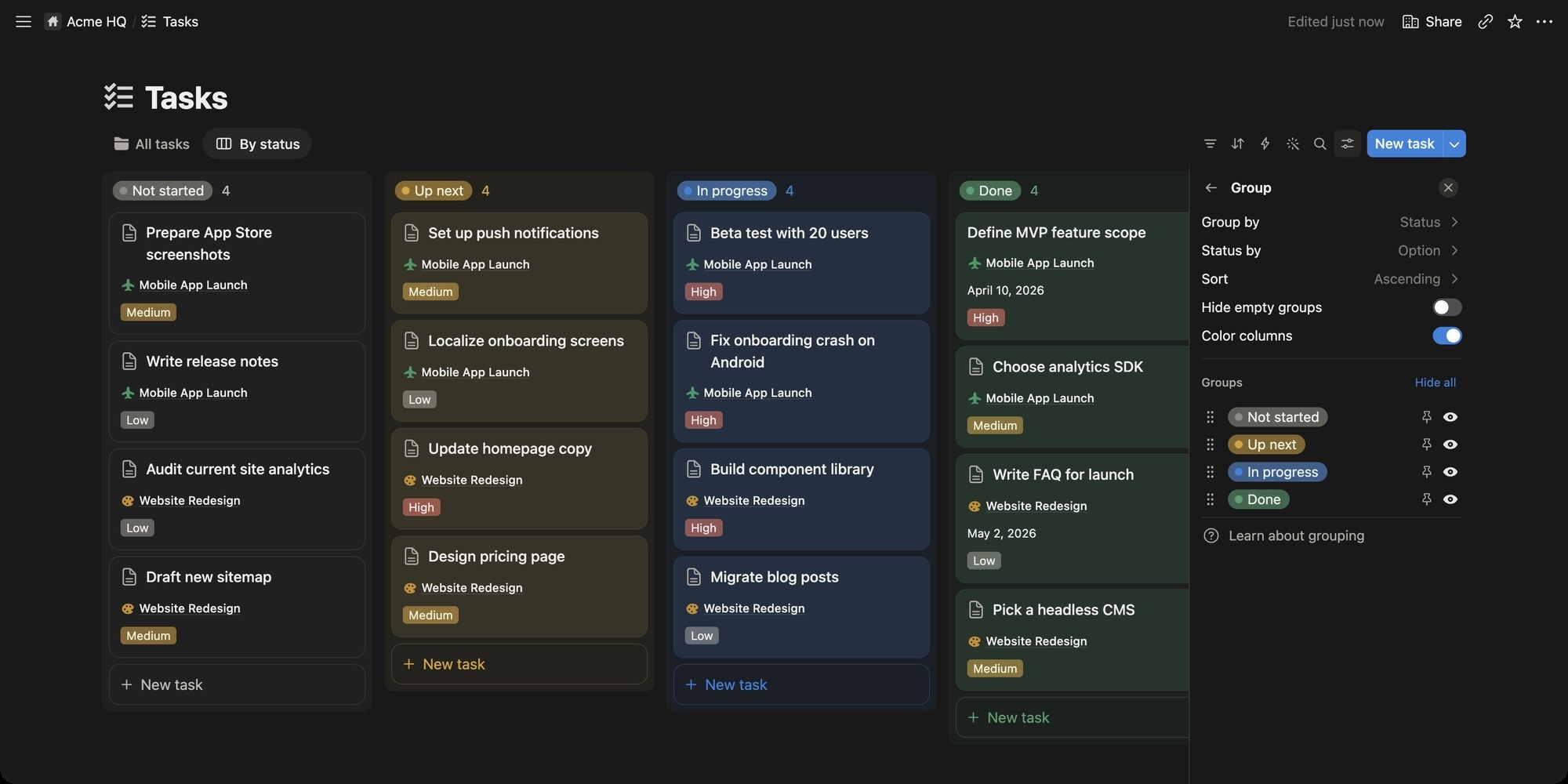
What you can do from here:
- Group by picks the property behind the columns. In our test workspace the options were Name, Due date, Priority, Project and Status, so Notion boards can be grouped by text, date, select, relation and status properties, not only by status.
- Color columns tints each column with its option color (on by default). Turn it off for a plainer, Trello-like look.
- Hide empty groups removes columns with no cards.
- Groups lists every column: drag to reorder, click the eye to hide a column, or pin a group. Hidden columns stay listed here, which is where you park something like an Archived status.
- Sort orders the groups themselves, for example alphabetically.
The grey number next to each column name is a card count. Click it to change the calculation - count empty, count values, percent, or sum and average for number properties - which is handy for story points.
#Swimlanes With Sub-Groups
Trello has no native swimlanes. Notion does: Sub-group adds a second layer of grouping, so the board gets horizontal rows that cross every column.
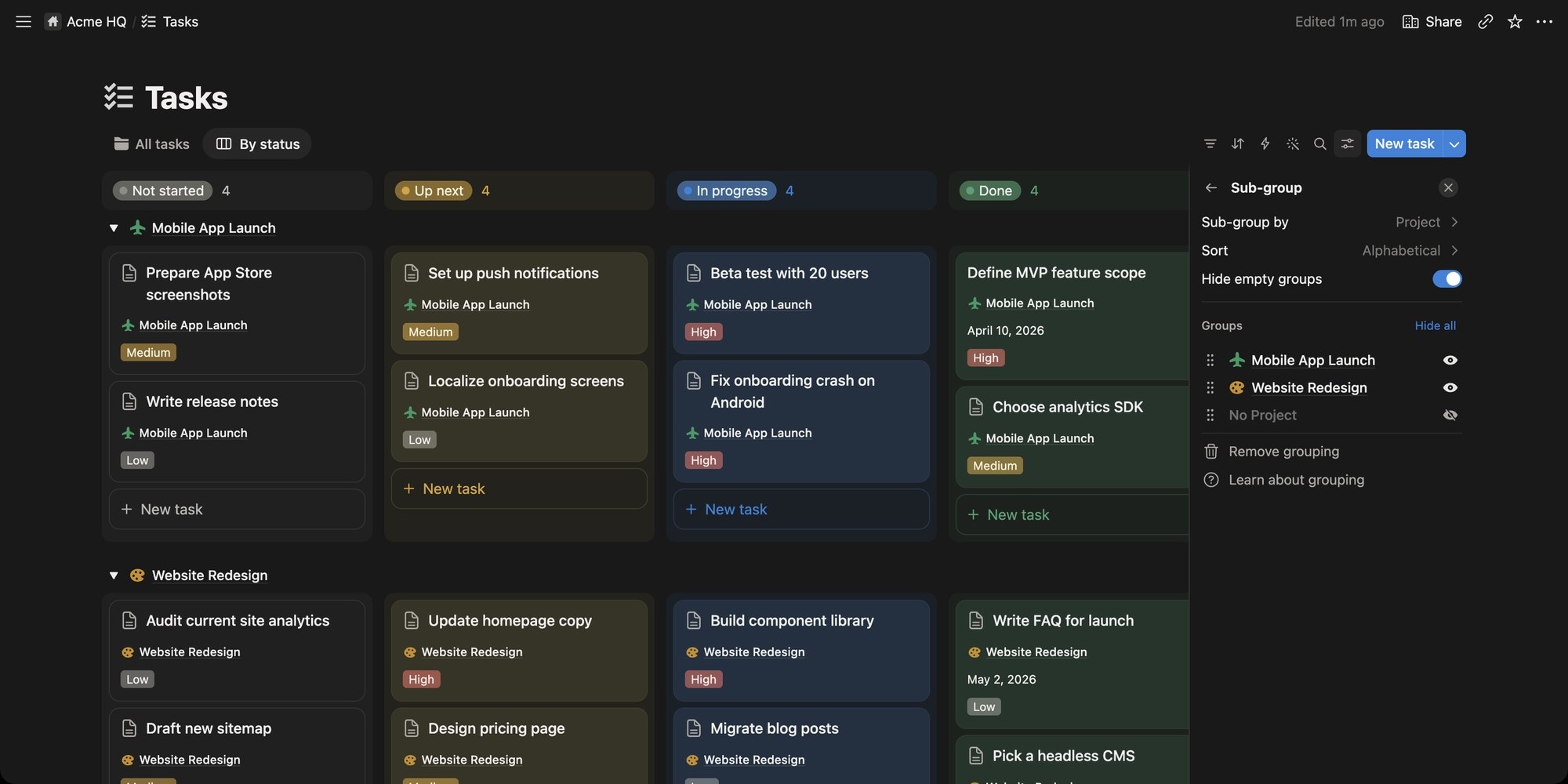
Sub-grouping our Tasks board by Project gives one lane per project across the status columns. Cards created with + New task inside a lane get both values - the column's status and the lane's project. Sub-groups have their own Hide empty groups and visibility toggles, and Remove grouping turns the board back into plain columns.
#Customizing Cards
The Layout panel in view settings is where a Notion board starts to look like Trello:
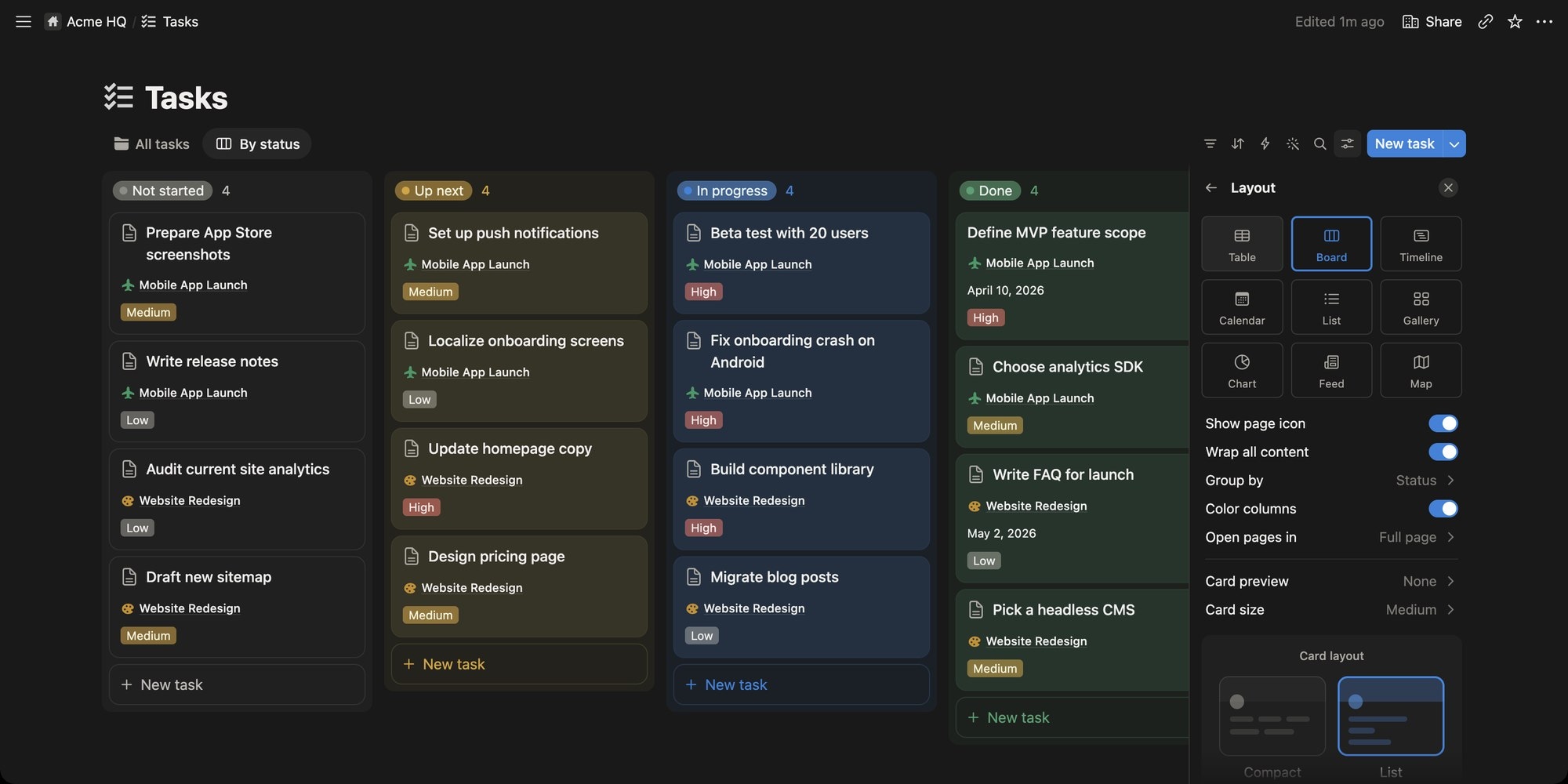
- Layouts - Table, Board, Timeline, Calendar, List, Gallery, Chart, Feed and Map are all views of the same database. Switch here or add a second view so the board and the timeline sit side by side.
- Card preview - None, Page cover, Page content, or a Files & media property. Page cover is the closest match to Trello card covers.
- Card size - small, medium or large.
- Card layout - Compact or List, which changes how properties stack on the card.
- Open pages in - Side peek (the board default, keeps the board visible behind the card), Center peek or Full page.
- Show page icon and Wrap all content - toggles for the page icon and long titles.
Which properties appear on cards is controlled separately under Property visibility in view settings, where you show, hide and reorder them. Conditional color (also in view settings) colors cards based on rules you set on their properties.
#Moving a Trello Board Into Notion
If your work already lives in Trello, Notion has a built-in importer: Settings → Import → Third-party imports → Trello, or type /trello on a page.
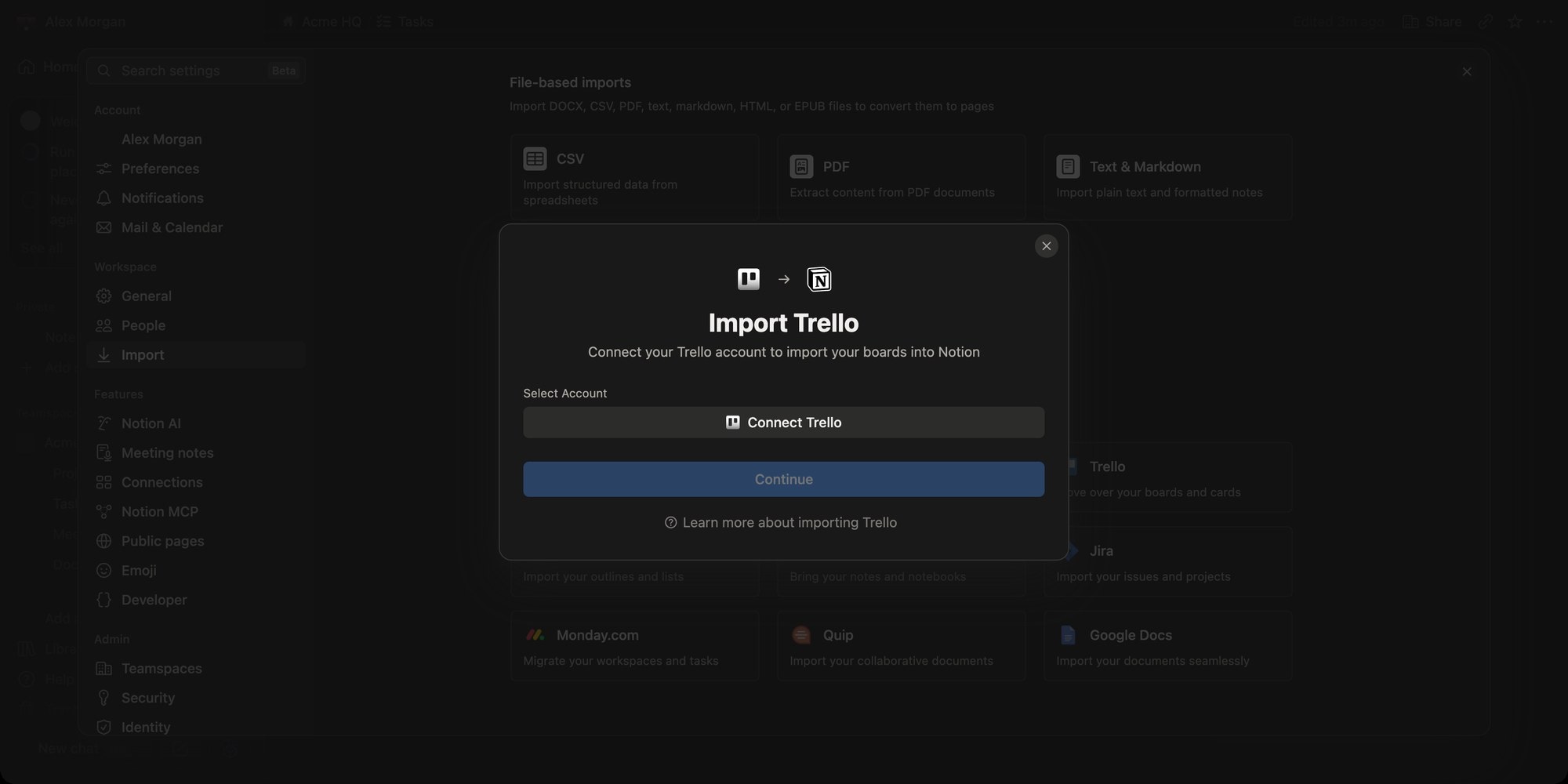
Connect your Trello account, pick the boards, and Notion converts them:
- Each board becomes a database, each list becomes a group (a board column), and each card becomes a page.
- You can map Trello's list (status) and labels to Notion properties during the import.
- Limits: roughly 5,000 cards and 5,000 comments per board, and up to 10 boards per import.
- Not imported: Power-Ups, automations and permissions. Rebuild those in Notion.
The importer is a one-time migration. Cards you add in Trello after the import do not appear in Notion, and changes in Notion never go back to Trello. Plan a cut-over date, import, and then work in one tool.
#Trello Notion Integration Options
"Integration" can mean a one-time migration, a live preview or an ongoing sync, and Notion only covers the first two natively:
| Option | Direction | Made by | What it does |
|---|---|---|---|
| Trello importer | Trello to Notion | Notion | One-time migration of boards, lists and cards into databases |
| Trello link previews | Trello to Notion | Notion | Paste a Trello link into Notion and it unfurls into a live preview |
| Synced databases | - | Notion | Not available for Trello - Notion syncs Jira, GitHub, Asana and GitLab only |
| Notion + Trello 2-Way Sync | Both ways | Unito | A Trello Power-Up that keeps cards and database items in sync, including status, dates and comments |
| Zapier automations | Either, per trigger | Zapier | Event-based: create a Notion page when a Trello card is added, and similar recipes |
If you want both tools to stay in sync - say, engineering stays in Trello while product plans in Notion - you need a third-party service such as Unito, and that is a paid subscription on top of both tools. If you are moving to Notion for good, the free importer is the right tool.
#Notion Board Limits and Pricing
Board view itself has no plan gate, but the board inherits Notion's plan limits:
| Limit | Notion Free | What it means for the board |
|---|---|---|
| Blocks | Unlimited for one member, 1,000 with more than one workspace owner | Every card is a block, and every paragraph inside a card is another |
| Guests | 10 | Clients and contractors count against this |
| File uploads | 5 MB per file | Large attachments on cards need a paid plan |
| Page history | 7 days | 30 days on Plus, 90 on Business |
| Database automations | Not included - buttons only | No "when status changes to Done, do X" rules on Free |
| Sub-items, dependencies | Included | Turn them on under More settings in the database |
The block limit is the one that catches teams. A shared free workspace with 300 cards that each hold a short description and a checklist can pass 1,000 blocks quickly, at which point Notion asks you to upgrade.
Notion pricing: Free is $0, Plus is $10 per member per month billed yearly ($12 monthly), Business is $20 per member per month billed yearly ($24 monthly), and Enterprise is custom. Business is the tier that includes Notion's AI agent; Free and Plus get a limited AI trial. For comparison, Trello Standard is $5 per user per month billed yearly ($6 monthly) and Premium is $10 ($12.50 monthly).
#Where a Notion Board Falls Short of Trello
Notion's board is powerful because it is a database. It is also less of a kanban tool for the same reason:
| Kanban feature | Notion board |
|---|---|
| WIP limits | No. Columns show a count, but there is no per-column maximum or warning |
| Swimlanes | Yes - Sub-group adds rows by any groupable property |
| Setup time | You design the database, properties and views before the first card |
| Card covers | Yes - Card preview with page cover, content or a files property |
| Automation | Database automations on paid plans only; buttons on Free |
| Dependencies | Yes - native dependencies and sub-items |
| Live Trello sync | No native sync - one-time importer, or Unito for two-way |
| Docs next to tasks | Yes - every card is a full page, and wikis live in the same workspace |
Where Notion clearly beats Trello is the last row. If your board needs to sit next to specs, meeting notes and a team wiki, Notion does that better than any kanban tool. Where Trello still wins is the first two minutes: a Trello board is ready the moment you create it, and the board is the whole product. For a fuller head-to-head see Trello vs Notion.
The missing WIP limit matters most for teams that run real kanban. Limiting work in progress is what makes the board a flow system rather than a list with columns, and in Notion the only enforcement is watching the column count.
#If You Want a Board-First Kanban Tool
If your team builds its board in Notion mainly because the docs are there, that is a good reason to stay. Teams tend to look for a dedicated tool when the board becomes the main thing - when they want WIP limits, several projects on one board without designing relations, or a Gantt chart and dependencies without building them from database parts.
t0ggles is built for that case. The board shows multiple projects as columns from the first minute, and Focus Mode turns any single project into a classic status-column kanban. Each status can carry a Max tasks value - the column turns red the moment you exceed it, which is the WIP limit Notion lacks. Swim lanes group the board by status, assignee, priority, milestone, tags or dates, and the same tasks open in List, Calendar and Gantt views with task dependencies and milestones.
| Kanban feature | Notion | t0ggles |
|---|---|---|
| Setup | Design a database, properties and views | Board ready on creation, with statuses and projects |
| WIP limits | No | Yes - per-status Max tasks with red overload highlight |
| Swimlanes | Sub-groups by any groupable property | Group Tasks by status, assignee, priority, milestone, tags or dates |
| Multiple projects | Via a relation to a Projects database | Built in - projects side by side on one board |
| Views | 9 layouts, all free | Columns, List, Calendar, Gantt - all free |
| Dependencies | Yes, native | Yes, with lag days and cycle detection |
| Docs and wiki | Best in class - pages, wikis, databases | Notes linked to tasks, but no full wiki |
| Free plan | Unlimited solo, 1,000 blocks when shared | 1 board, 3 members, 100 tasks, all views included |
| Paid | $10/member/month Plus, $20 Business | $5/user/month, everything unlimited |
Be honest about scope. If one person is building a personal board, Notion Free is unlimited and holds far more than the 100 tasks on the t0ggles free board. And no kanban tool replaces Notion as a wiki. t0ggles fits a team that wants the board itself to be the product - WIP limits, swim lanes, dependencies and a Gantt chart without building them - at a flat $5/user/month for everything.
For the details see t0ggles vs Notion and t0ggles vs Trello. If you are weighing other boards too, our guides to the Todoist kanban board and the Linear kanban board cover the same ground.
#Frequently Asked Questions
#Getting Started
- In Notion, type
/board viewon a page, or add a Board view to an existing task database. - Set Group to a Status property with one option per stage - those are your Trello lists.
- Use Layout to pick card covers and size, and Property visibility to choose what shows on cards.
- Moving from Trello? Run Settings → Import → Trello once, then switch over. And if you find yourself wishing the In progress column turned red at a limit, try t0ggles free and set Max tasks on the status.
Don't Miss What's Next
Get updates, design tips, and sneak peeks at upcoming features delivered straight to your inbox.